
Settings
The Settings page is the central place to configure how KubeSense collects, stores, and manages your observability data. Access it from the sidebar to control data retention, correlation behavior, RUM applications, trace filters, metrics usage, notification channels, and audit logs.
Who can open each tab is decided per role — see Role Access.
Settings is organized into tabs across the top: Domain, Data Retention, Indexed Attributes, API Key Management, Correlation Timeframe, RUM Application Management, Trace Filters, Metrics, Notification Channels, and Audit Logs.
Data Retention
Control how long each data type is retained and where it is stored. KubeSense supports a two-tier storage model:
- Hot tier (Disk) — Fast, local storage for recent data that you query frequently
- Cold tier (Object Storage / S3) — Cost-effective storage for older data that you access less often
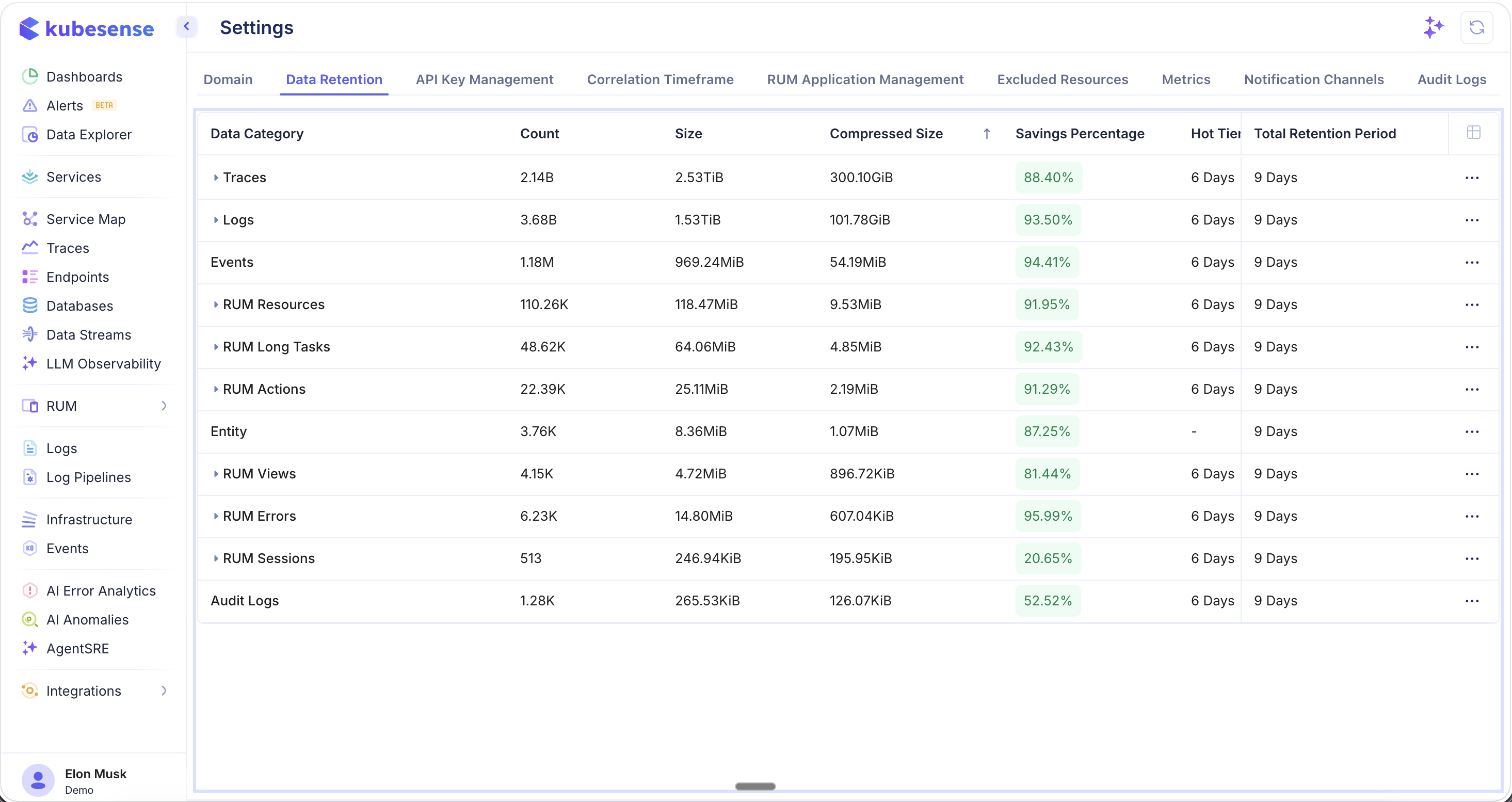
The retention table shows each data type with:
| Column | Description |
|---|---|
| Data Type | The category of observability data (e.g., Traces, Logs, Metrics) |
| Retention Period | How long data is kept before deletion |
| Actual Size | Raw data size on disk |
| Compressed Size | Size after compression — KubeSense achieves 93–95% compression, significantly reducing storage costs |
Editing Retention Rules
Click on any data type to modify its retention settings.
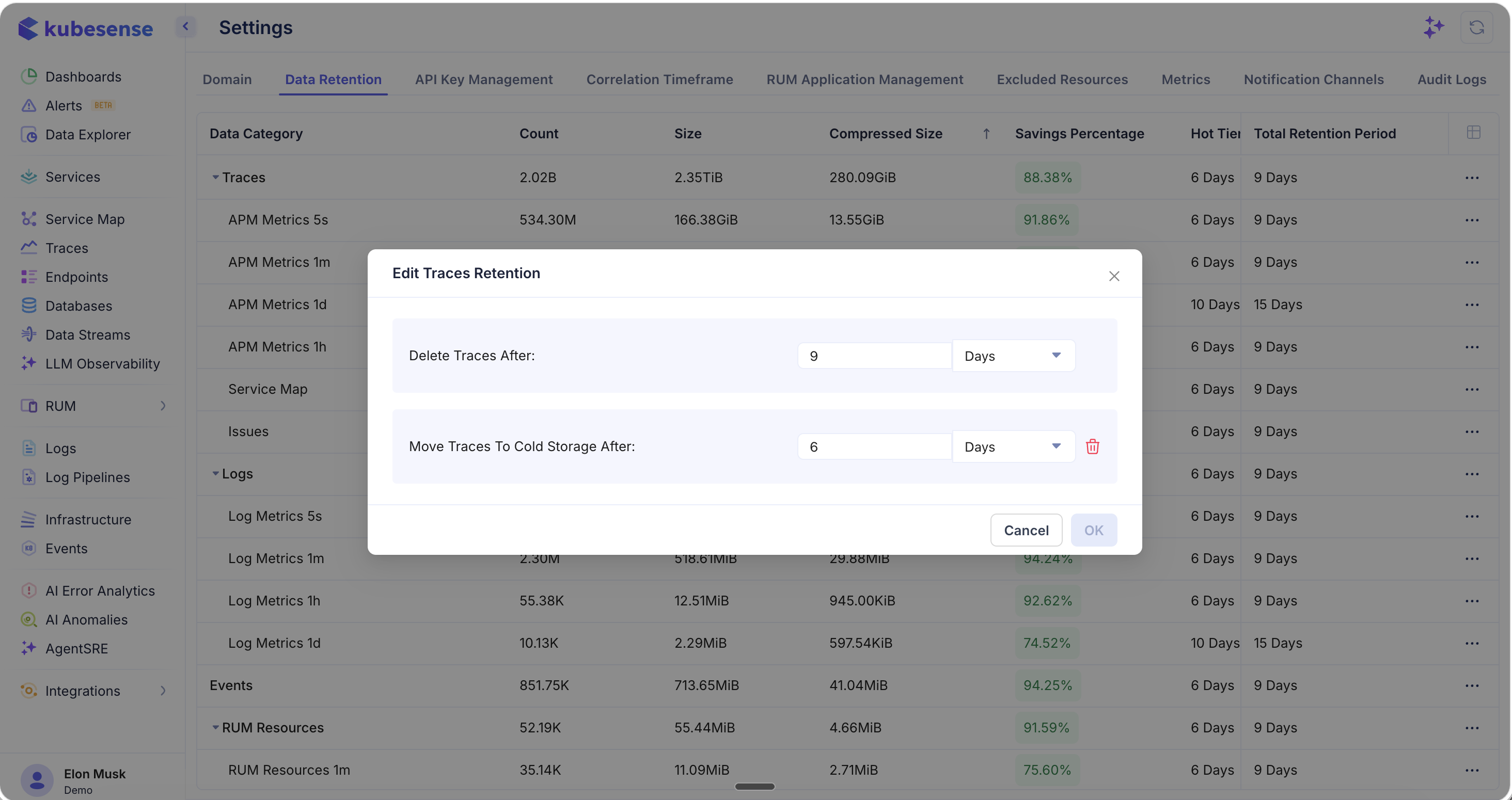
The edit dialog lets you configure:
- Move to cold storage after — Number of days before data moves from the hot tier (disk) to the cold tier (object storage/S3). This keeps recent data fast to query while reducing storage costs for older data.
- Delete traces purge setting — The maximum retention period after which data is permanently deleted.
Indexed Attributes
Attributes are stored in a flexible key-value structure, which means a search or group-by on one has to read that whole structure for every row it considers. Indexing an attribute gives it a dedicated storage column, so queries read only the values they need.
Use it for the handful of attributes you filter or group by most often — env, service, tenant, a customer identifier. Indexing does not change what a query returns, only how fast it returns it.
Indexing an attribute
Click Index an attribute, choose whether it comes from Logs or Traces, and pick the attribute. KubeSense creates the storage column on every shard and starts filling it as new data arrives.
You can index up to 10 attributes per signal — 10 for logs and 10 for traces. The limit is deliberate: every indexed attribute adds files to each piece of stored data, which costs write throughput and disk whether or not the attribute is queried.
Reading the table
| Column | Description |
|---|---|
| Attribute | The attribute key being indexed |
| Source | Logs or Traces |
| Type | Text or Number |
| Status | Where the index is in its lifecycle — see below |
| Shards | How many shards have confirmed the index, e.g. 2/2 |
| Distinct values | The number of distinct values sampled when the attribute was indexed |
Status values
| Status | Meaning |
|---|---|
| Indexing | The storage column has been created. Queries keep using the old path until every shard confirms it. |
| Indexed | Queries on this attribute now use the index. |
| Removing | Queries have stopped using the index. The storage column is being removed from each shard. |
| Not indexed | No index. The attribute is still fully queryable, just slower. |
| Failed | The storage engine rejected the change. The reason is shown; address it and try again. |
An attribute is only used by queries once it reaches Indexed on every shard. Until then queries keep reading the original structure, which is slower but always correct.
Indexing applies to new data only
This is the most important thing to know about the feature.
Creating an index does not rewrite data you have already collected. The speedup applies to data written after the attribute is indexed, and grows as older data ages out of your retention window. A dashboard covering the last 7 days will not get faster immediately — it improves over roughly the next 7 days as the data it reads is replaced by indexed data.
Results are correct the whole time. Queries over older data return exactly what they always did; only the newer data is faster to read.
What gets faster
| Searches | Group-bys | |
|---|---|---|
| Logs | Faster | Faster |
| Traces | Unchanged | Faster |
Trace searches read span attributes directly and are unaffected by indexing today. Trace group-bys use the index.
Removing an index
Use the ⋯ menu on any row and choose Remove index. Queries stop using it immediately, and the storage column is removed from each shard shortly afterwards. The attribute itself is untouched — it stays on every log line and span, and remains fully searchable.
Removing and re-adding an index is safe, and is the way to change how an attribute is indexed.
Availability
Indexed Attributes must be enabled for your installation. If the tab is not visible, ask your administrator to enable it — it requires a configuration flag and a database migration, and it is off by default because it changes storage schema.
Correlation Timeframe
Configure the time window used to correlate logs, metrics, and traces when navigating between signals.
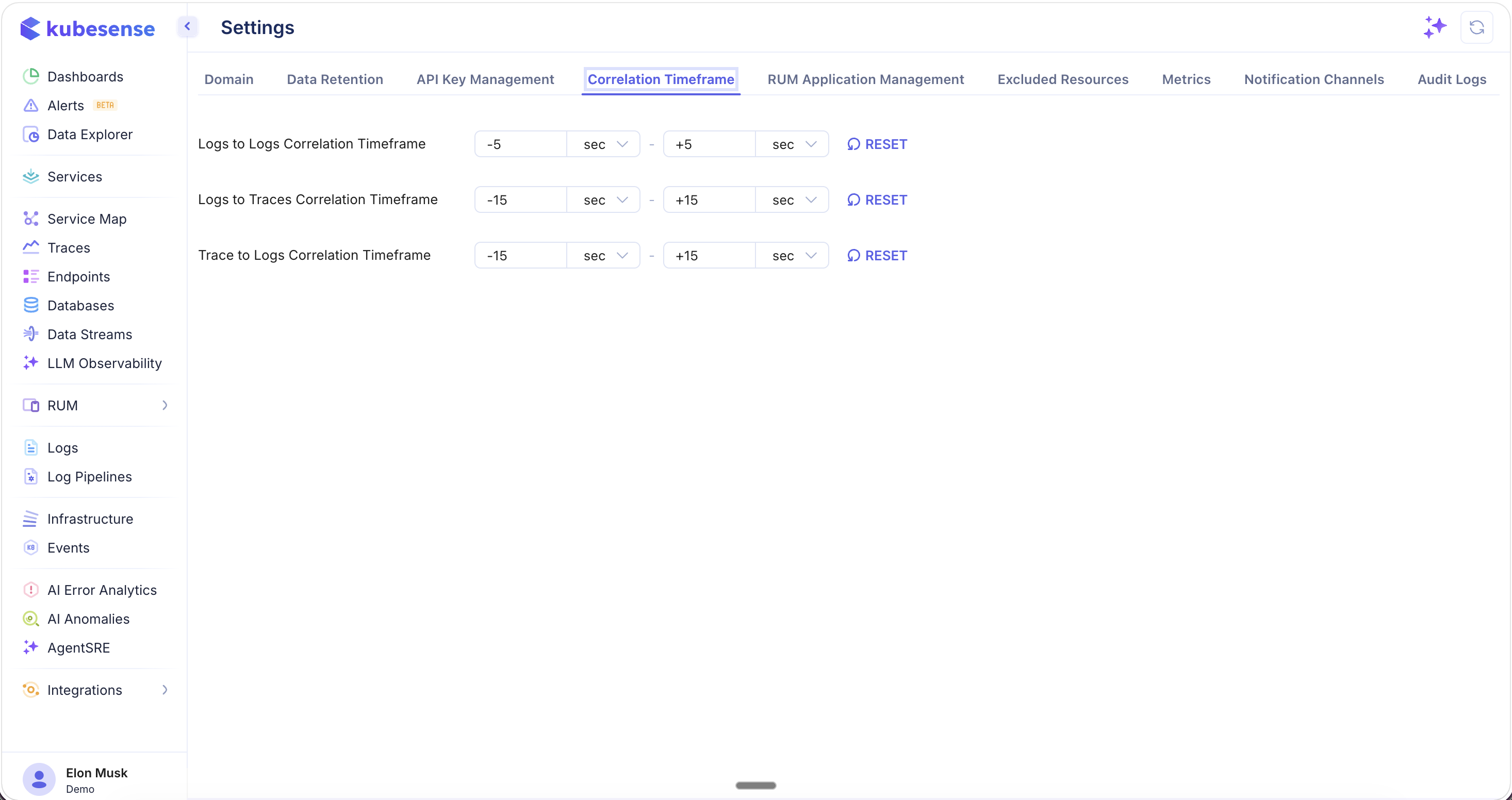
When you click from a trace to related logs, or from a log entry to associated metrics, KubeSense uses this configured window (e.g., 5 seconds, 10 seconds) to find correlated data around the event timestamp. A shorter window gives more precise correlations; a longer window catches events with slight timing offsets.
RUM Application Management
Manage the Real User Monitoring (RUM) applications connected to KubeSense.
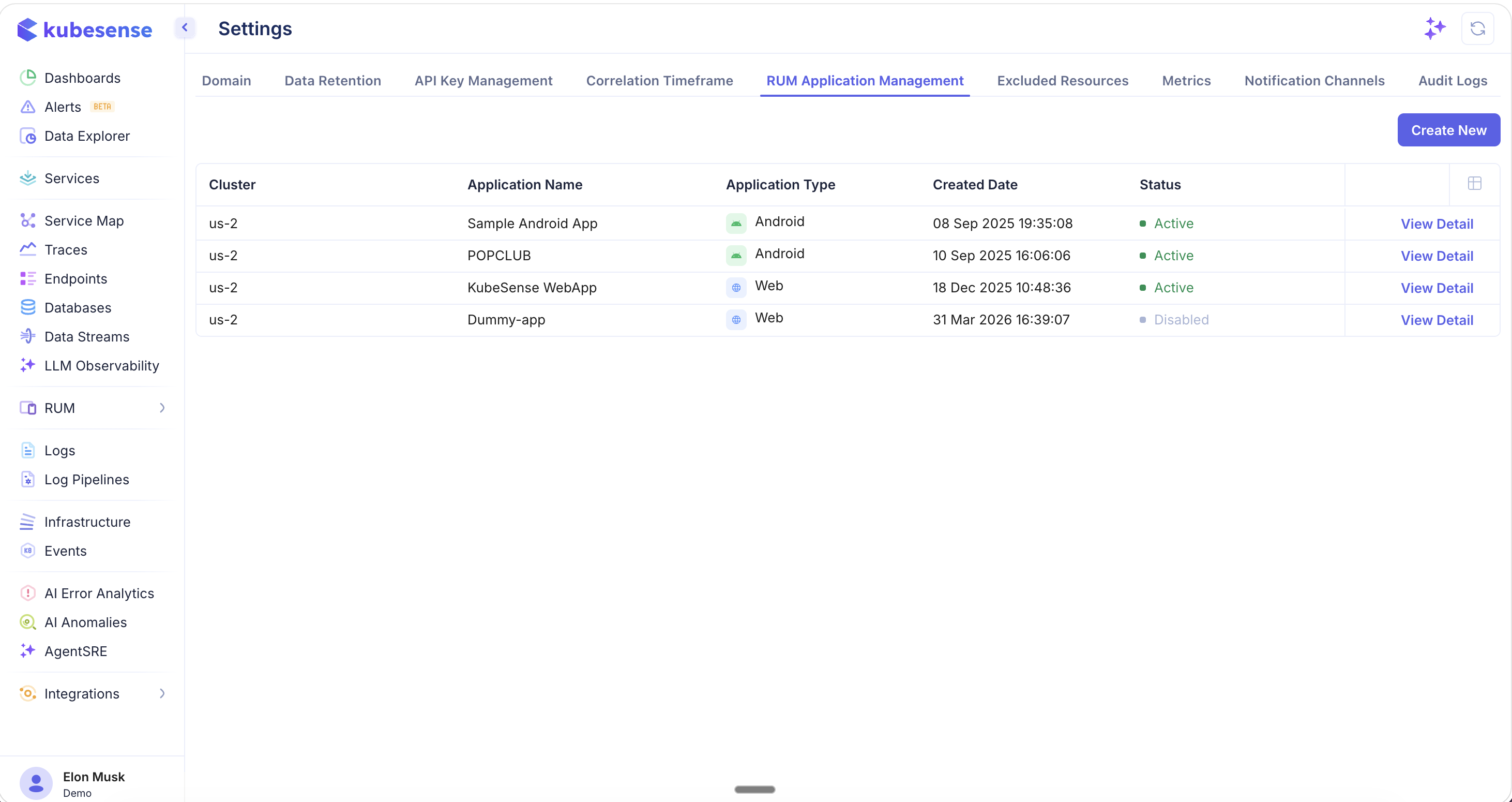
The management table lists all registered RUM applications with:
| Column | Description |
|---|---|
| Application Name | The name assigned to the RUM application |
| Application Type | The platform — Android, iOS, or Web |
| Created Date | When the application was registered |
| Active | Toggle to enable or disable monitoring for the application |
Adding a New RUM Application
Click Add New Application to register a new app for RUM monitoring.
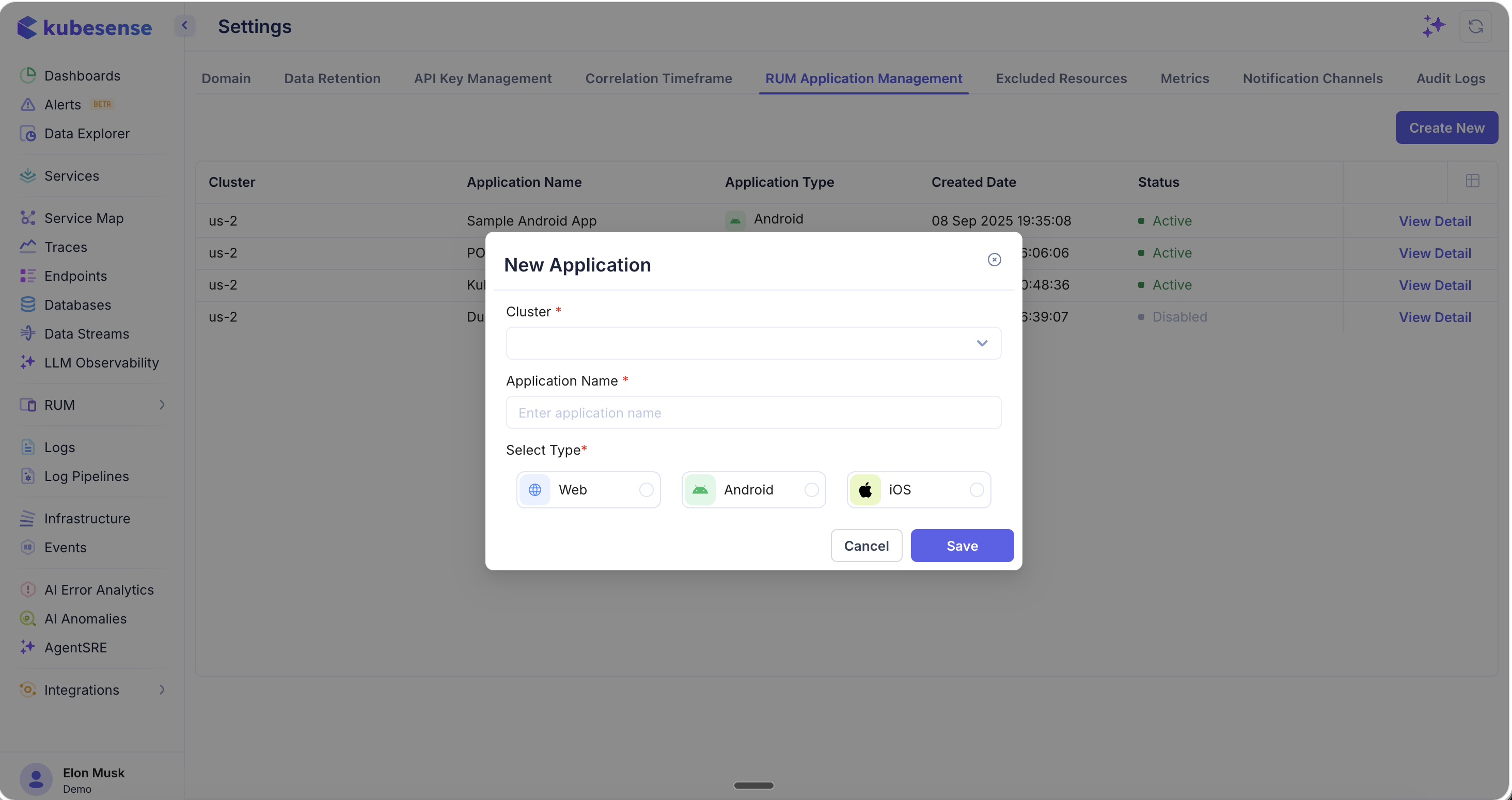
Provide the application name and select the platform type. Once created, KubeSense generates the instrumentation configuration needed to start collecting real user data from the application.
Trace Filters
Decide which traces KubeSense stores. Each rule either drops the traces it matches or collects only the traces it matches, by domain, namespace, workload, container, endpoint or OpenTelemetry/Datadog tag. Dropped traces are never stored, so they do not appear in trace search, on the Services or Endpoints pages, or in metrics built from traces.
Each rule has a toggle to enable or disable it without deleting it. Changes take effect within about two minutes.
See Trace Filters for how rules, conditions and domains combine, with worked examples.
Metrics
The Metrics tab provides visibility into your metrics storage usage, ingestion rates, and cardinality.
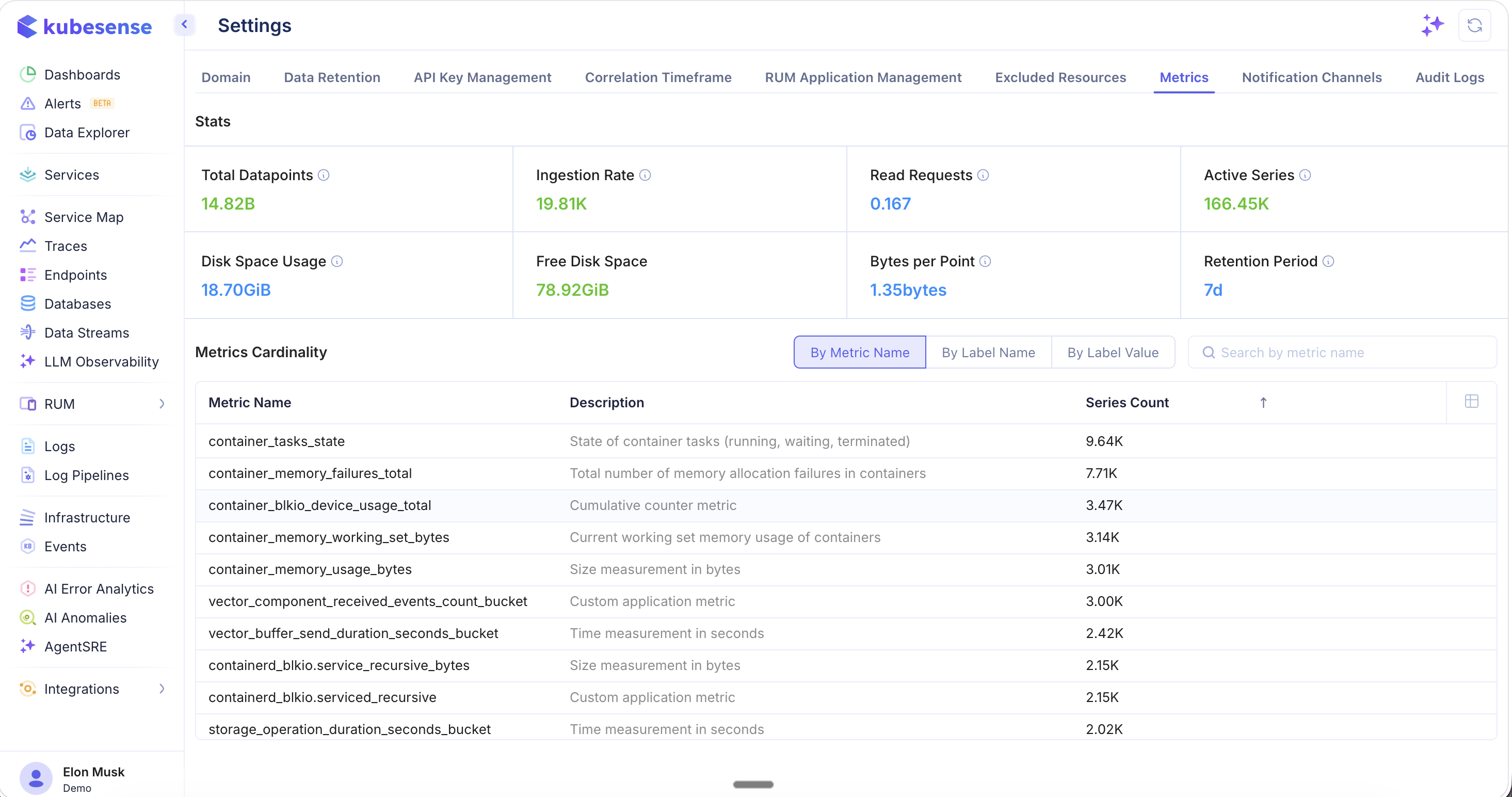
Stats
The top section shows key metrics storage statistics:
| Stat | Description |
|---|---|
| Total Datapoints | The total number of metric data points stored (e.g., 14.82B) |
| Ingestion Rate | Current rate of metric data points being ingested (e.g., 19.81K per second) |
| Read Requests | Current rate of metric read queries (e.g., 0.167 per second) |
| Active Series | The number of currently active time series (e.g., 166.45K) |
| Disk Space Usage | Total disk space consumed by metrics (e.g., 18.70 GiB) |
| Free Disk Space | Available disk space remaining (e.g., 78.92 GiB) |
| Bytes per Point | Average storage cost per data point (e.g., 1.35 bytes) |
| Retention Period | How long metrics are retained (e.g., 7d) |
Metrics Cardinality
The cardinality table helps you understand which metrics, labels, or label values are contributing the most to your active series count. This is critical for managing metrics costs and performance.
Browse cardinality by:
- By Metric Name — See each metric with its description and series count, sorted by highest cardinality
- By Label Name — Identify labels that create the most series (e.g., high-cardinality labels like
pod_nameorcontainer_id) - By Label Value — Find specific label values driving cardinality
Use the search bar to filter by metric name and the column picker to customize the view.
Notification Channels
Configure where alert notifications are delivered. KubeSense supports multiple channel types including Slack, Microsoft Teams, and Webhooks.
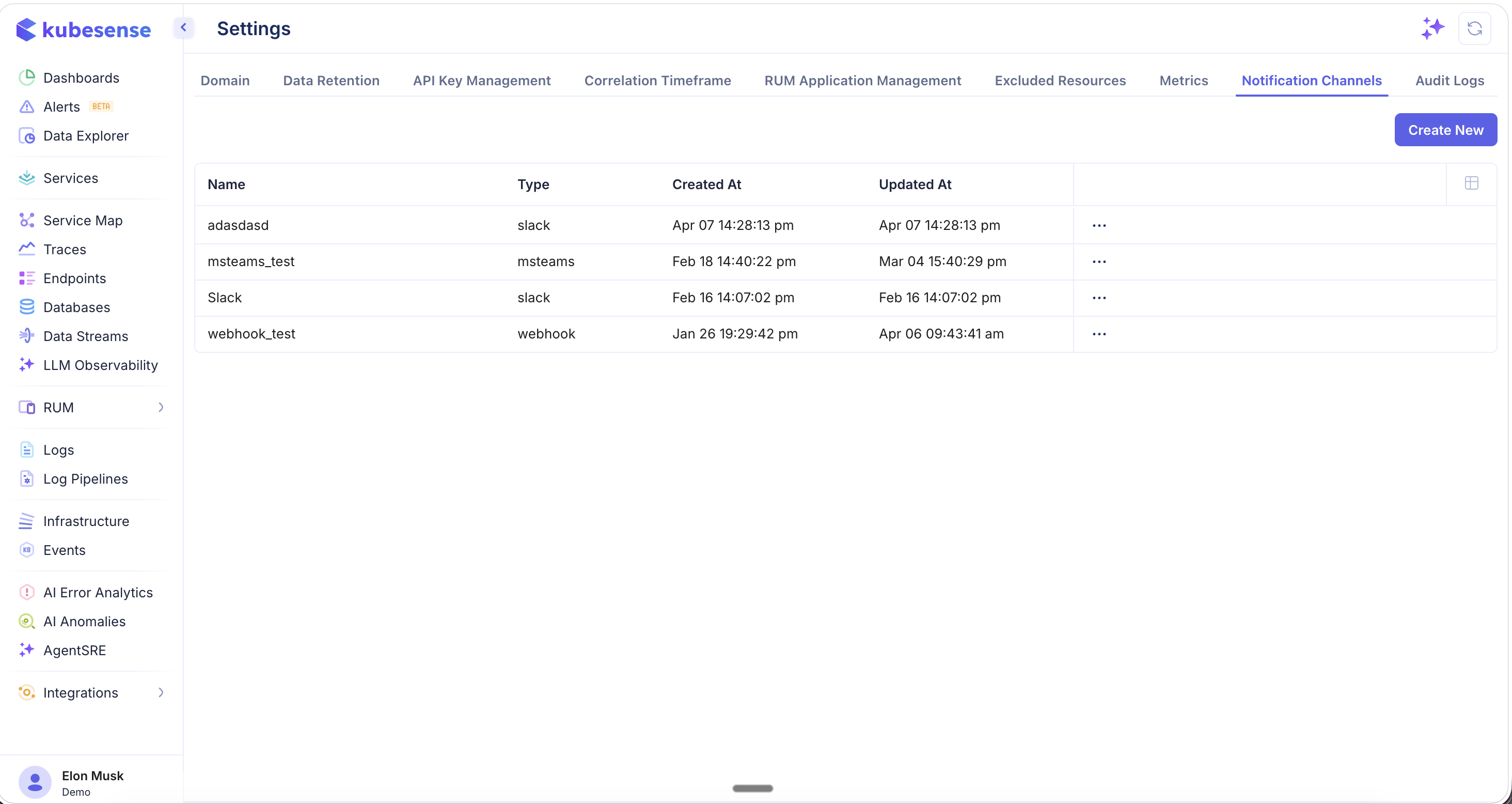
The notification channels list shows all configured channels with:
| Column | Description |
|---|---|
| Name | The channel name |
| Type | The channel type — slack, msteams, or webhook |
| Created At | When the channel was created |
| Updated At | When the channel was last modified |
Use the ... menu on each channel to edit or delete it.
Creating a New Notification Channel
Click Create New to add a notification channel.
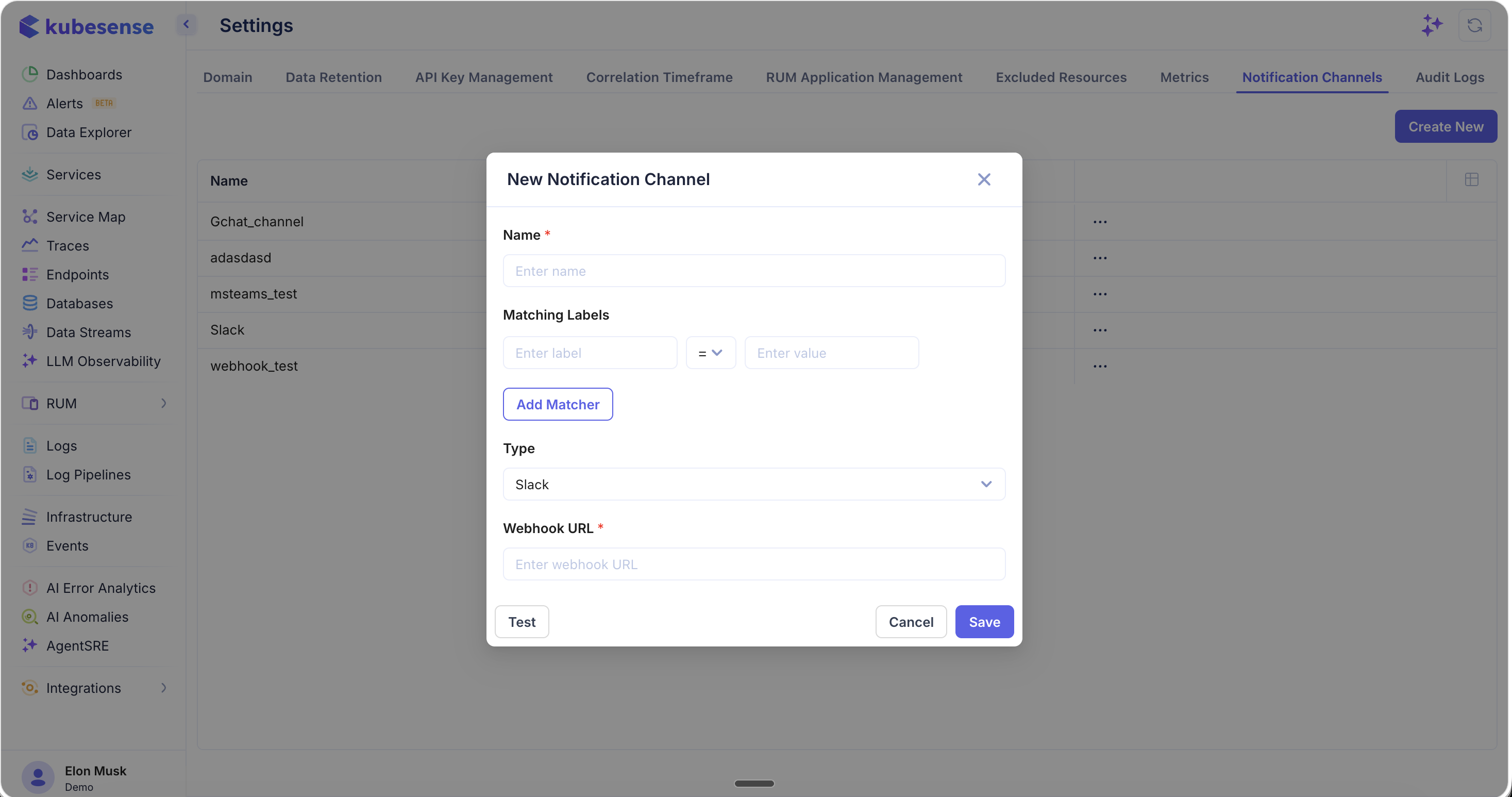
Configure the following:
- Name — A descriptive name for the channel (required)
- Matching Labels — Optional label matchers to route specific alerts to this channel. Add matchers with label, operator (
=), and value to filter which alerts are sent here. - Type — Select the channel type: Slack, Microsoft Teams, or Webhook
- Webhook URL — The incoming webhook URL for the selected channel type (required)
Use the Test button to send a test notification and verify the channel is configured correctly before saving. Click Save to create the channel.