
Integrations
KubeSense delivers alerts through multiple notification channels. Configure one or more channels and associate them with alert rules for flexible routing. Each channel type has its own setup page:
- Slack (Webhook) — post to a single channel via an incoming webhook
- Slack (App) — connect a workspace once, then alert to any channel
- Microsoft Teams
- PagerDuty
- Datadog On-Call
- Jira Service Management (On-Call) — formerly Opsgenie
- Google Chat
- Webhook — POST alerts to any HTTP endpoint
Creating a Notification Channel
Navigate to Alerts in the sidebar and open the notification channel settings. Click to add a new channel.
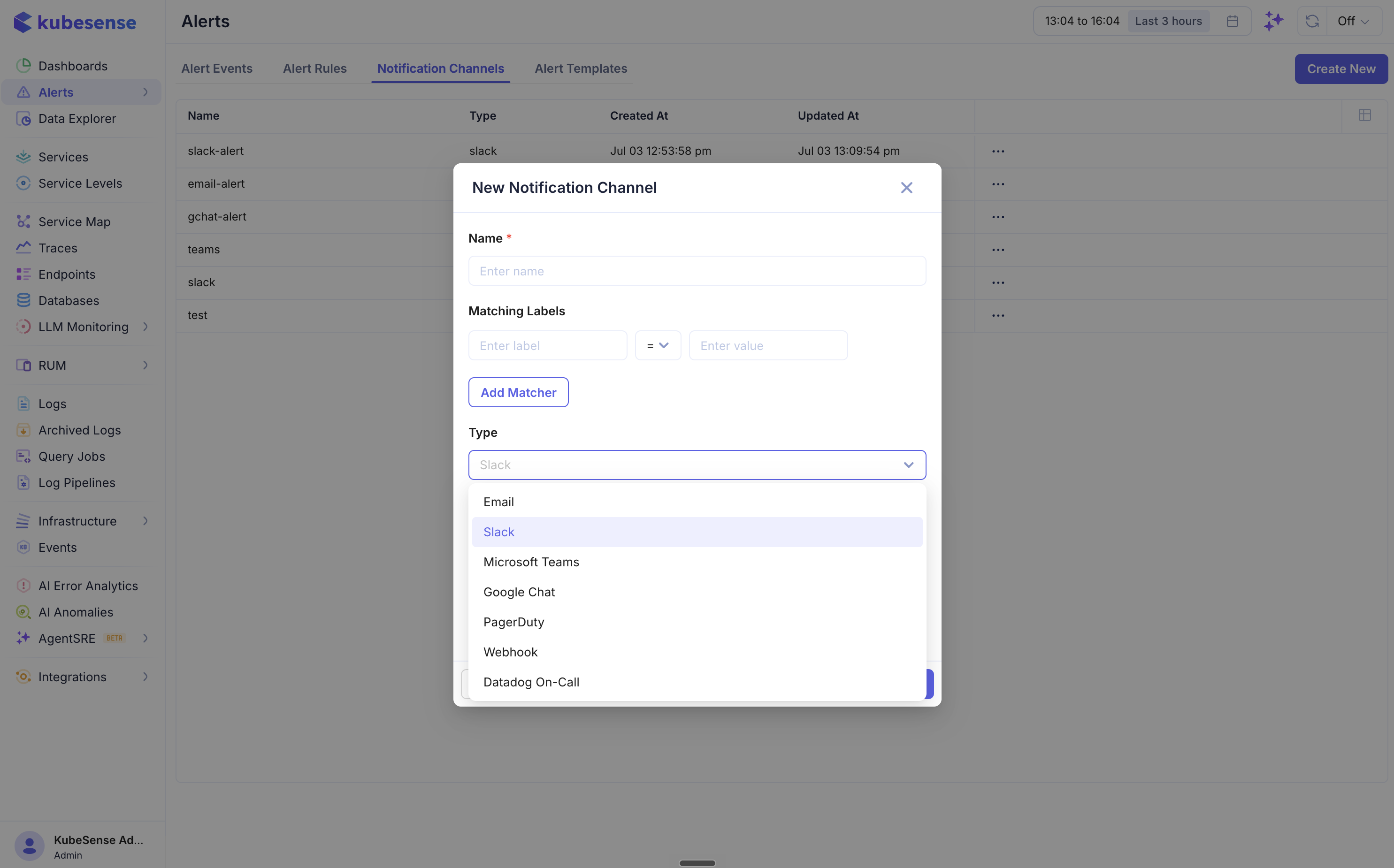
| Field | Description |
|---|---|
| Name | A unique name for the channel |
| Matching Labels | Optional key-value matchers for label-based routing (e.g., severity = critical) |
| Type | The channel type — see the pages above |
After selecting a type, provide the required configuration fields (on the type's page), then save the channel.
Alert Routing
There are two ways to route alerts to notification channels:
Direct Assignment
When creating an alert rule, select a specific notification channel from the Notification Channel dropdown in the Alert Routing section. All alerts from that rule are sent to the selected channel.
Label-Based Routing (Notification Channel Policy)
Configure Matching Labels on a notification channel to enable automatic routing. When an alert fires, its labels are compared against the matching labels of all channels. If a channel's matchers match the alert's labels, that channel receives the notification.
This enables patterns like:
- Channel with
severity = criticalreceives all critical alerts - Channel with
team = platformreceives all alerts labeled for the platform team - Channel with no matchers acts as a catch-all for unmatched alerts
Multiple channels can match a single alert, allowing you to send the same alert to both Slack and PagerDuty simultaneously.
Testing Channels
After creating a notification channel, use the Test action to send a test notification and verify connectivity before associating it with alert rules.
Notification Content
All notification channels receive the same core alert information:
| Field | Description |
|---|---|
| Alert Name | Name of the alert rule |
| Status | firing or resolved |
| Severity | critical, warning, or info |
| Value | The evaluated metric value that triggered the alert |
| Threshold | The configured threshold and operator (e.g., greater_than 100) |
| Description | Alert description text |
| Labels | All labels attached to the alert (including group-by values for multi-series alerts) |
| Started | Timestamp when the alert started firing |
| Link | Direct link to view the alert in KubeSense |
For batched notifications (multiple alerts grouped together), the title includes
firing and resolved counts — for example, [FIRING:6, RESOLVED:1] Logs Availability.
Encryption & key rotation
The token-based integrations — Slack (App) and Jira Service Management —
store their secret encrypted at rest with the server env var
KUBECOL_CONFIG_KEK (the same key used for cloud credentials). Keep this in mind:
KUBECOL_CONFIG_KEKmust be set on the API, and identical across every instance that shares the database (e.g. local + hosted) and stable across redeploys — a secret encrypted by one instance can only be read by an instance with the same key.- The scheme has a single key with no versioning or re-wrap, so if the key is rotated or changed, previously-stored secrets can no longer be decrypted.
To recover after a key change (or if a secret was connected on a different instance), re-enter the secret on the current instance so it re-encrypts with the new key:
- Slack (App): use Reconnect on the channel and paste the bot token again.
- JSM: open the channel and re-save it with the API key.
KubeSense surfaces this automatically — a Slack (App) channel whose token can't be decrypted shows a "needs to be reconnected" prompt instead of a broken channel picker.