
Public Dashboards
Public dashboards let you share a read-only view of any dashboard with anyone who has the link — no login required.
Making a Dashboard Public
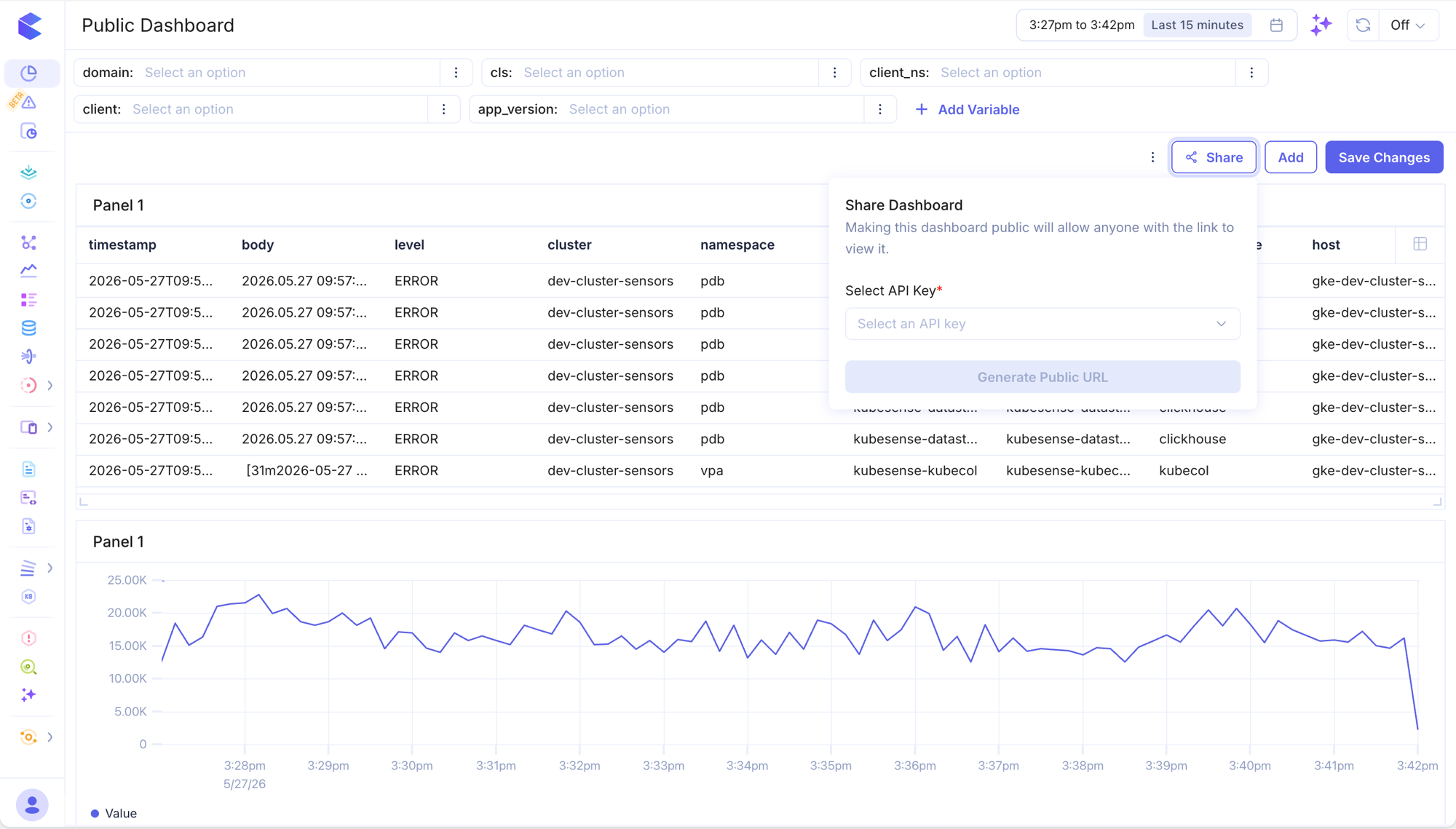
- Open the dashboard you want to share.
- Click the Share button in the top-right toolbar.
- In the Share Dashboard panel, select an API Key from the dropdown.
- Click Generate Public URL.
Once the public URL is generated, the panel updates to confirm the dashboard is now public. A shareable link is displayed that you can copy and send to anyone.
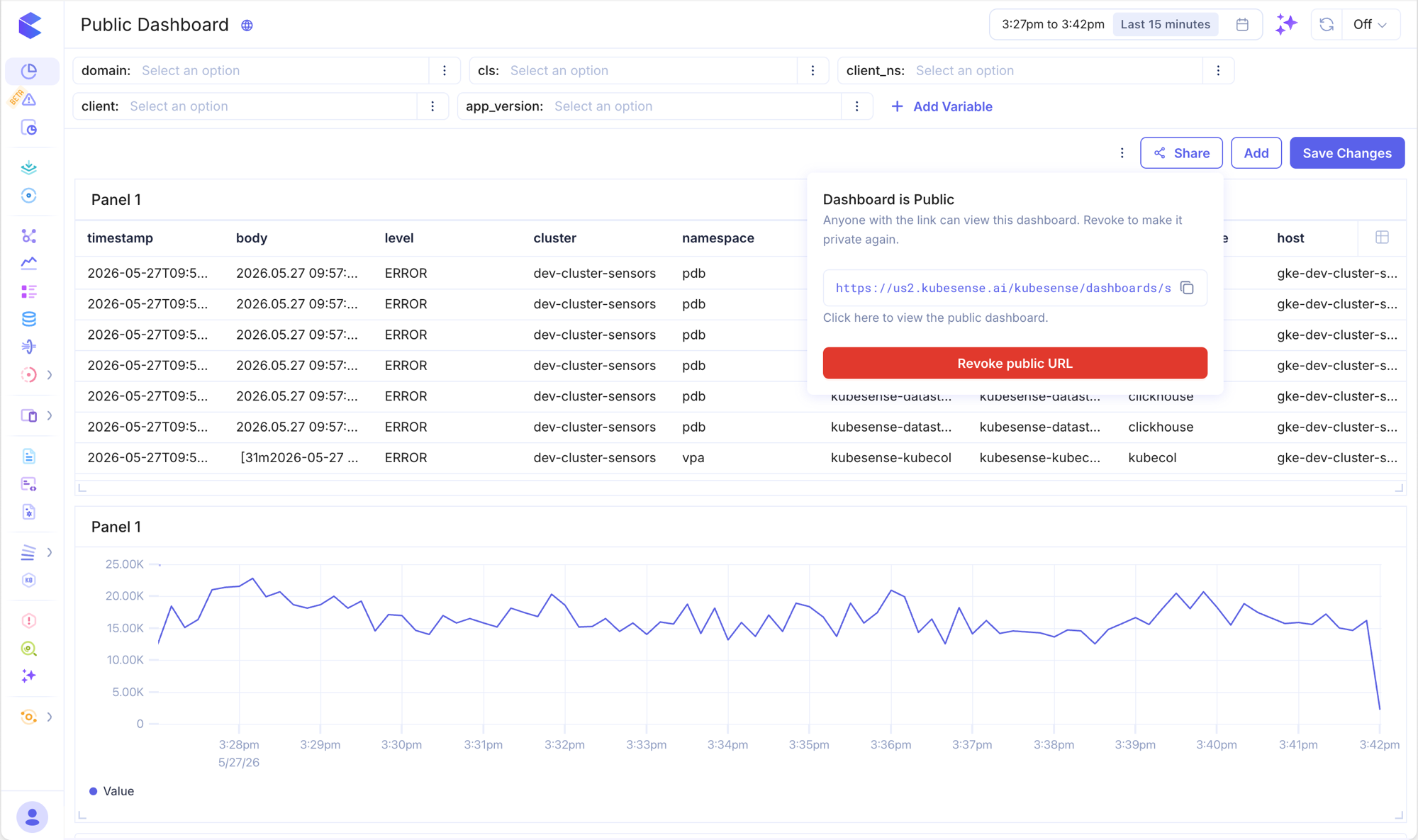
A globe icon appears next to the dashboard title to indicate it is publicly accessible.
Accessing the Public Dashboard
Anyone with the public URL can view the dashboard without logging in. The dashboard is read-only — viewers can explore data within the configured time range but cannot edit panels or variables.
Click Click here to view the public dashboard in the share panel to open the public view yourself and verify it looks correct.
Embedding in a Datadog Dashboard
You can embed a public KubeSense dashboard directly into an existing Datadog dashboard using Datadog's Iframe Widget.
- Generate the public URL for your KubeSense dashboard (see steps above).
- Open your Datadog dashboard and click Add Widgets.
- Search for and select the Iframe widget.
- Paste the KubeSense public URL into the URL field.
- Click Done to save the widget.
The KubeSense dashboard will now render inline within your Datadog dashboard, giving your team a unified view alongside their existing Datadog data.
Note: The public URL must use HTTPS. KubeSense public dashboard URLs are always HTTPS, so no additional configuration is required. For more details on the Datadog Iframe Widget, see the Datadog documentation.
Revoking Access
To make the dashboard private again, open the Share panel and click Revoke public URL. The link is immediately invalidated and any existing viewers will lose access. Any Datadog Iframe widgets pointing to this URL will also stop displaying content.