
Data Explorer
The Data Explorer is an interactive query builder and visualization tool for your observability data. Use it to explore metrics, logs, and traces — then save your work as dashboard panels.
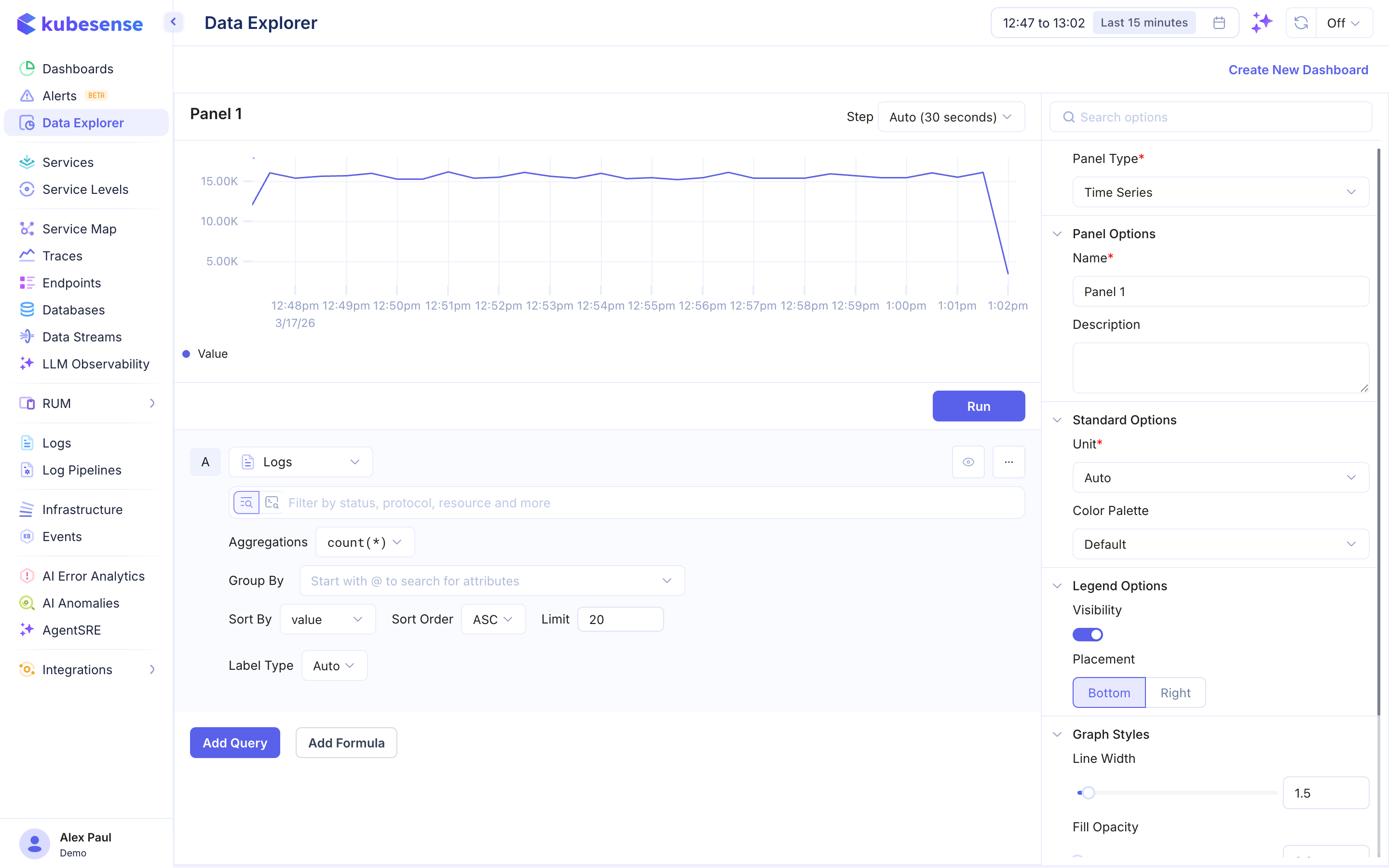
Overview
The Data Explorer lets you:
- Build queries against Metrics, Logs, and Traces data sources
- Choose from multiple visualization types
- Configure panel appearance and behavior
- Export panels to new or existing dashboards
The explorer state is synced to the URL, so you can bookmark or share any query configuration.
Query Builder
Data Sources
Select the data source for your query:
- Metrics — Query time-series metrics using PromQL
- Logs — Query log data with filters and aggregations
- Traces — Query distributed trace data with filters and aggregations
Metrics Queries
A Metrics query has two modes:
| Mode | Description |
|---|---|
| Builder (visual) | Pick a metric, filter it by label, and apply a chain of functions. The PromQL it produces is shown under the query |
| Code | Write PromQL directly, with variable substitution support |
The builder covers everything a single query can express in code: more than 200 functions across rollups, transforms, label functions, aggregates and operators, each with a searchable menu and an ⓘ tooltip. It also covers exclude and regex label filters, and the offset and @ modifiers. See Metrics Query Builder for the full guide.
Logs and Traces Queries
Logs and Traces queries support:
- Filters — Filter data using advanced query, MFD, or SPL modes
- Aggregation functions —
row_count,unique_count,avg,sum,max,min,p99,p95,p90,p75,p50 - Group By — Group results by one or more attributes
- Sorting — Sort results by value or time, ascending or descending
- Pagination — Control the number of results returned
Multiple Queries
Click Add Query to add additional queries to the same panel. Each query is labeled alphabetically (A, B, C, etc.).
To start from an existing query, open its ⋯ menu and click Duplicate. The copy appears right below it under the next free letter. The same menu has Reset, which returns the query to its defaults, and Delete. A panel holds up to 10 queries.
Formulas
Click Add Formula to create computed values by combining queries with math expressions. For example:
- Error rate:
B / A - Combined throughput:
(A + B) / C
Visualization Types
Choose the visualization that best fits your data:
| Type | Best For |
|---|---|
| Time Series | Trends over time — line and area charts |
| Bar | Categorical comparisons |
| Stat | Single-value KPIs and summary numbers |
| Pie | Proportional breakdowns |
| Top List | Ranked lists of values |
| Table | Tabular data display |
| List | Scrollable log entry list |
| Tree Map | Which values dominate a total |
| Alert | An existing alert rule, as a chart, a value or a roll-up |
| Host Map | Every host, with its pods and containers, coloured by load or health |
Step Control
Configure the Step interval for data aggregation (e.g., Auto, 30 seconds, 1 minute, 5 minutes). This controls the resolution of your query results.
Time Preferences
By default a panel shows the time range picked on its dashboard. To give one panel its own window, open the panel options and find Time Preferences at the bottom:
- Global dashboard time (default). The panel follows the dashboard's time range picker.
- Custom time. The panel always shows the window you pick, whatever the dashboard is set to.
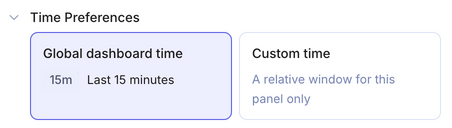
When you pick Custom time, a list of windows appears below the two choices. It starts at Past 1 Hour. The chart redraws over the new window straight away, and a badge next to Step shows its length.
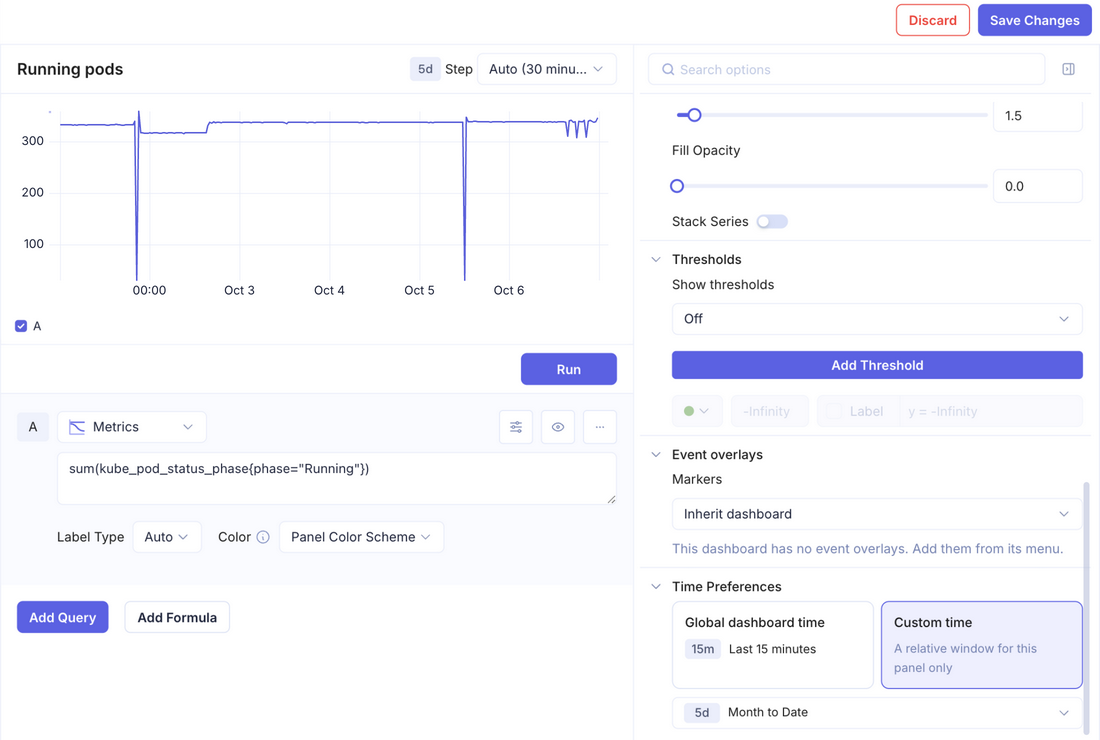
Use Custom time when the period is part of what the panel means. For example, a Month to Date cost stat can sit beside charts of the last hour.
| Option | Window |
|---|---|
| Past 5 Minutes to Past 30 Days | The last 5, 15 or 30 minutes; 1, 3, 6 or 12 hours; 1, 2, 7 or 30 days. Each ends now |
| Week to Date | Monday 00:00 of the current week until now |
| Month to Date | The 1st of the current month, 00:00, until now |
| Previous Week | The previous Monday 00:00 until Sunday 23:59:59.999 |
| Previous Month | The 1st of the previous month, 00:00, until its last day at 23:59:59.999 |
Weeks run Monday to Sunday and months are calendar months. Each boundary falls at midnight in the timezone you selected in KubeSense, so viewers in different timezones can see different totals for Month to Date. Every option is relative to now; you cannot pin a panel to fixed dates.
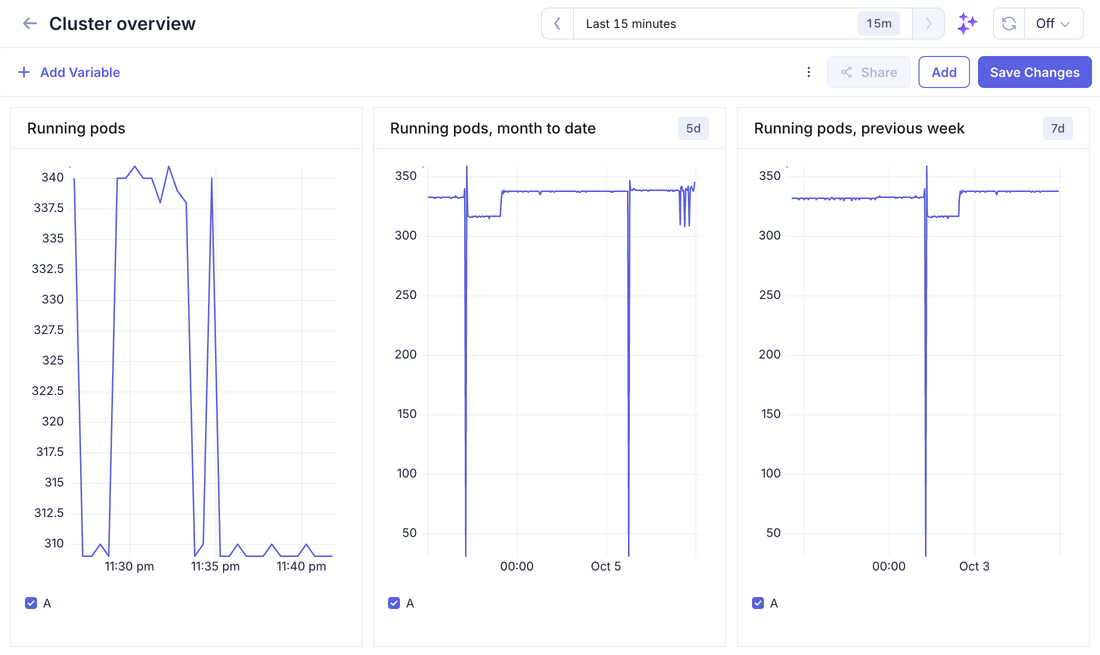
Every query in the panel uses its custom time, including the values the query builder suggests for filters. On a dashboard, the panel shows a short badge in its title bar with the window's current length, such as 1h. Calendar windows show how much time they cover so far, rounded down: Month to Date on the 7th at 14:20 shows 6d, and Week to Date on Monday at 16:30 shows 16h. The time picker lists the same lengths next to each option. Hover over the badge to see the full window. Drag-to-zoom is turned off on these panels, because selecting a range on the chart would not change the window the panel shows.
In the dashboard below, the time range picker is set to the last 15 minutes. The first panel follows it. The other two show Month to Date and Previous Week, each with its badge.
Time Preferences is not offered on host map and SLO panels, or on alert panels other than the graph widget. These panels always follow the dashboard's time.
Exporting Panels
Once you have built and configured a panel, you can:
- Add to an existing dashboard — Select a dashboard and the panel is appended to it
- Create a new dashboard — Creates a new dashboard with this panel as the first entry