
Prompts
Create and manage reusable prompts, then version them as they change. See Concepts for the underlying object model.
Create and manage reusable prompts, then test their versions with the configured models. Prompt metadata helps teams organize prompt content and compare candidate versions during development.
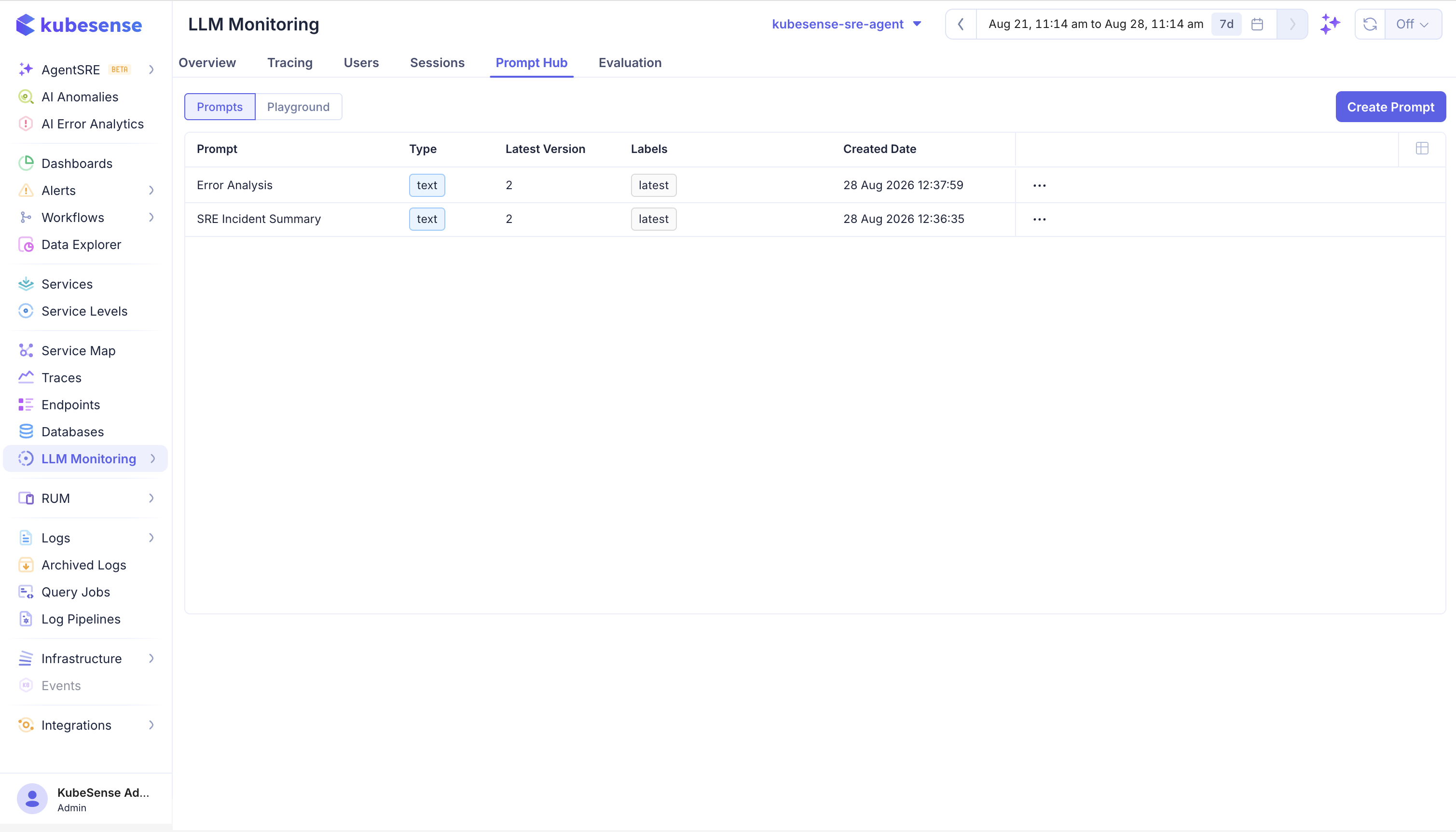
The Prompts table shows:
| Column | Meaning |
|---|---|
| Prompt | Stable prompt name used by the application |
| Type | text for one prompt string or chat for role-based messages |
| Latest Version | Most recent saved version |
| Labels | Deployment labels such as production, staging, or latest |
| Created Date | Time the prompt record was created |
Select the application from the Project selector before creating a prompt. Use Create Prompt to add a new prompt. Select an existing row to open its details and inspect the saved versions.
Create a prompt
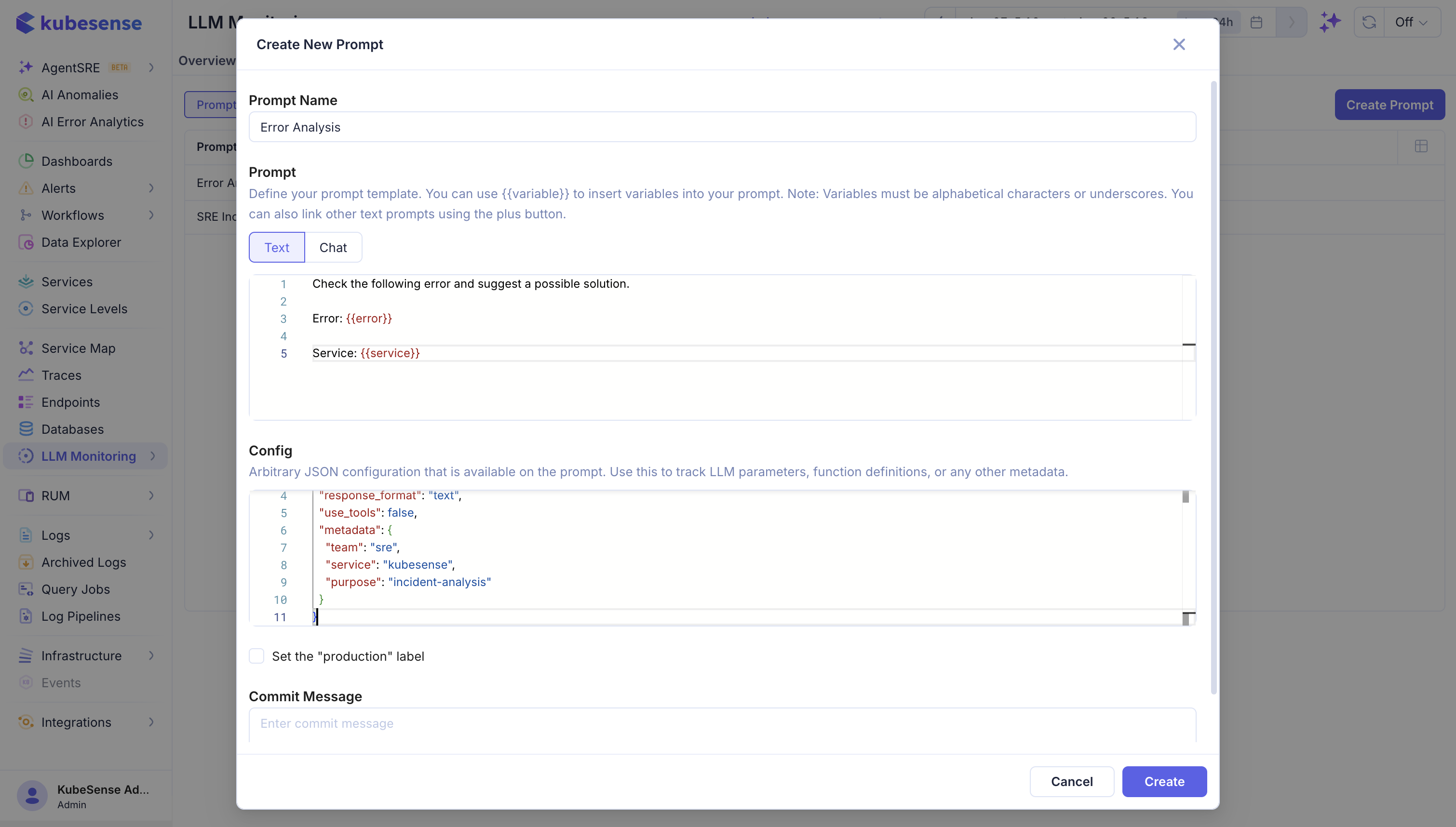
When creating a prompt, choose the prompt type and write the content that will be sent to the model. Use variables for values supplied by the application at runtime:
You are a concise support assistant.

Answer the following question using only the supplied context:
{{context}}

Question: {{question}}
For a chat prompt, define messages by role. A common pattern is a stable system message followed by a user message containing variables:
system: You answer questions about Kubernetes.
user: Explain {{topic}} for a {{audience}} audience.
Save a new version when the instructions, message order, variables, or output requirements change. Keep labels meaningful: use production for the version currently served by production traffic and staging for a candidate under test.
Use the prompt detail view to inspect its content and versions.
Prompt version example
Suppose version 1 says Answer in one paragraph and version 2 says Answer in three bullet points. Keep the same prompt name, create version 2, test it in the playground, and promote it with a label. The version number identifies the prompt revision inside Prompt Hub.
Prompt details
Select a prompt from the list to open its details page. The page shows the available versions in the left panel and the selected version in the main panel.
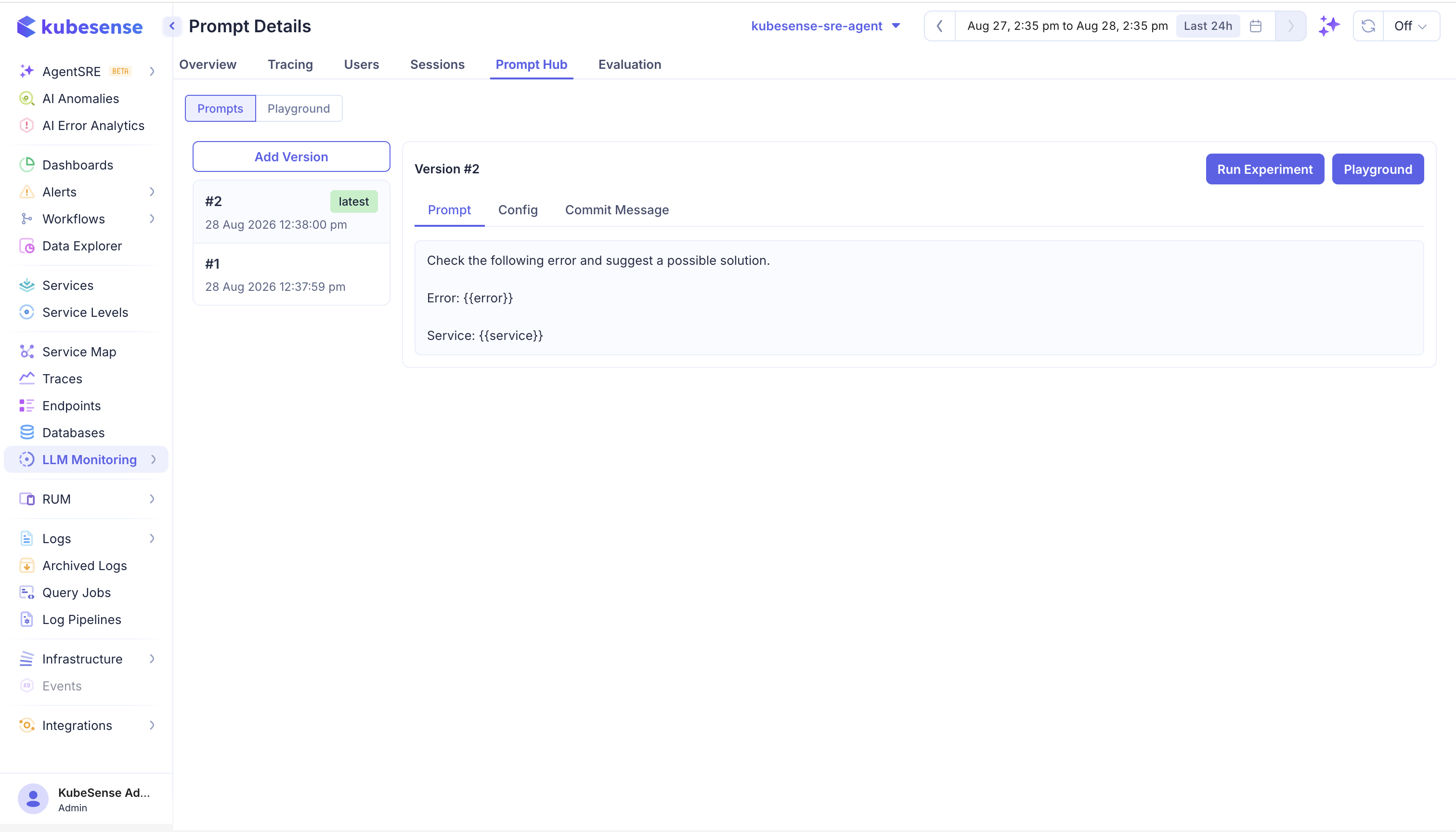
The version list shows the version number, creation time, and labels such as latest. Select an older version to compare it with the current version, or choose Add Version to create a new revision from the selected prompt. Creating a version preserves the previous prompt so changes can be reviewed and tested independently.
The selected version provides three tabs:
| Tab | What it shows |
|---|---|
| Prompt | The prompt content, including role-based messages for chat prompts and variables such as {{error}} or {{service}} |
| Config | The saved model or generation configuration for that prompt version |
| Commit Message | The reason for creating the version, such as a change to the response format or evaluation instructions |
Prompt messages can be expanded or collapsed individually. Use the copy action on a message when you need to reuse its content in your existing Langfuse, OpenLIT, provider, or application workflow.
The Playground button opens the selected version for interactive testing. The Run Experiment button starts an experiment workflow so the version can be tested against a dataset. These actions require the relevant application configuration, including an LLM connection for KubeSense-managed model calls.
Prompt details example
For a support prompt, keep version 1 as the original response format and create version 2 with stricter instructions:
Version 1: Answer the customer question clearly.
Version 2: Answer in three bullets, cite the relevant service, and do not invent an incident ID.
Add a commit message such as Add concise incident-response format, test version 2 in Playground, and run an experiment before selecting it as the latest approved version.
Prompt and trace workflow
- Create or edit a prompt in LLM Monitoring > Prompt Hub > Prompts.
- Test the prompt in Playground.
- Review the candidate version and its label in Prompt Hub.
- Update the prompt in your application using your existing Langfuse, OpenLIT, or provider workflow.
- Compare the application’s resulting traces and evaluation scores in Tracing and Evaluation.
KubeSense does not provide an application SDK or runtime prompt-fetching client. Prompt Hub does not inject prompts into Langfuse or OpenLIT applications. Continue to retrieve, render, and deploy prompts using the prompt-management capability in your chosen SDK or application framework.
Do not silently change a production prompt in place. Create a version and test it in KubeSense Playground before updating the prompt through your existing application workflow.
Prompt versioning practices
- Give prompts stable names and increment the version when the template or system instructions change.
- Keep model and provider changes separate from prompt changes when running an experiment.
- Use clear labels to distinguish candidate and approved prompt versions in Prompt Hub.
- Use tags or metadata for business context such as team, feature, or release channel.
Where to next
- Playground — test a version against a model
- Concepts — versions, labels, and how a version is resolved