
Runs & Troubleshooting
Every execution is recorded, including the ones that were deliberately skipped.
Run history
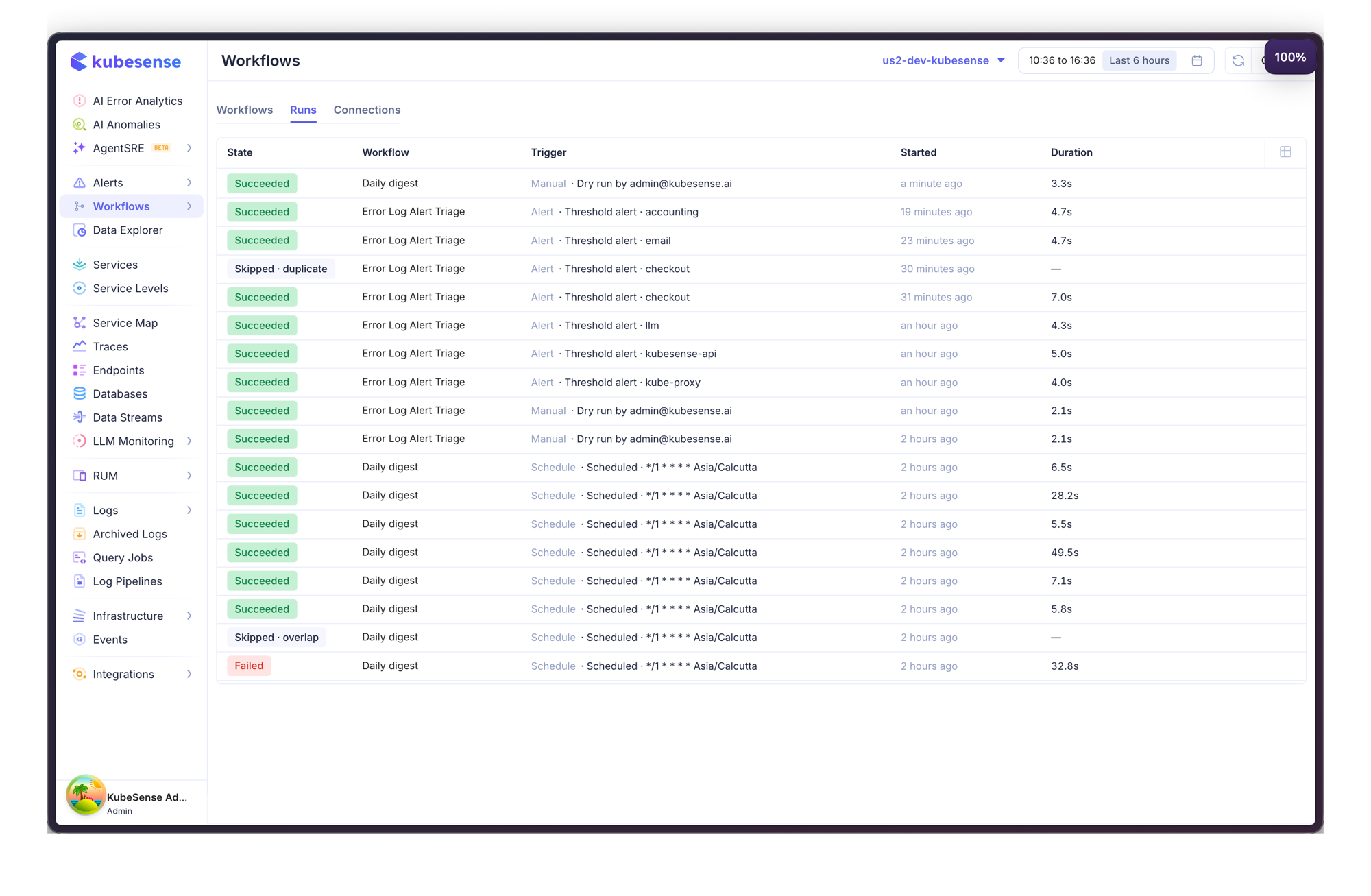
The Runs tab lists every run across all workflows, newest first, with what triggered it and how long it took. The Trigger column names the cause — the alert rule and series, the cron expression and timezone, or who pressed Run.
The workflow list also carries a per-workflow 24 Hours sparkline and success count, so a workflow that has been failing quietly is visible without opening it.
Run states
| State | Meaning |
|---|---|
| Queued | Created, waiting for a worker |
| Running | In progress |
| Succeeded | Every step finished, or failed with on error: continue |
| Failed | A step failed and stopped the run |
| Timed out | The run exceeded its budget |
| Canceled | Stopped by hand |
| Skipped · duplicate | The same incident already ran this workflow — see Triggers |
| Skipped · overlap | The previous scheduled run was still going and the schedule is set to Skip |
Skipped runs are recorded rather than silently dropped, so "why didn't my workflow run?" always has an answer in the history.
Run detail
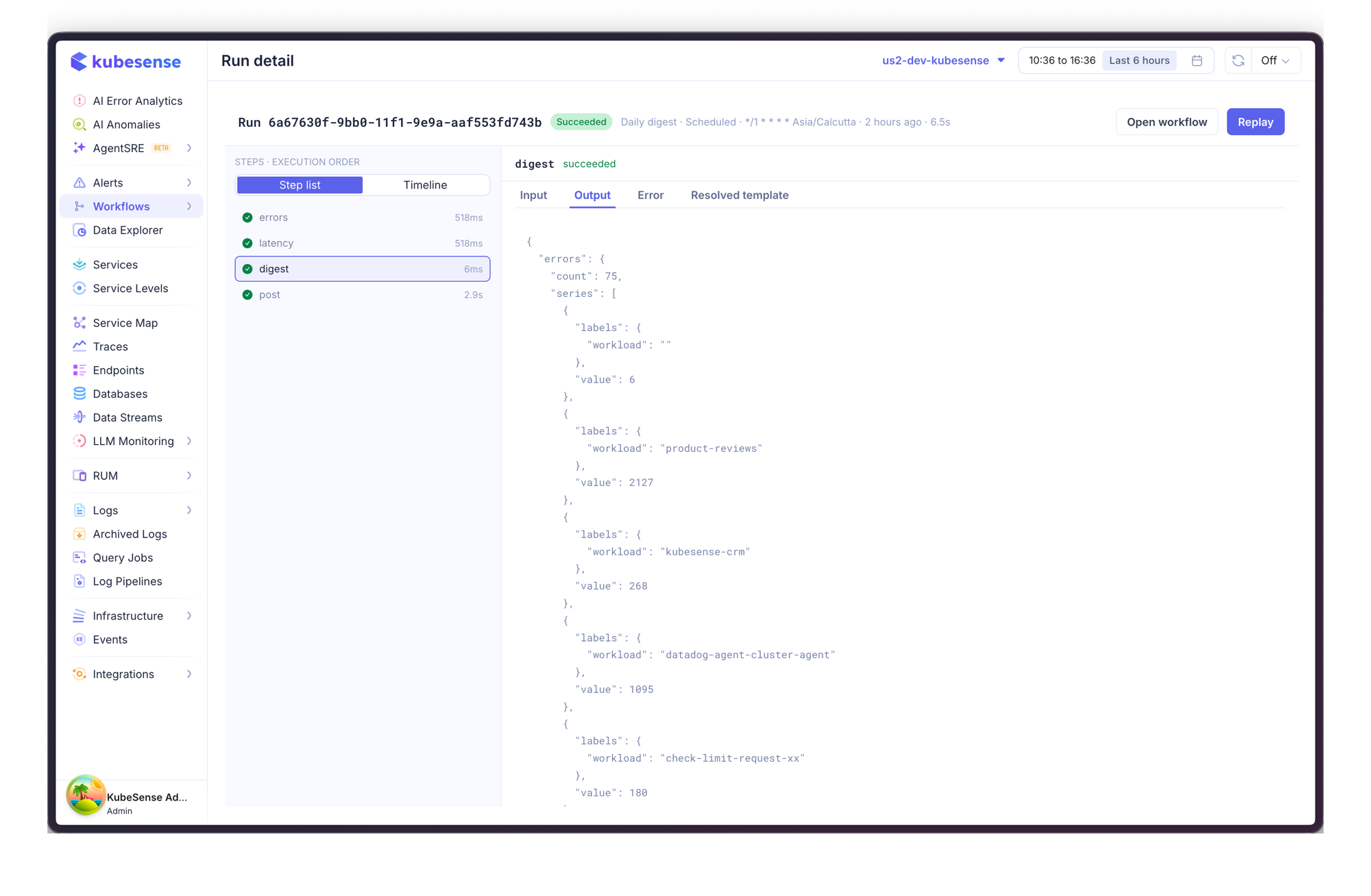
Opening a run shows each step in execution order with its duration. Step list reads top to bottom; Timeline shows the same steps as bars, which is where concurrency and the slow step become obvious.
Selecting a step gives you four tabs:
| Tab | What it holds |
|---|---|
| Input | What the step was given |
| Output | What it produced — the same structure later steps read through .Steps.<id> |
| Error | Why it failed, when it did. A failed step opens on this tab |
| Resolved template | The template after substitution — the exact text that was sent |
Resolved template is the one to reach for when a message came out wrong. It shows what the values actually rendered to, which usually makes the cause obvious at a glance.
Replay re-runs the workflow with the same trigger payload, so you can confirm a fix against the incident that exposed it.
Common problems
A message arrived with <no value> in it
A template asked for something the run doesn't have — most often a label the alert doesn't carry. See Message Templates.
The workflow never ran
Check, in order:
- Is it published? A draft never runs.
- Is it enabled? Publishing and enabling are separate.
- For an alert trigger — did the rule start firing, or was it already firing? A workflow runs once per episode.
- Was the alert acknowledged? Acknowledged alerts don't trigger workflows.
- Look in Runs for a Skipped entry, which tells you it was suppressed rather than missed.
A Slack or HTTP step failed
Open the run, select the failed step, read the Error tab. The message is the one the destination returned.
| Error | Usually means |
|---|---|
channel_not_found, not_in_channel | The bot isn't in that Slack channel — invite it |
invalid_auth | The workspace connection needs reconnecting |
refusing to call private address | The endpoint is on an internal network; that has to be enabled deliberately in configuration |
host … is not in this connection's allowlist | The connection restricts which hosts it may reach — see Connections |
| A 4xx with a JSON body | The endpoint rejected the payload; the body is shown so you can see why |
A step failed on a transient error
Give it a retry count. Retries are refused on a non-GET HTTP request that carries no Idempotency-Key header, because repeating one of those can file the ticket twice — set the header ({{ .Run.id }} works well) and retries are allowed.
The run stopped partway
By default a failed step fails the run and everything downstream is marked skipped. Set a step's on error to continue if a non-critical send shouldn't stop the rest.