
Maintenance Windows
A maintenance window mutes alert notifications for planned work — a database upgrade, a node rotation, a release — so nobody is paged for something the team already knows about. Windows can run once or repeat on a schedule.
Open Alerts → Maintenance Windows and click Schedule maintenance.
What a window does, and doesn't, do
A window mutes notifications and workflow triggers. Everything else carries on:
| During a window | |
|---|---|
| Rules evaluate | ✅ as normal |
| Alerts fire and resolve | ✅ recorded on Alert Events as usual |
| Notifications to channels | 🔇 muted |
| Workflows triggered by an alert | 🔇 not started |
| SLO error budgets | ✅ still burn — downtime still counts against the objective |
Because alerts are still recorded, you can see afterwards what fired during the work. An alert whose notification was muted says so on its detail page:
Notifications were muted by the maintenance window "<name>". The alert still fired and is recorded here — only the notification and any workflows were suppressed.
That note is stored with the alert, so it stays accurate after the window is renamed or cancelled.
When a window ends while an alert is still firing, its notification is sent straight away — within a second or so. There is no separate "maintenance started" or "maintenance ended" message.
Scheduling a window
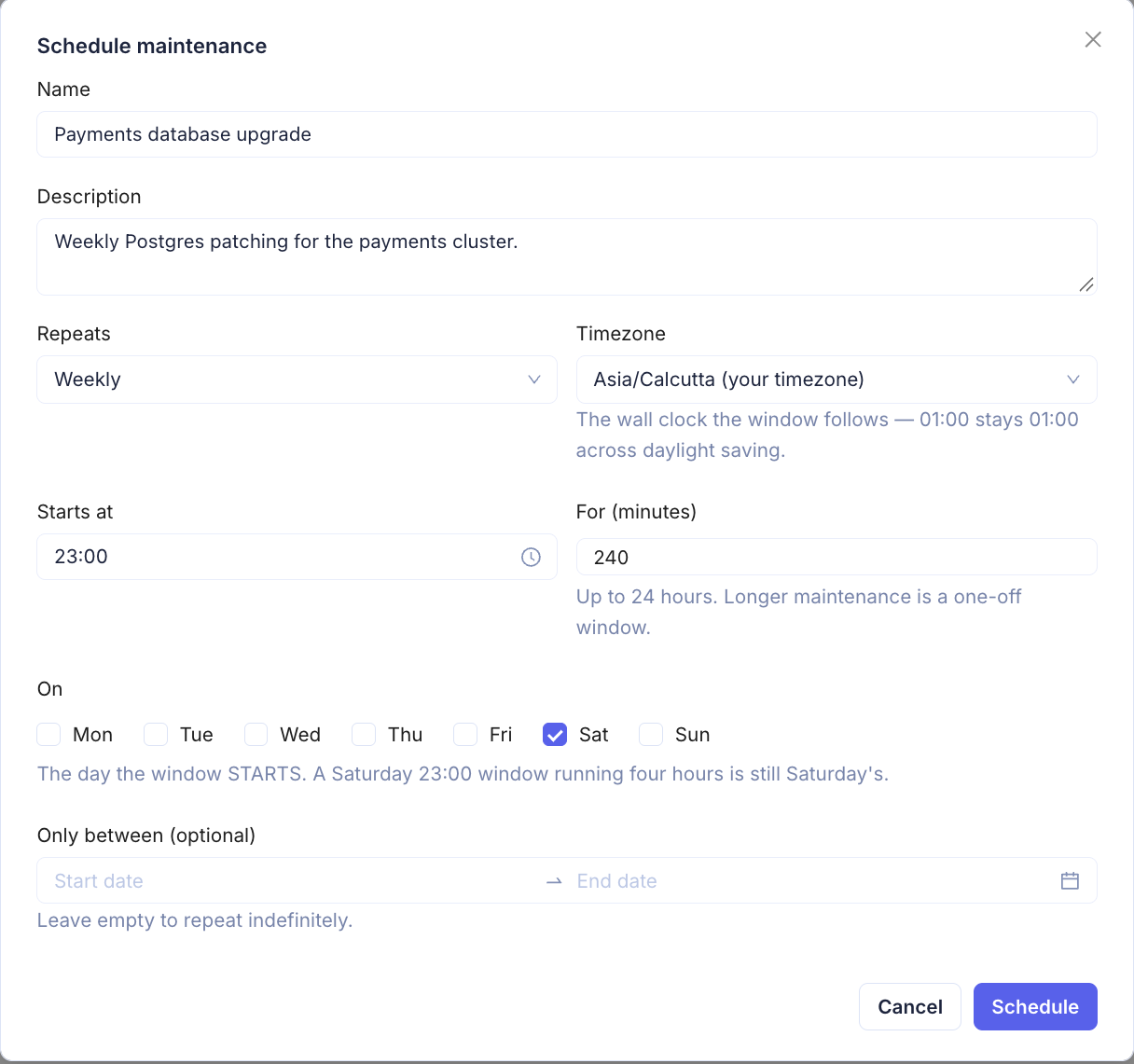
| Field | Description |
|---|---|
| Name | Required, up to 255 characters |
| Description | Optional — what the work is, a ticket link |
| Repeats | Once, Every day, or Weekly |
| Timezone | The timezone the times are written in — defaults to yours. The window follows that wall clock, so 01:00 stays 01:00 across daylight saving. |
| From – to | Once only: the start and end of the window |
| Starts at / For (minutes) | Daily and weekly: the wall-clock start time and how long each occurrence lasts |
| On | Weekly only: the days it runs. A window belongs to the day it starts — Saturday 23:00 for 4 hours is Saturday's, even though it ends on Sunday. |
| Only between | Daily and weekly, optional: the dates the schedule is active. Leave empty to repeat indefinitely. |
What it mutes
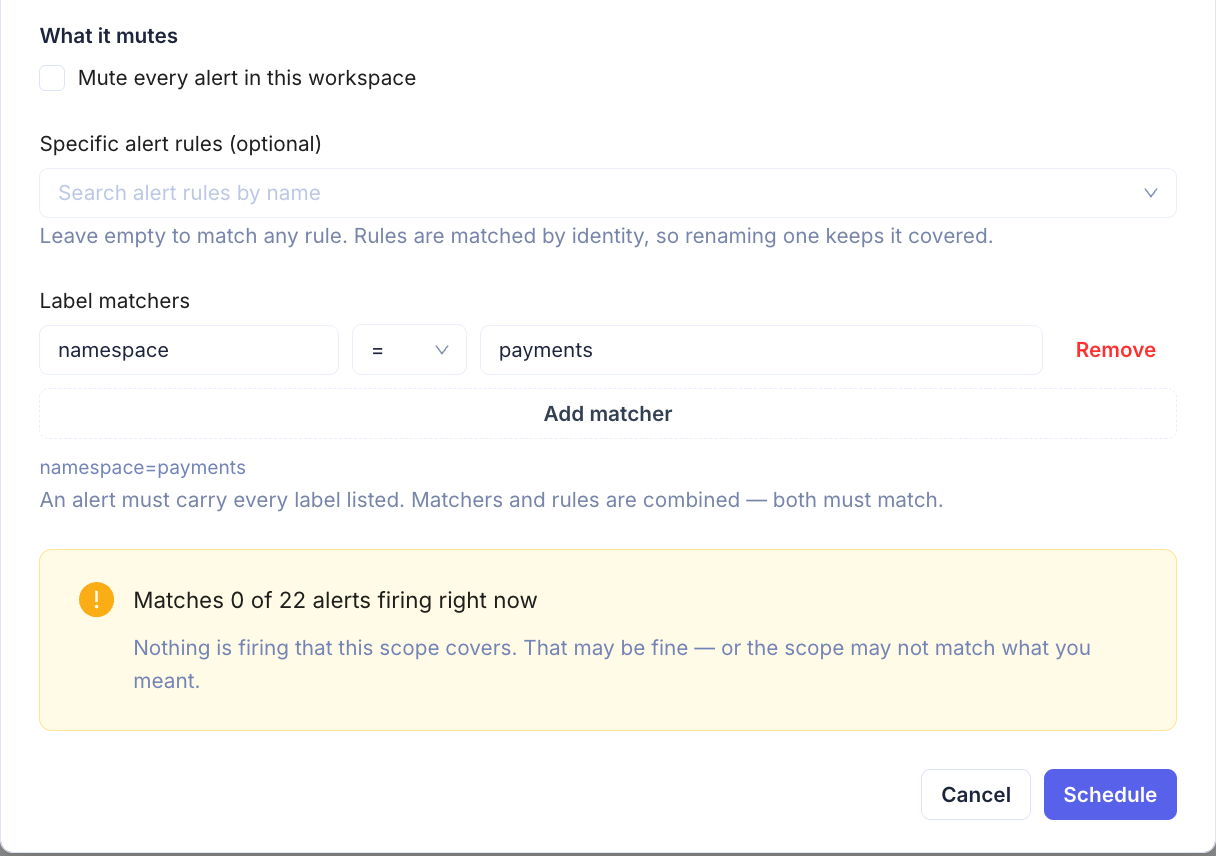
Choose the scope under What it mutes:
- Specific alert rules — pick rules by name. Rules are matched by their id, so renaming a rule keeps it covered.
- Label matchers —
label = value, orlabel =~ regexfor a regular expression (matched against the whole value). Every matcher must match. Use them to mute by team, namespace, cluster or anything else your alerts carry — e.g.namespace = paymentsmutes every payments alert, from any rule. - Mute every alert in this workspace — mutes everything. It can't be combined with rules or matchers, and needs the Alerts Admin permission.
When you pick both rules and matchers, an alert must satisfy both.
As you edit the scope, the form shows "Matches X of Y alerts firing right now" — or a warning when the scope matches nothing that's firing — so you can check a matcher before saving.
Limits
- A one-off window can last up to 30 days.
- Each occurrence of a repeating window can last up to 24 hours.
- Daylight-saving changes: a start time that falls in the skipped hour starts at the change instead, and For (minutes) is always real elapsed time.
Managing windows
The list shows every window with its State:
| State | Meaning |
|---|---|
| Muting now | An occurrence is in progress |
| Scheduled | Its next occurrence is in the future |
| Finished | Has no occurrences left — a one-off window that has ended, or a schedule past its Only between end date |
| Disabled | Switched off with the Enabled toggle — kept, but not muting |
- Edit changes any field. A change to a window that is muting now takes effect within about 30 seconds.
- Cancel window ends it immediately and notifications resume.
- The Enabled toggle pauses a window without deleting it.
Permissions
Maintenance windows have their own role permission, Maintenance Windows (see Role Access). It is granted to the Admin role by default.
| Level | Can |
|---|---|
| Viewer | See windows and preview a scope |
| Editor | Schedule, edit and cancel windows |
A window that mutes the whole workspace also needs Alerts Admin. Every change is recorded in Settings → Audit Logs.
Things to know
- Muting is applied in Alertmanager and refreshed every 30 seconds. Right after an Alertmanager restart, a notification can slip through for up to 30 seconds.
- Acknowledging an alert inside a window is unaffected by the window, and un-acknowledging it doesn't end the mute.
- A test alert whose labels match an active window is muted like any other alert.
API
| Method | Path | |
|---|---|---|
GET | /api/alerts/maintenance-windows | List windows |
POST | /api/alerts/maintenance-windows | Create a window |
GET / PUT | /api/alerts/maintenance-windows/:id | Read / update one |
DELETE | /api/alerts/maintenance-windows/:id | Cancel a window |
POST | /api/alerts/maintenance-windows/preview | Count the firing alerts a scope matches |