
Scanning Groups
A scanning group decides what the scanner reads and what it looks for: a set of logs, a sample rate, and a list of rules. Nothing is scanned until at least one enabled group exists.
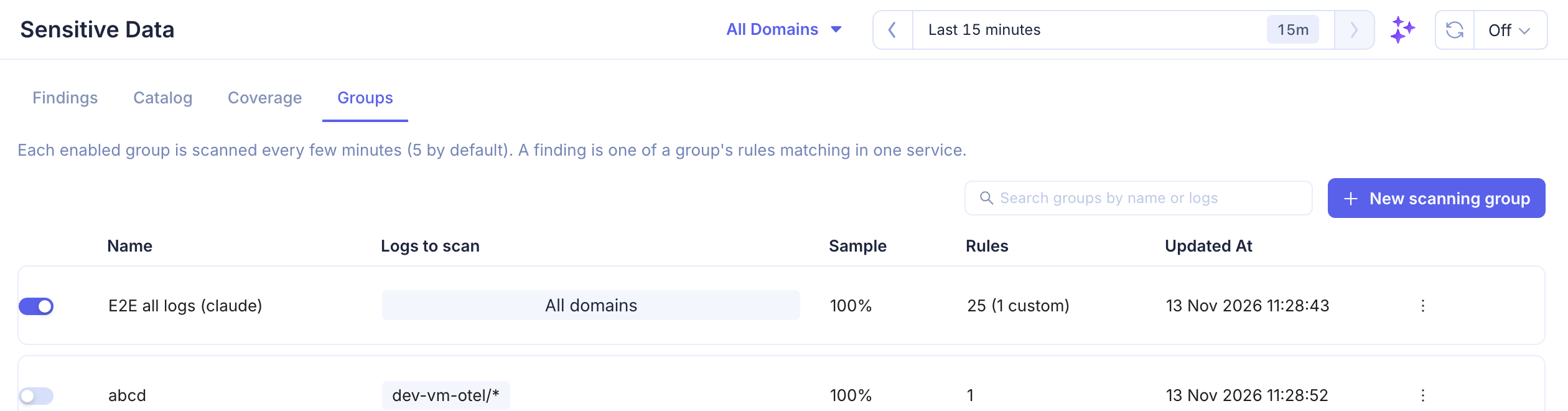
Creating a Group
- Open Logs > Sensitive Data > Groups and click New scanning group.
- Name the group (e.g.,
payments,all-logs). - Logs to scan — pick clusters, namespaces or services with the same Rule Matcher as log pipelines, or tick All domains to scan every cluster, including clusters added later.
- A service directly under a cluster matches that service in any namespace. This is how you select logs from VMs and hosts, which have no namespace.
- Sample — the share of logs the rules run on, from 1% to 100% (default 100%). See Sampling.
- Rules — click Add rules to pick built-in rules, or Add custom rule to write your own. See below.
- Click Create group. The group is scanned from the next scan window on.
Adding Built-in Rules
Add rules opens the rule library, grouped by category. Search by name, tick the rules you want, and click Add rules.
Add recommended on a category ticks all of its rules except the ones that are noisy on most logs (IP addresses, URLs, MAC addresses, human names). Those are marked Off by default and can still be ticked one by one.
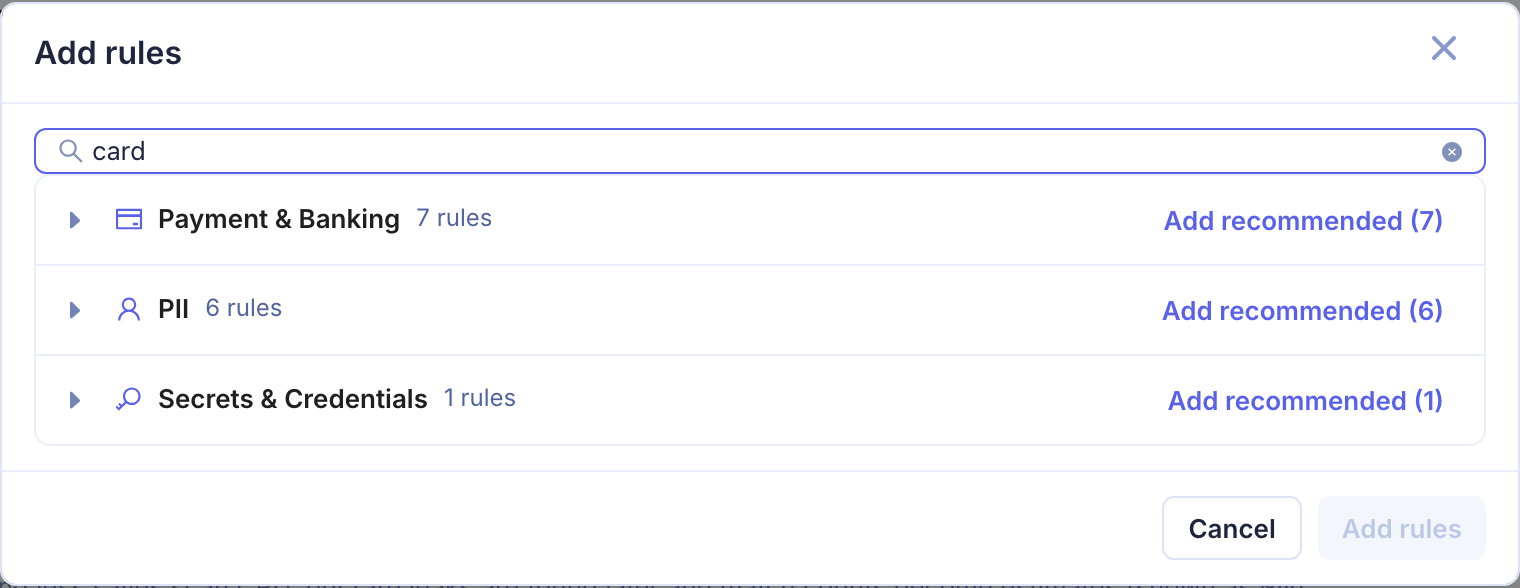
The Library Rules page lists every built-in rule.
Custom Rules
Click Add custom rule to detect data the library does not cover, such as your own order or account numbers.
| Field | Required | Description |
|---|---|---|
| Name | Yes | How the rule appears in findings |
| Severity | No | Critical, High, Medium (default) or Low |
| Pattern | Yes | A regular expression in Go (RE2) syntax, at most 1,024 characters, with no single quotes |
| Masked group | No | The part of the match that is sensitive: a named group such as secret (the default) or a group number. 1 is the first group; 0 is the whole match |
| Validation | No | None, or Luhn to skip card-shaped numbers that fail the card checksum. Luhn needs the masked group to be the pattern's first group |
For example, order=(?P<secret>\d{12}) finds order=123456789012 and masks only the 12 digits.
Test — paste up to 50 sample log lines and click Test pattern. Each line shows whether it matched and how it would look masked; values rejected by Luhn are listed separately.
A pattern is checked before it is saved: it must compile for the scanner and for log pipelines, must not match an empty string, and must contain the masked group.
Sampling
At 100%, every log the group selects is scanned. A lower sample rate scans a fixed share of logs, chosen by log ID: a log is either always in the sample at that rate or never, so a higher rate covers every log a lower rate does.
- Sampling saves scanning work, but a value that appears rarely is found later, or missed.
- Match counts become estimates, shown as ~N in findings.
When Groups Overlap
A log selected by several groups gets the rules of every one of them. A built-in rule that two matching groups both contain runs once per log, at the higher of their sample rates, and its findings are credited to that group (on a tie, the group higher in the Groups list).
When you save a group with such a rule, KubeSense warns you, for example: Visa card is already in group Payments for prod/payments/checkout. The save still succeeds.
Managing Groups
- Enable / disable — the switch on each row. A disabled group keeps its rules and findings but is not scanned.
- Edit — click a group. Rules keep their findings when you change the group.
- Delete — from the row menu. The group's rules stop scanning and their findings no longer show. The stored scan results expire after 30 days.