
Dashboard Access
Every dashboard is open by default: anyone whose role can see dashboards can open and edit it. Restricting one narrows that — you name the people who keep full access, and decide what everyone else is left with.
Opening the dialog
From a dashboard, open the ⋯ menu beside Share and choose Manage access.
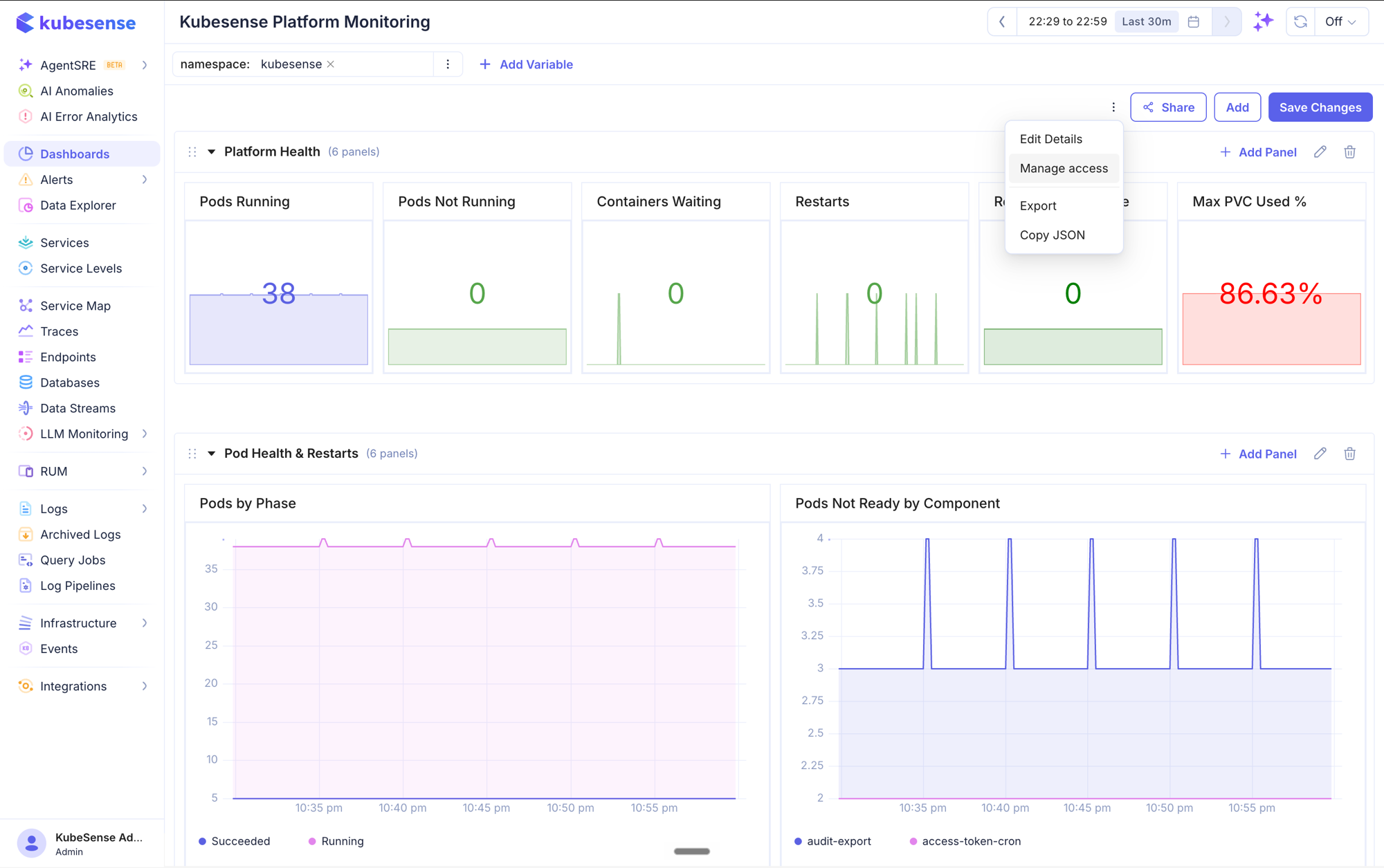
Only the dashboard's owner sees this enabled. Everyone else finds it greyed out — including people who can edit the dashboard, since being trusted with the contents is not the same as deciding who else reaches them.
Unrestricted
A dashboard you have not restricted reports Unrestricted, and nothing about it has changed from before this feature existed.
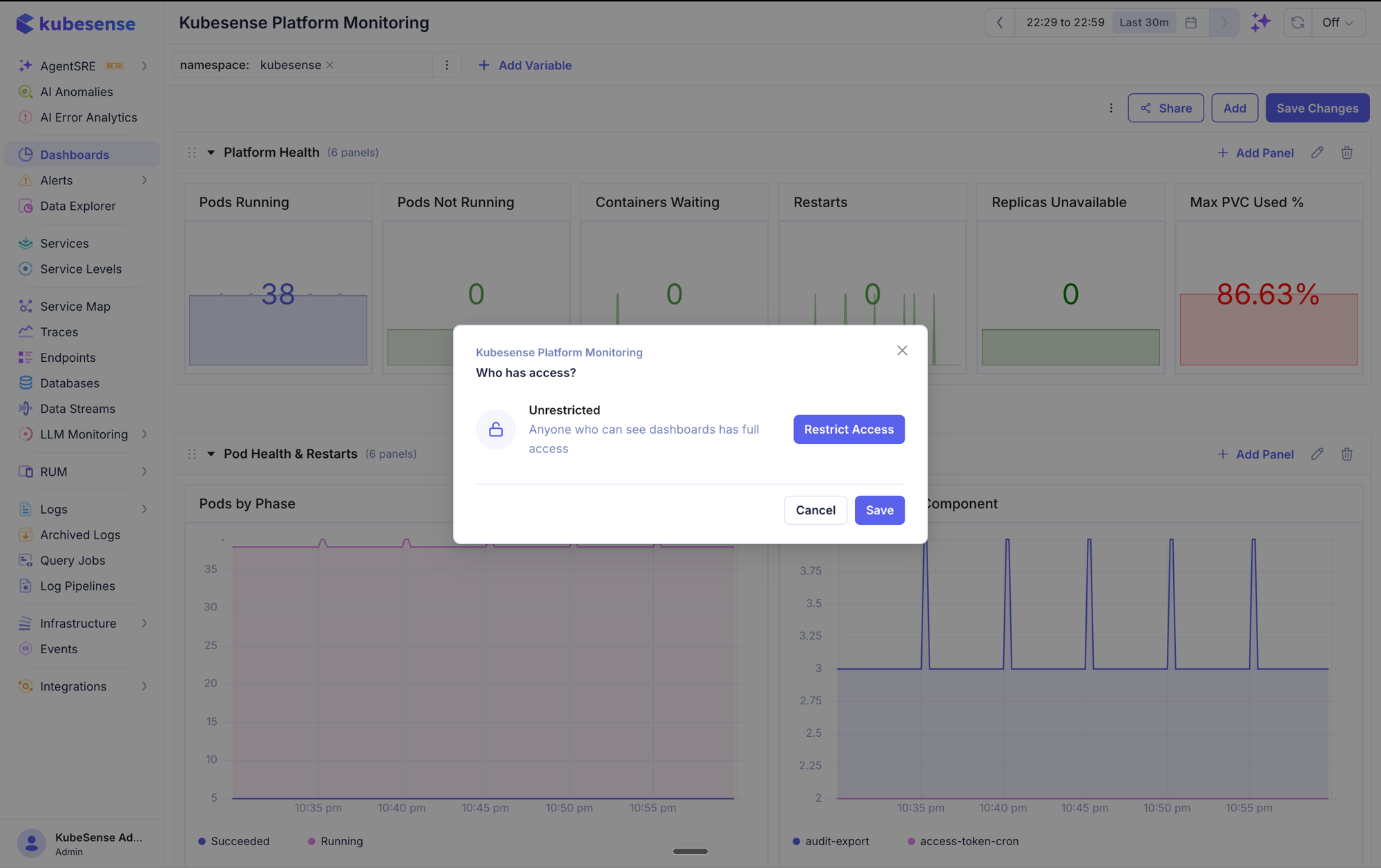
This is the default for every dashboard, new and existing. Restricting is something you opt into.
Restricting a dashboard
Click Restrict Access. The dialog grows two sections.
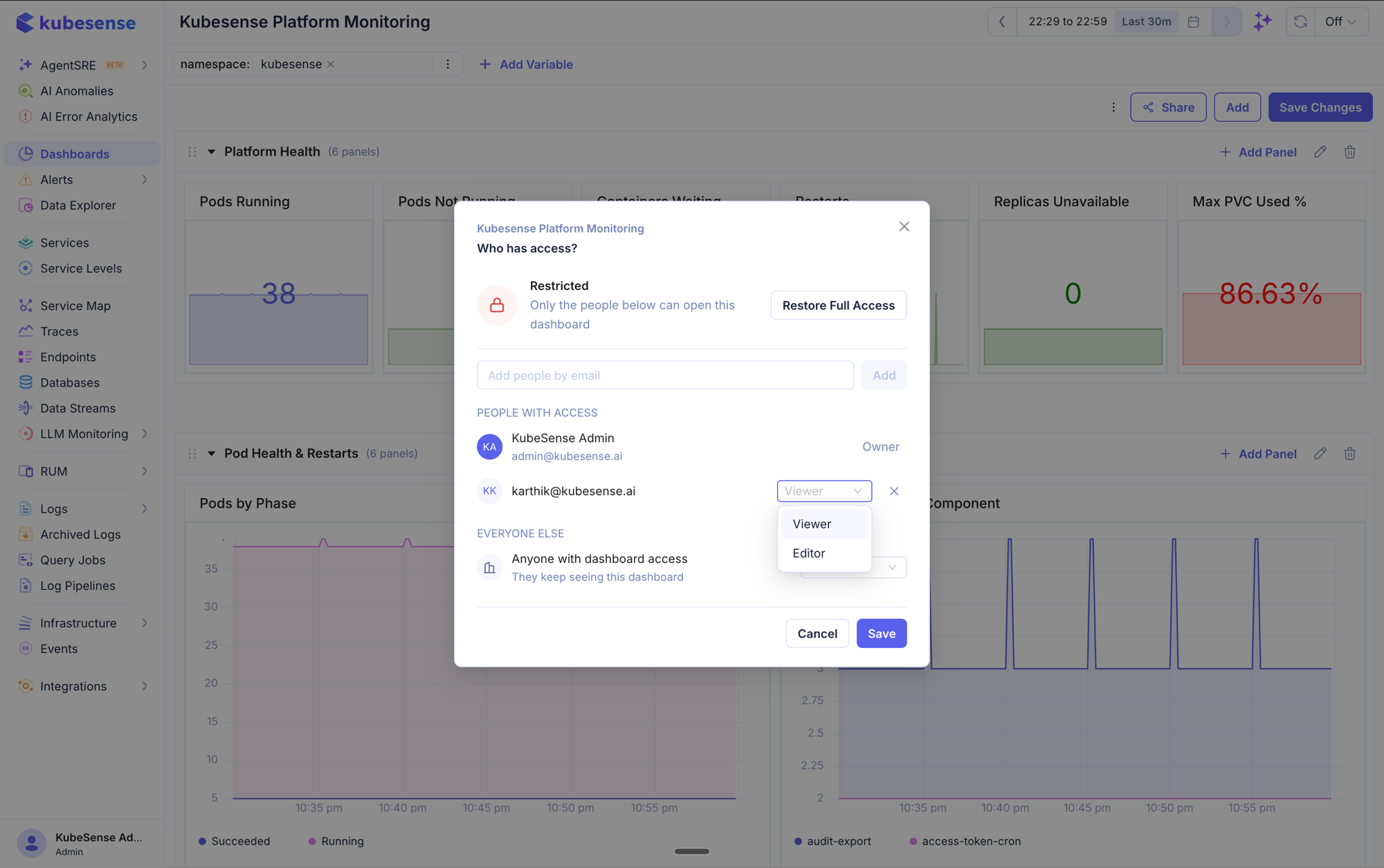
People with access
Type an address into Add people by email and click Add. Each person gets a level:
| Level | What they can do |
|---|---|
| Viewer | Open the dashboard and read it |
| Editor | Also change it — panels, layout, variables, name |
The owner is pinned at the top and cannot be removed or demoted. That is deliberate: it means restricting a dashboard can never lock you out of your own work.
note: The address must belong to an existing, active KubeSense user. One that does not is refused when you save, naming the addresses that did not match — so a typo is a typo rather than a silent no-op.
Everyone else
The second section decides what someone who is not named gets.
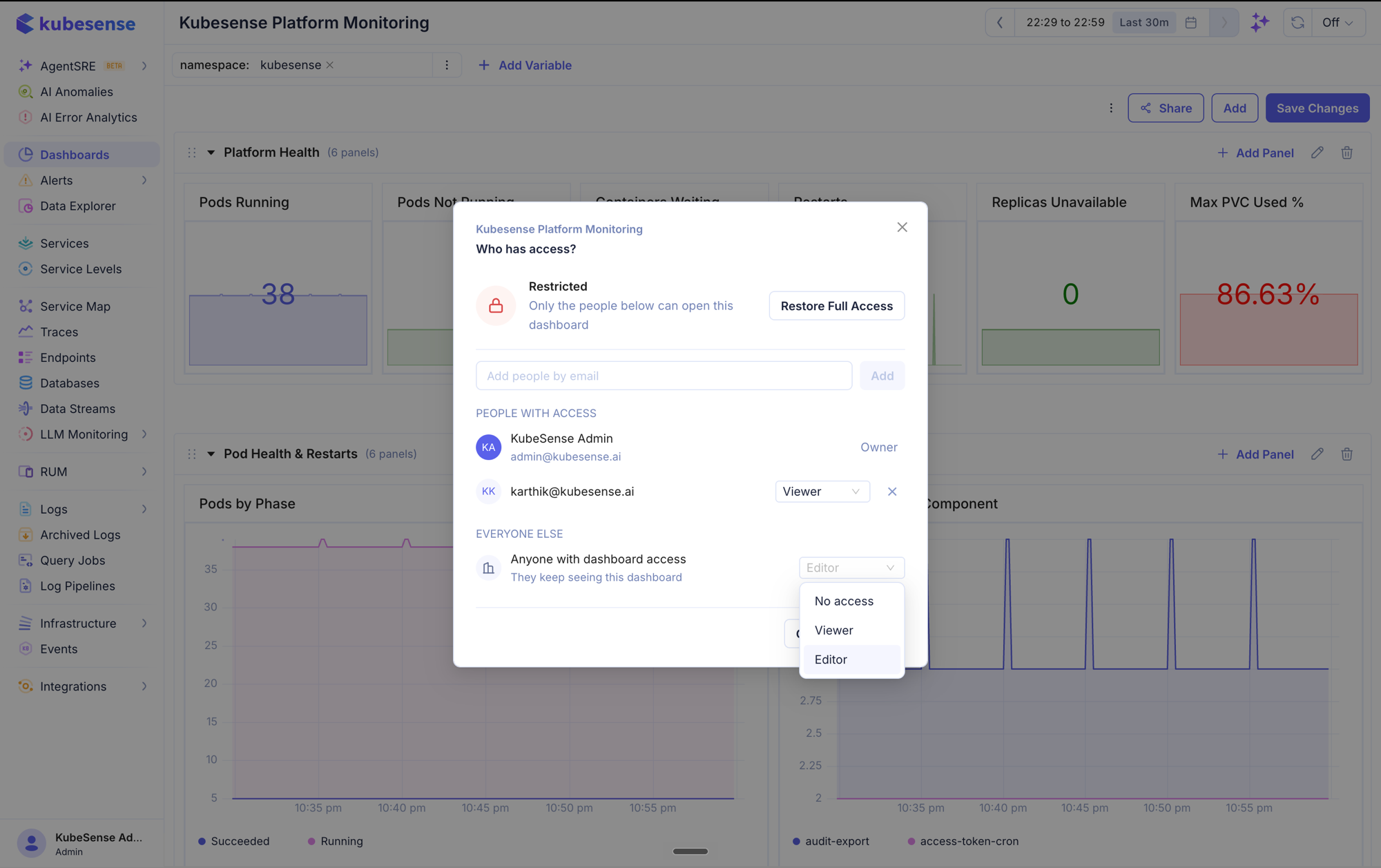
| Choice | Effect |
|---|---|
| Viewer (default) | Everyone with dashboard access keeps seeing it; only the people above can change it |
| No access | The dashboard disappears for everyone not named above |
| Editor | Recorded as restricted, but nothing is actually withheld |
Viewer is the default, because locking a dashboard down usually means "stop people changing this", not "hide it from my team". Choose No access when the contents are genuinely sensitive.
warning: No access removes the dashboard from other people's dashboard list entirely — they will not find it by searching, and a link to it reports that it does not exist. Nobody is told they lost access, so tell anyone who was relying on it.
Nothing is saved until you click Save. Closing the dialog discards what you changed.
What a restriction affects
A restricted dashboard is hidden or read-only everywhere, not only on the dashboard page:
- It does not appear in the dashboards list for people who cannot open it, and the counts on dashboard lists exclude it
- Opening its link reports not found, rather than telling someone it exists but is off limits
- AI agents and the API answer with what the person asking is allowed to see — an agent never reaches a dashboard on your behalf that you could not open yourself
- On the dashboard itself, everything that would change it — Save, Add, Edit Details, the variables row, dragging and resizing panels — is disabled for anyone below Editor
Sharing publicly is owner-only. A public dashboard is readable without logging in at all, so it would undo a restriction entirely — an editor cannot publish one.
Who is the owner
Whoever created the dashboard. Ownership is recorded separately from "created by", so it can be transferred later.
warning: There is no administrator override. An administrator cannot open a restricted dashboard they were not granted, and cannot change its access list. If the owner leaves your organisation, a dashboard set to No access can only be recovered by an administrator editing the database directly — so prefer the Viewer default unless you have a reason not to.
Spotting a restricted dashboard
Restricted dashboards carry a lock beside their name in the dashboards list, with a tooltip saying whether others can still see it or merely cannot edit it. The lock only appears to people who can already open the dashboard — it never reveals one they cannot.
Permissions
Access control sits on top of the dashboard module's role permissions rather than replacing them:
- Someone whose role cannot see dashboards sees nothing, whatever a grant says
- An Editor grant does not give write access to a read-only role — a grant decides which dashboards someone reaches, never what more they may do than their role allows
Every change here is recorded in the audit log: who changed it, what the dashboard was set to, and how many people were named.