
Dashboard Lists
Dashboard lists group related dashboards so the Dashboards page stays navigable once you have more than a screenful. A list is a label, not a folder: a dashboard can belong to as many lists as you file it under, and belonging to one does not remove it from another.
Why a dashboard can be in several lists
A "Payments overview" dashboard is often both a Payments dashboard and a Production dashboard. With folders you would have to pick one, and the other team stops finding it. Lists avoid that — file it under both and it appears in both.
The practical consequences:
- Adding a dashboard to a list never takes it out of another one.
- Deleting a list does not delete the dashboards in it (unless you explicitly ask for that — see below).
- Deleting a dashboard removes it from every list it belonged to.
The lists rail
The rail on the left of the Dashboards page shows every list with a count of the live dashboards in it.
| Entry | Shows |
|---|---|
| All dashboards | Every dashboard, regardless of which lists it is in |
| Unlisted | Only dashboards that are in no list at all |
| Each list | The dashboards filed under that list |
Selecting a list navigates to /kubesense/dashboards/list/<id>, so a list view can be bookmarked or shared. Use the toggle at the top of the rail to hide it and give the table the full width; the choice is remembered.
Creating a list
Click New in the top right, then New List. A list needs a name, and the description is optional.
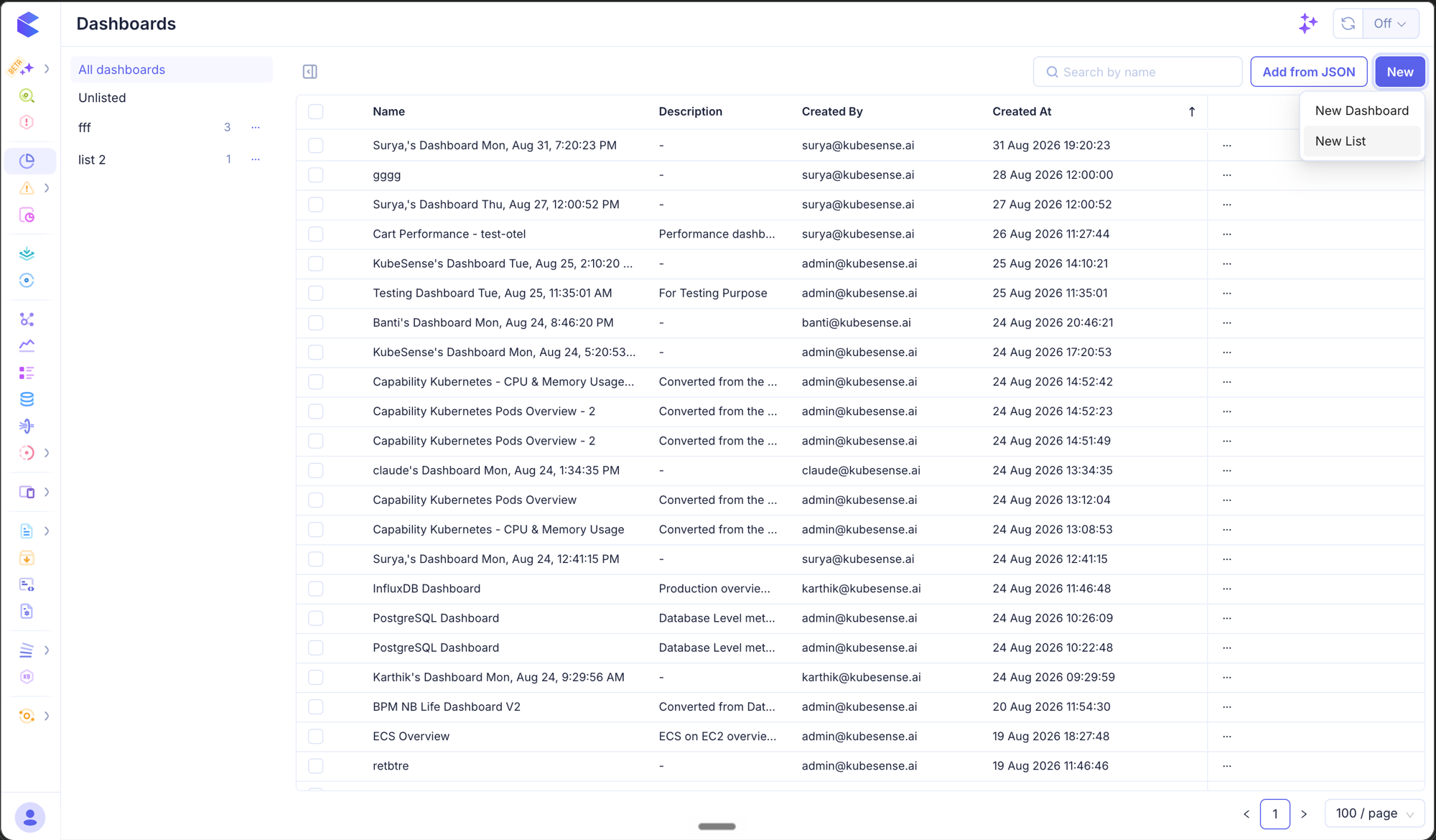
Names must be unique among existing lists, compared case-insensitively — Prod and prod collide. Names of deleted lists are freed for reuse.
Adding dashboards to a list
Lists are populated from existing dashboards; there is no "create a dashboard inside a list" flow.
One dashboard — open the row's ⋯ menu and choose Add to lists. The dropdown opens with the lists it already belongs to selected. Adding a list files it there, removing one takes it out, and saving applies exactly the set you leave selected — so this is also how you remove a dashboard from a list.
Several at once — tick the checkboxes on the rows you want, then use Add to lists in the action bar that appears at the bottom. Here the dropdown starts empty, because the selected dashboards may belong to different lists, and the lists you choose are added to all of them. Lists the selected dashboards are already in are left alone — a bulk action never silently unfiles something you could not see.
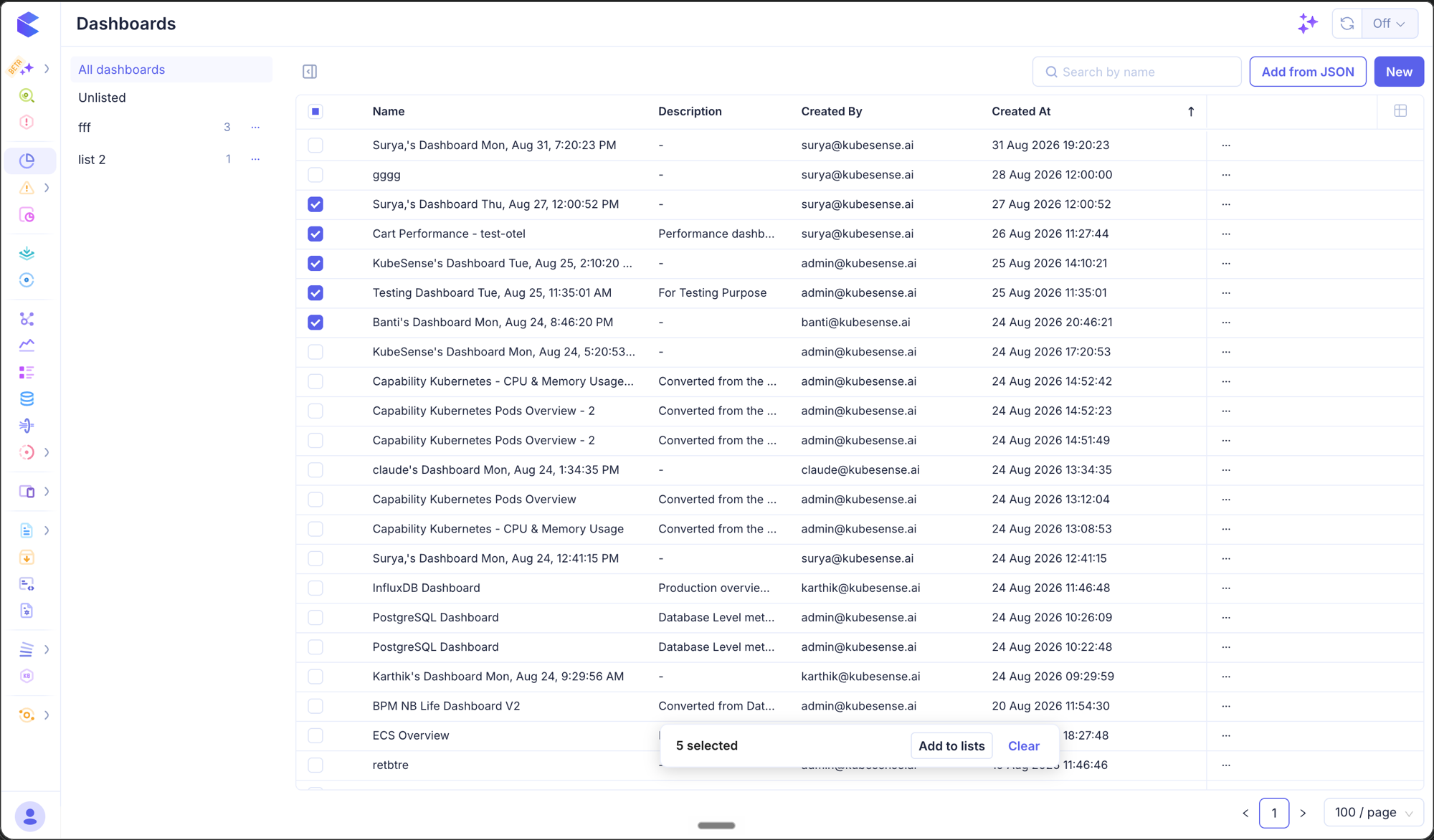
While viewing a specific list, the action bar also offers Remove from this list for the selected rows.
note: The header checkbox selects the dashboards on the current page, not every dashboard matching your search. Paginate and select again to reach the rest.
Renaming and deleting a list
Each list in the rail has a ⋯ menu with Rename and Delete.
Deleting asks what should happen to the dashboards in the list:
| Choice | Effect |
|---|---|
| Keep the dashboards (default) | The list is deleted and its dashboards are unfiled from it. They keep every other list they belong to. Nothing is lost. |
| Delete the dashboards too | The list and every dashboard in it are deleted — including dashboards that also belong to other lists. |
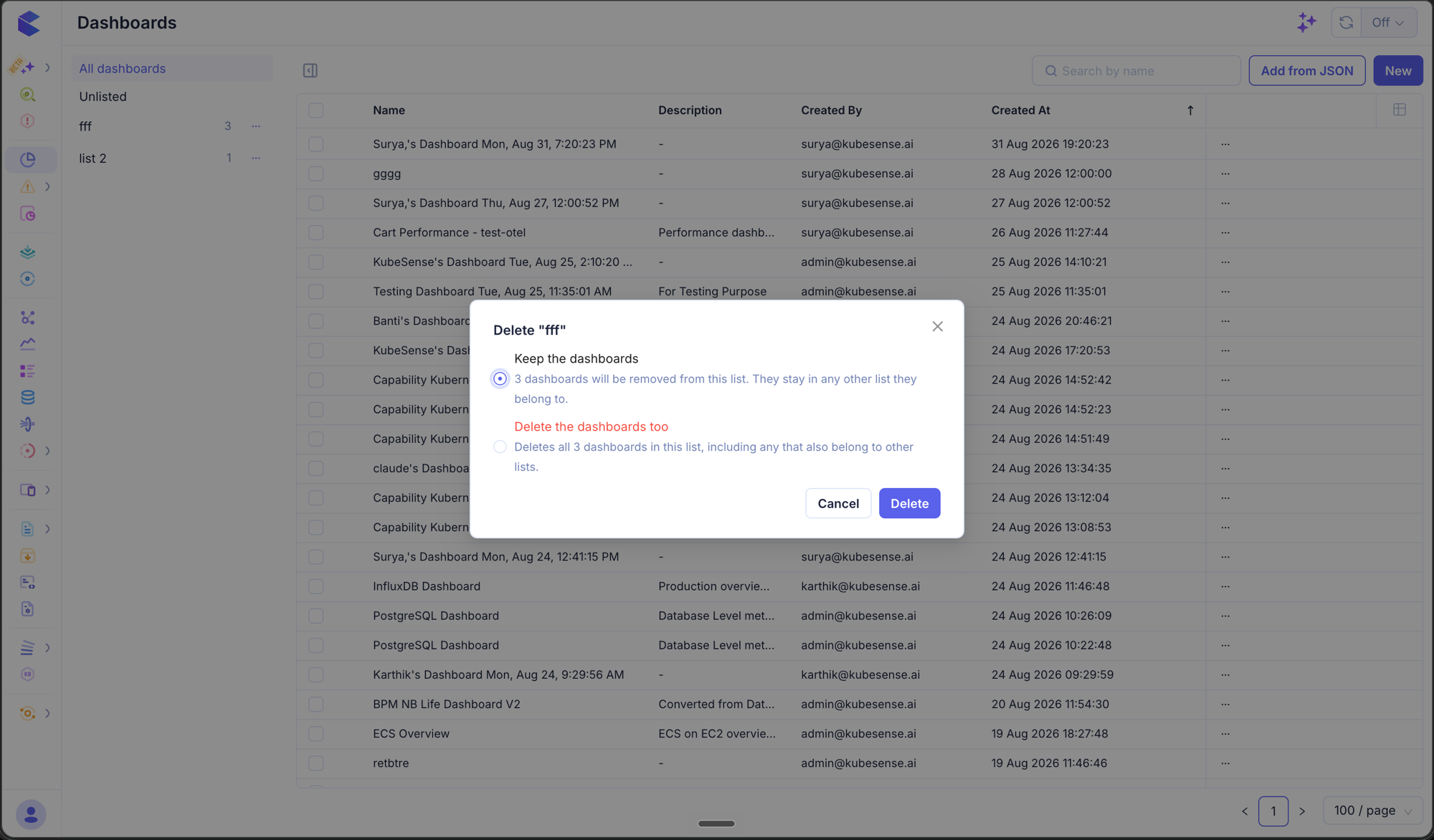
The second option is destructive and asks you to type the list's name to confirm.
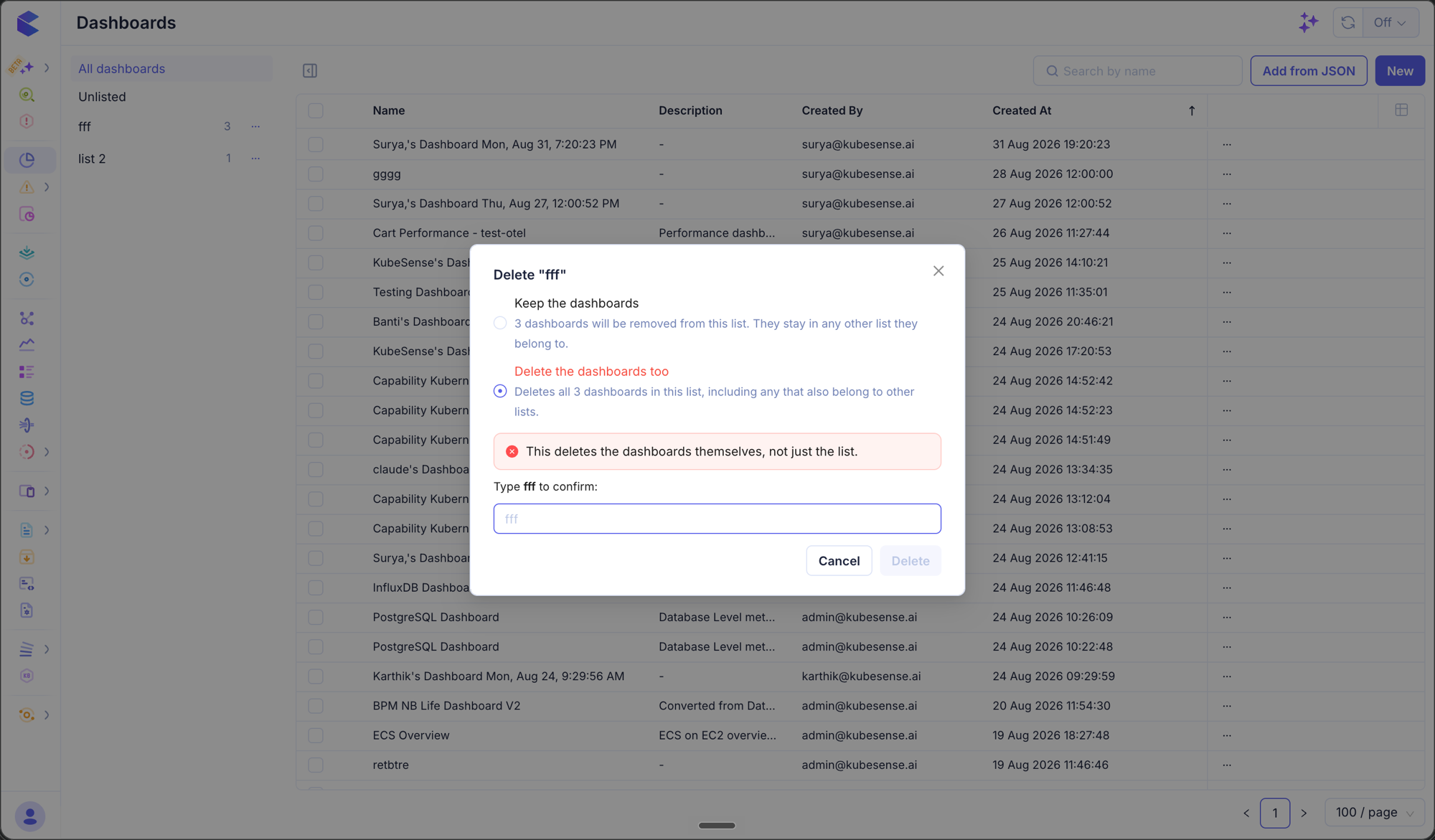
warning: Delete the dashboards too removes dashboards that other people may be relying on, including ones filed under lists you cannot see from this dialog. Prefer Keep the dashboards unless you are certain.
Searching
Search behaves differently depending on where you are:
- On All dashboards, search covers every dashboard.
- Inside a list, search is scoped to that list.
Permissions
Lists reuse the dashboard module's permissions — there is no separate setting to grant.
- Read access — you can see the rail, open lists, and browse the dashboards in them.
- Write access — you can create, rename, and delete lists, and file dashboards into them.
Without write access the create, rename, delete and add-to-list controls are disabled, and row selection is unavailable since every bulk action needs write permission. The server enforces the same rule independently, so a read-only role receives 403 even if a request is made directly against the API.
All list changes — creating, renaming, deleting, and filing dashboards in or out — are recorded in the audit log with the user, the list, and what changed.