
Stat
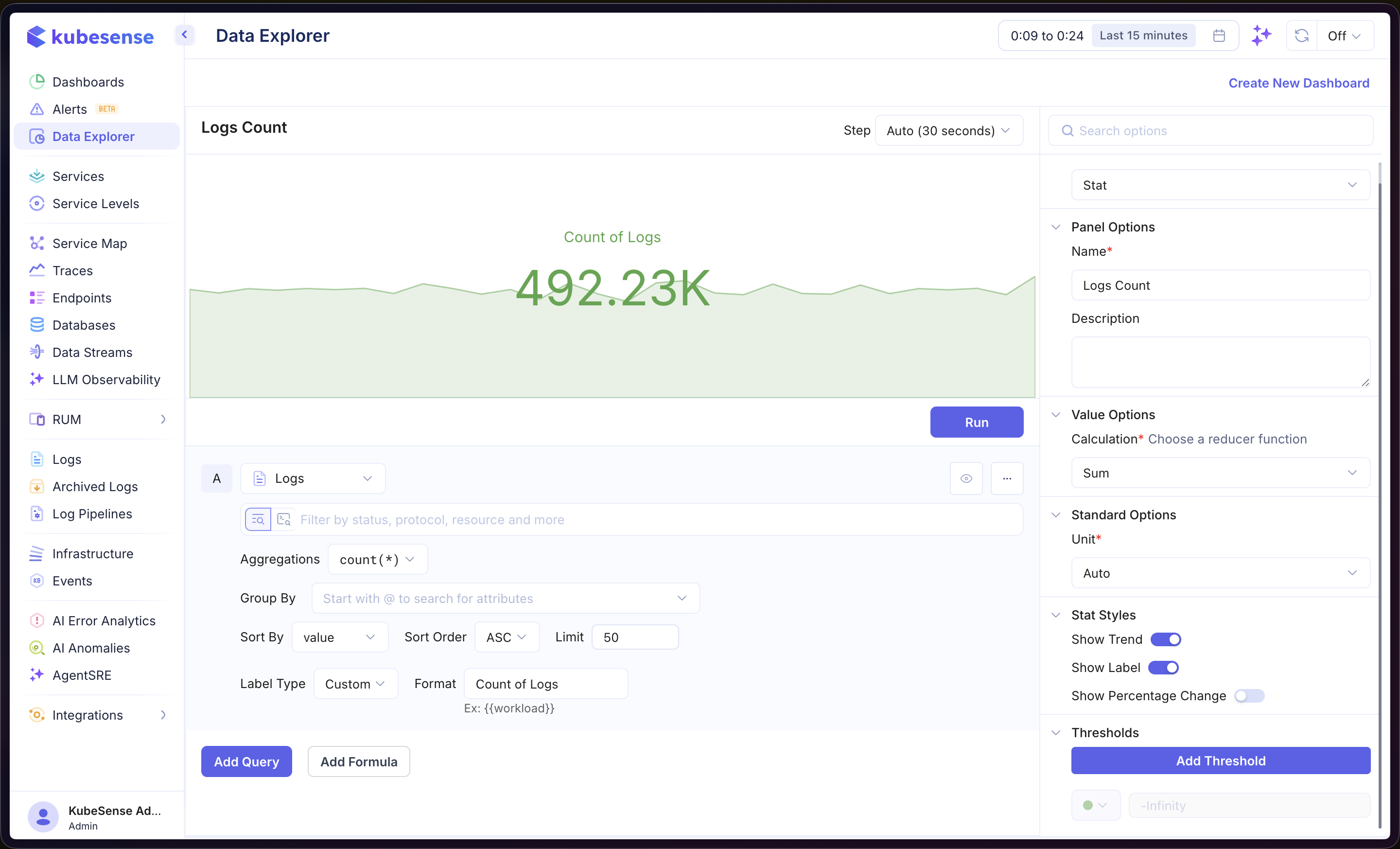
The Stat visualization displays a single prominent value, ideal for KPIs, summary numbers, and at-a-glance metrics.
When to Use
- Displaying a single important value (e.g., total requests, error rate, uptime)
- Showing a key metric with trend context via a sparkline
- Dashboard headers or summary panels
Building a Stat Panel
- Open the Data Explorer
- Select your data source (Metrics, Logs, or Traces)
- Configure your query (see Query Builder)
- Select Stat as the Panel Type in the right sidebar
- Click Run to render the stat
In the example above, the panel queries Logs data with count(*) aggregation and displays the total count as a single stat value with a sparkline trend behind it.
Multiple Queries
Add multiple queries to display several stat values side by side in the same panel. Each query produces its own stat card with an independent value and label.
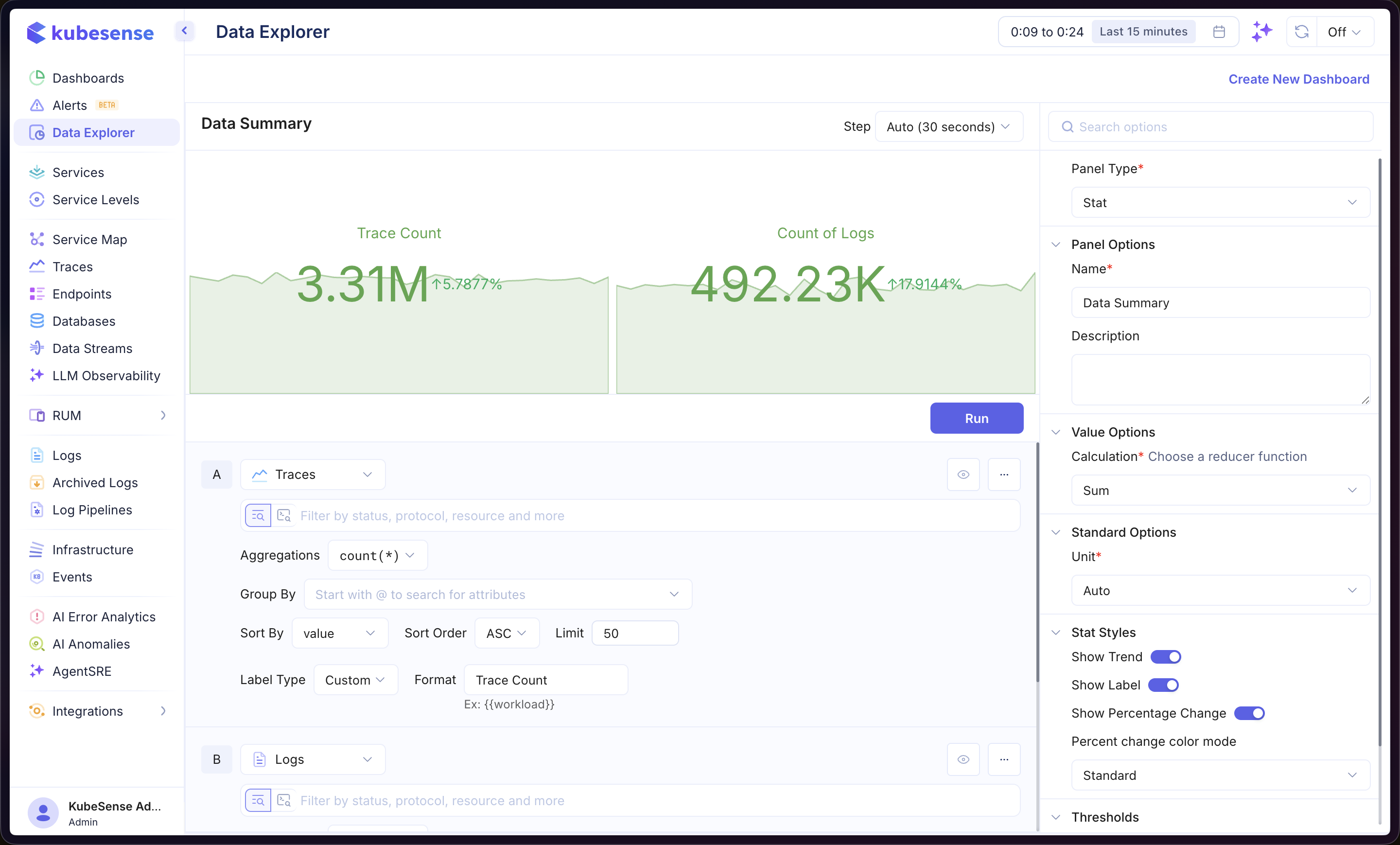
In the example above, query A shows the Trace Count and query B shows the Count of Logs, displayed together with percentage change indicators.
Prefer one value per panel: The Calculation, Unit, and Visual Formatting Rules apply to every card in the panel, so multiple queries work best for values that share a unit and scale (e.g., p50/p95/p99 of the same latency), or as inputs to a formula. Unrelated metrics belong in separate stat panels, where each gets its own title, unit, and rules.
Formulas
Use formulas to create computed stats from your queries. Click Add Formula and enter an expression combining your queries (e.g., A / B). See Time Series — Formulas for more details.
For a stat panel, each query is first reduced to a single value using the panel's Calculation, and the formula is then evaluated once over those reduced values. This makes ratio formulas correct: A * 100 / B with a Sum calculation gives the sum of A divided by the sum of B (e.g., the true error rate over the time range), not an average of per-interval percentages. The sparkline still shows the formula's per-interval trend.
Panel Configuration
Panel Options
| Option | Description |
|---|---|
| Name | Display name shown in the panel header |
| Description | Optional description for additional context |
Value Options
| Option | Description |
|---|---|
| Calculation | Reducer function that computes the displayed value from the query results — Sum, Mean, Last, Max, Min, etc. When the panel has formulas, the calculation is applied to each query before the formula is evaluated (see Formulas). |
Standard Options
| Option | Description |
|---|---|
| Unit | Unit formatter for the displayed value — choose from 100+ units including bytes, percentage, duration, requests/sec, and more |
Stat Styles
| Option | Description |
|---|---|
| Show Trend | Toggle the sparkline trend graph behind the stat value |
| Show Label | Toggle the label text above the stat value |
| Show Percentage Change | Display the percentage change over the selected time range alongside the stat value |
| Percent change color mode | Controls how percentage change is colored — Standard (green for positive, red for negative) or Inverted. Hidden once the panel has visual formatting rules: the change indicator then follows the value's rule color instead, so a green "up" arrow never sits inside a red block. |
Visual Formatting Rules
Color the stat based on its value. Each rule reads as a sentence — "If value is > 5, show with red background". Open Visual Formatting Rules in the right sidebar and click Add Condition to add a rule.
Available operators: >, >=, <, <=, =, !=.
A rule's style determines how the stat is painted:
| Style family | Effect |
|---|---|
Solid backgrounds (red, yellow, green) | Fills the whole stat block with the severity color; the value text switches to a readable ink |
Light backgrounds (light red, light yellow, light green) | Fills the block with a subtle tint, keeping the default text color |
Text colors (red text, yellow text, green text) | Colors only the value text, leaving the background untouched |
Custom (custom background, custom text) | Same as above, with a color of your choosing |
Rules are evaluated top to bottom and the last matching rule wins, so order them from least to most severe (drag to reorder). A value that matches no rule renders in the neutral style. The sparkline trend stays visible above a background fill, and multi-query panels evaluate the rules per stat card.
info: Visual Formatting Rules replaces the Thresholds section for stat panels. A stat panel saved before this change keeps being colored by its stored thresholds — until you add your first rule, which takes over the panel's coloring.