
Time Series
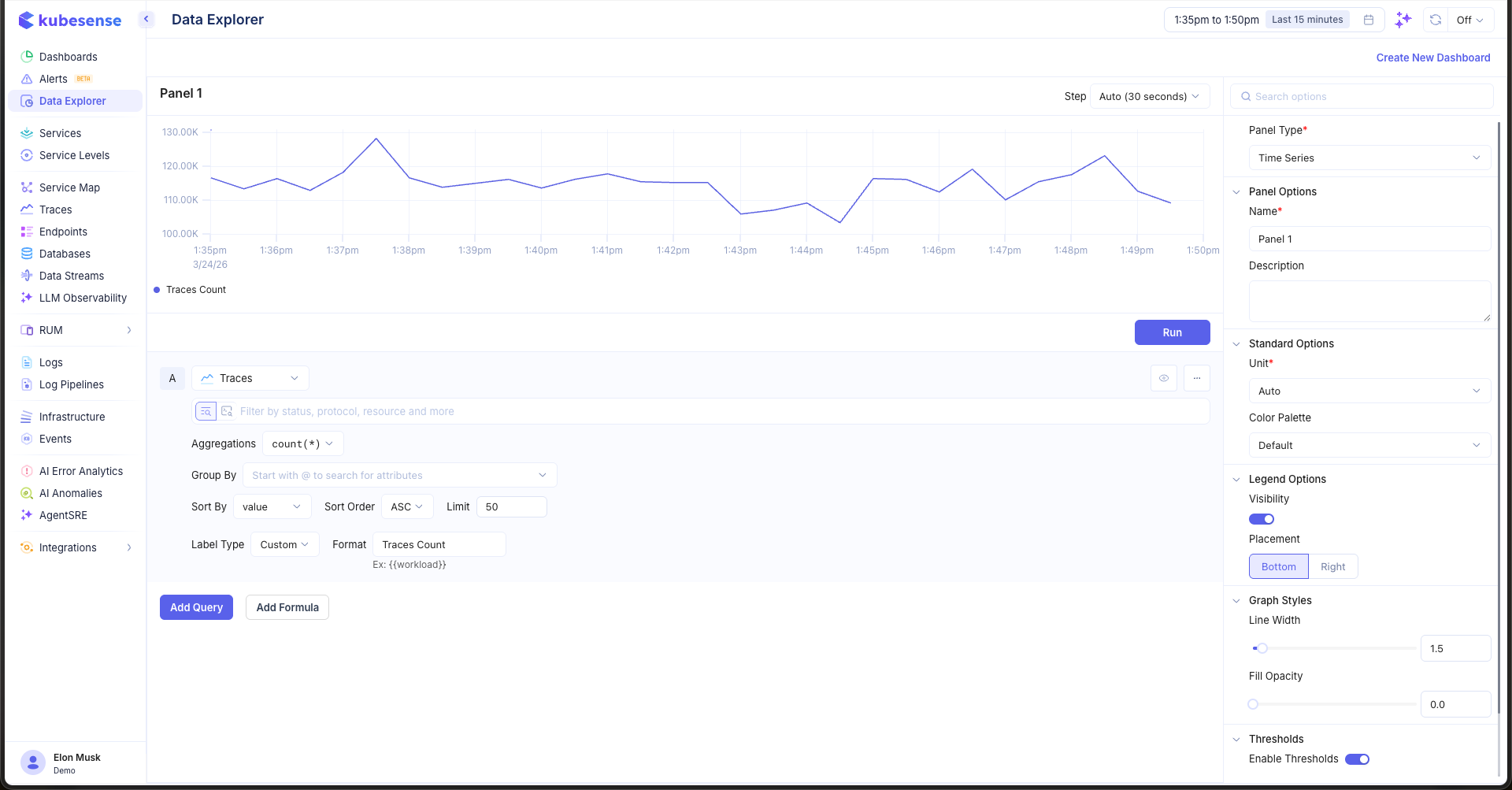
The Time Series visualization displays data as line or area charts over time. It is the default and most commonly used panel type in the Data Explorer, ideal for monitoring trends, comparing series, and spotting anomalies.
When to Use
- Monitoring metric trends over time (CPU usage, request rate, latency)
- Comparing multiple series side by side
- Tracking log or trace volumes over time
- Visualizing computed formulas like error rates
Building a Time Series Panel
- Open the Data Explorer
- Select your data source (Metrics, Logs, or Traces)
- Configure your query (see Query Builder)
- Select Time Series as the Panel Type in the right sidebar
- Click Run to render the chart
Multiple Queries
Add multiple queries to overlay different series on the same chart. Each query is labeled alphabetically (A, B, C, etc.) and rendered as a separate line in the chart.
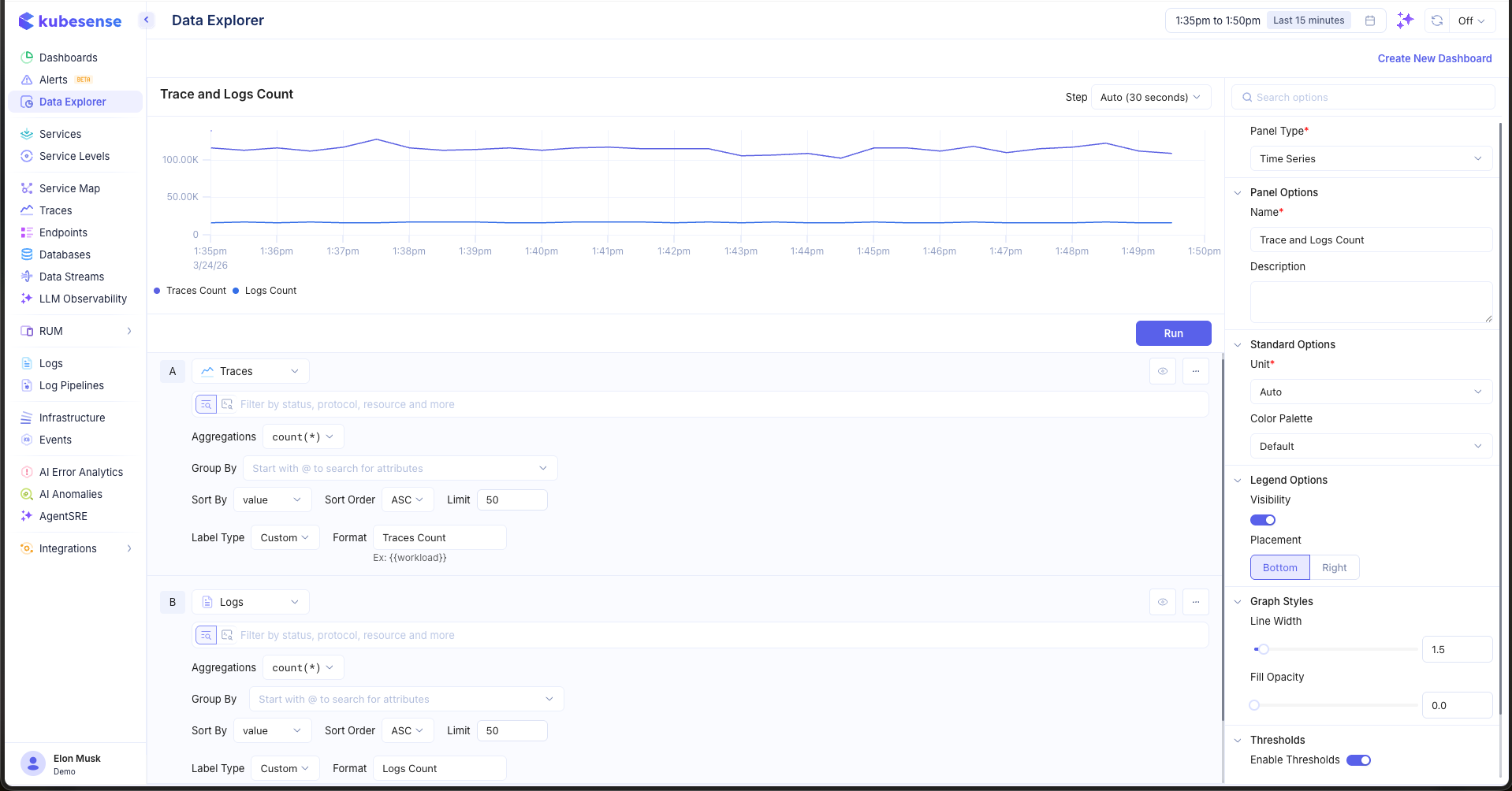
In the example above, query A shows Traces Count and query B shows Logs Count, both plotted on the same time axis with a shared legend.
Query Colors
By default every series takes the next color from the panel's Color Palette, in query order. When a query has a fixed meaning, such as successful requests or errors, give it its own color so it reads the same however the panel is arranged. The Color control sits under each query, next to Label Type.
| Option | Description |
|---|---|
| Panel color scheme | Default. The query's series follow the panel's Color Palette |
| Single color | Pick one color for the query. If the query returns several series, they are drawn in shades of that color |
| Default / Success / Warning / Error | Color the query's series from one of the named palettes, starting from its first color |
A query color overrides the panel palette for that query only. Threshold colors, when the panel colors series by value, still take precedence.
Formulas
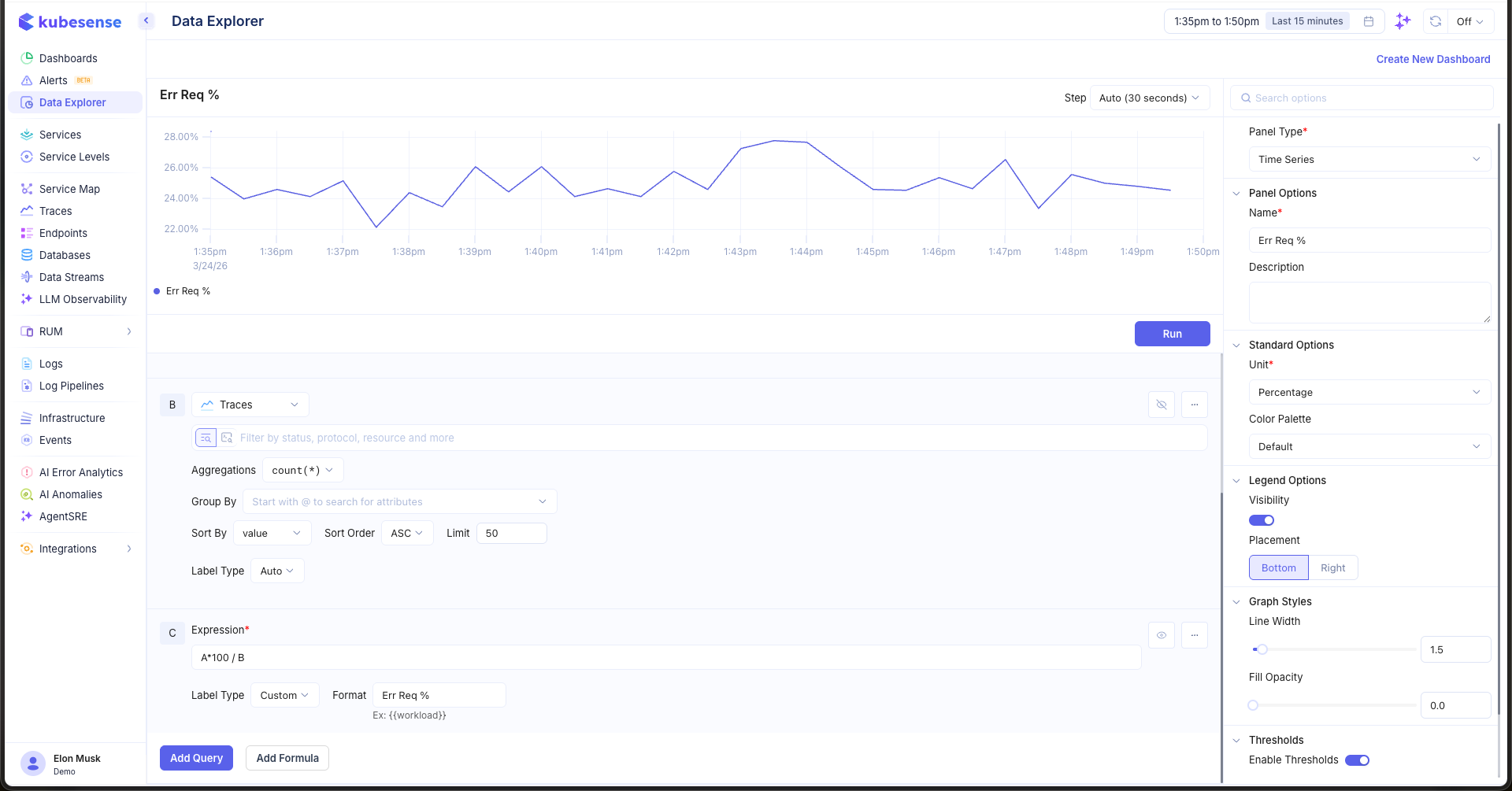
Use formulas to create computed series from your queries. For example, to calculate an error request percentage:
- Add a query B for error trace counts
- Click Add Formula to add expression C
- Enter
A*100 / Bas the expression - Set the Unit to Percentage
Panel Configuration
Panel Options
| Option | Description |
|---|---|
| Name | Display name shown in the panel header |
| Description | Optional description for additional context |
Standard Options
| Option | Description |
|---|---|
| Unit | Y-axis unit formatter — choose from 100+ units including bytes, percentage, duration, requests/sec, and more |
| Color Palette | Color scheme for the chart lines and fills. Individual queries can override it, see Query Colors |
Legend Options
| Option | Description |
|---|---|
| Visibility | Show or hide the legend |
| Placement | Position the legend at the Bottom or Right of the panel |
Graph Styles
| Option | Description |
|---|---|
| Line Width | Thickness of chart lines (default: 1.5) |
| Fill Opacity | Transparency of the filled area under lines (0 = no fill, 1 = solid) |
| Stacking | Stack series on top of each other instead of overlaying |
Thresholds
Add horizontal threshold lines to highlight important values. Enable thresholds in the right sidebar, then click Add Threshold and set the value. Each threshold is displayed as a dashed line with a custom color.
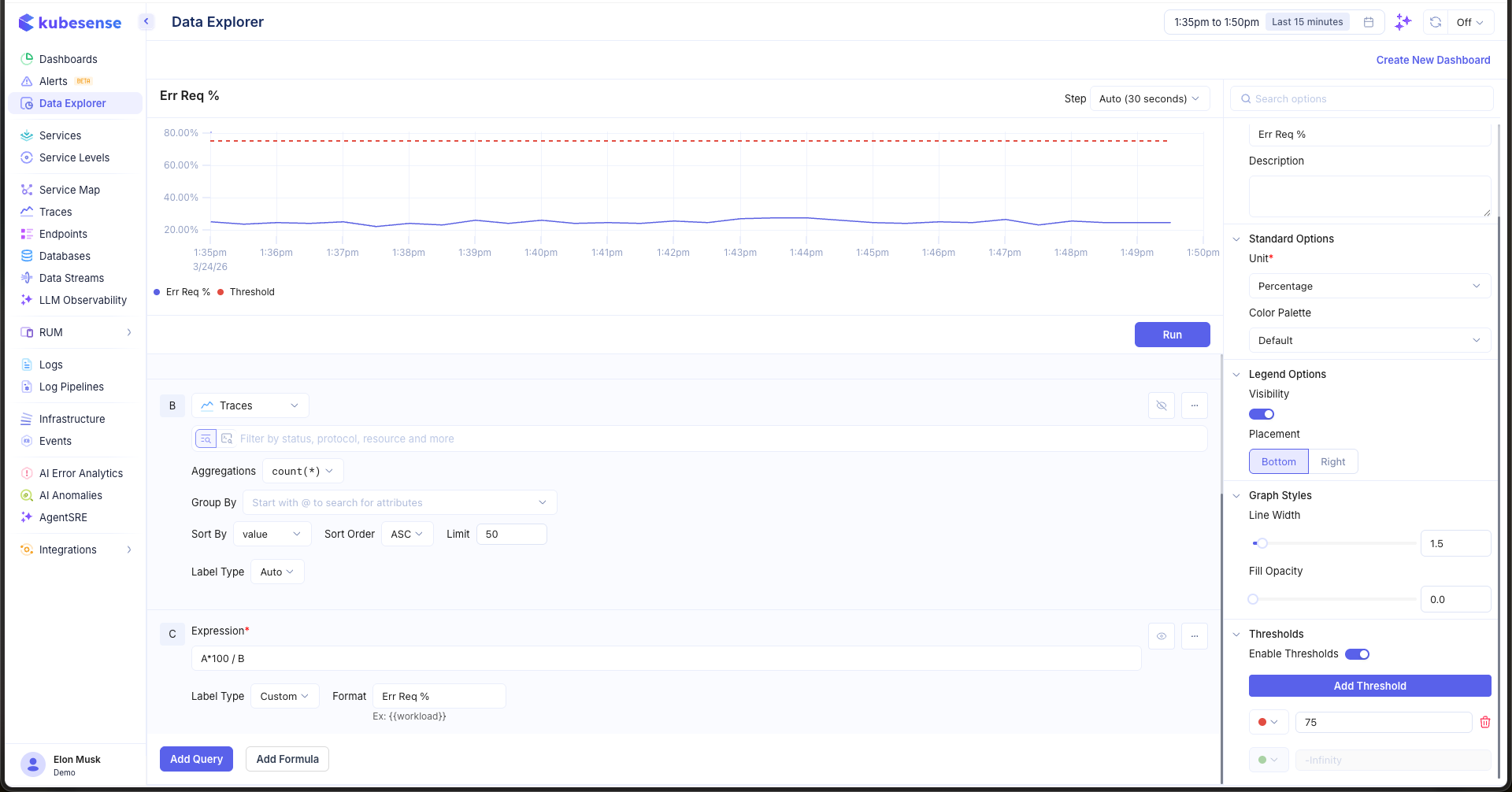
In the example above, a threshold is set at 75% to mark a warning level on the error request percentage chart.