

Alerting on Findings
Get notified when sensitive data shows up in your logs. Every scan writes the matches it found to a metric, kubesense_sds_matches, and alerts on findings are ordinary metrics alert rules: they use your notification channels, maintenance windows and alert history like any other rule.
You can create an alert from two places, and the alert editor opens already filled in:
| From | Fires |
|---|---|
| A finding | While that rule keeps matching that service |
| A scanning group | When any rule in the group starts matching a service that had no matches in the 24 hours before |
From a Finding
- In the Findings tab, click a finding to open its details.
- Click Create alert.
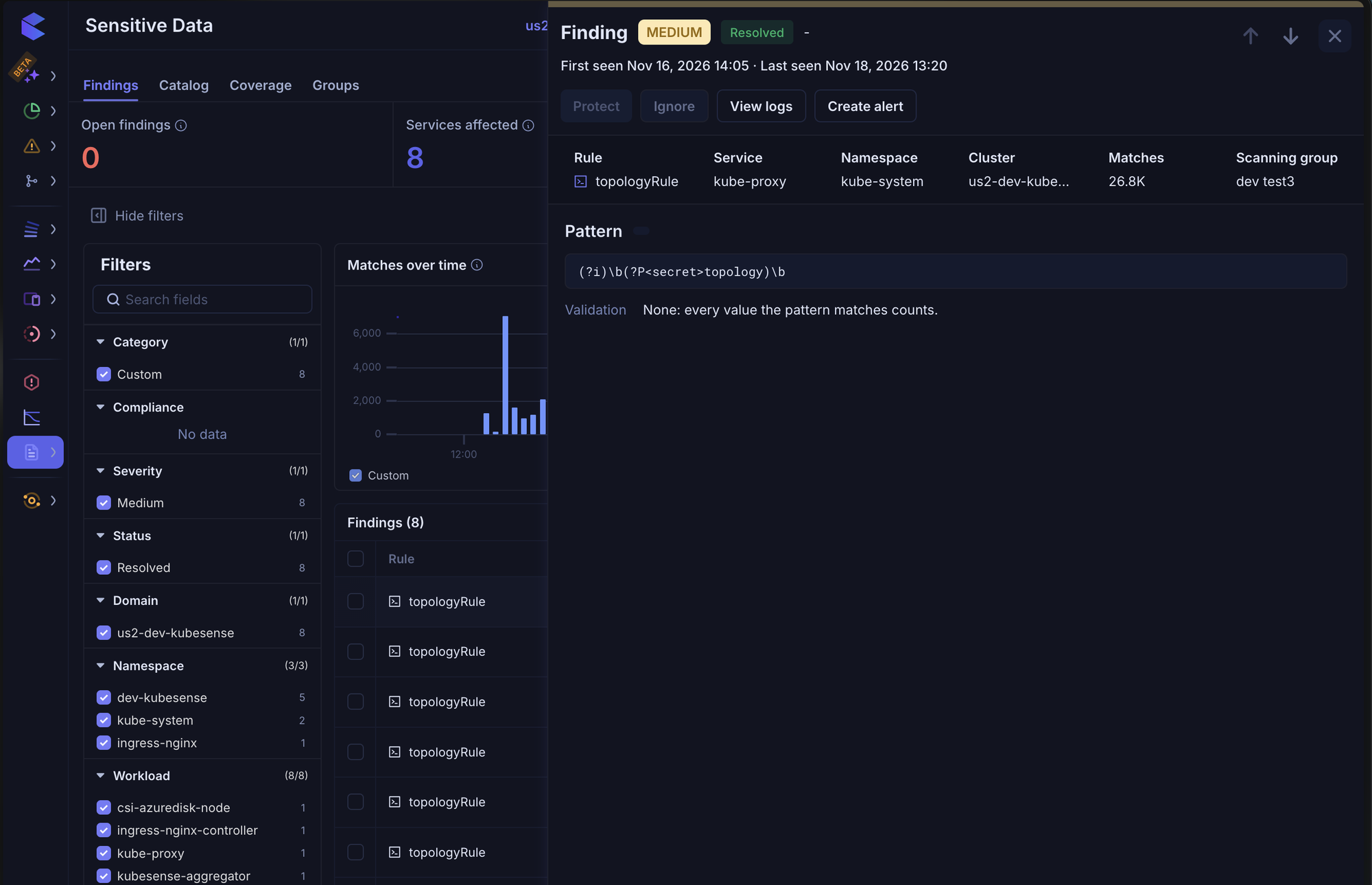
The alert editor opens with:
| Field | Value |
|---|---|
| Name | Sensitive data: <rule> on <service>, or the cluster for logs from VMs and hosts |
| Query | The finding's matches over the last 10 minutes: its rule (by id) in its cluster, namespace and service |
| Condition | Single Threshold, above 0 |
| Run alert every | 5 minutes |
| Severity | From the rule: Critical → Critical, High → Error, Medium → Warning, Low → Info |
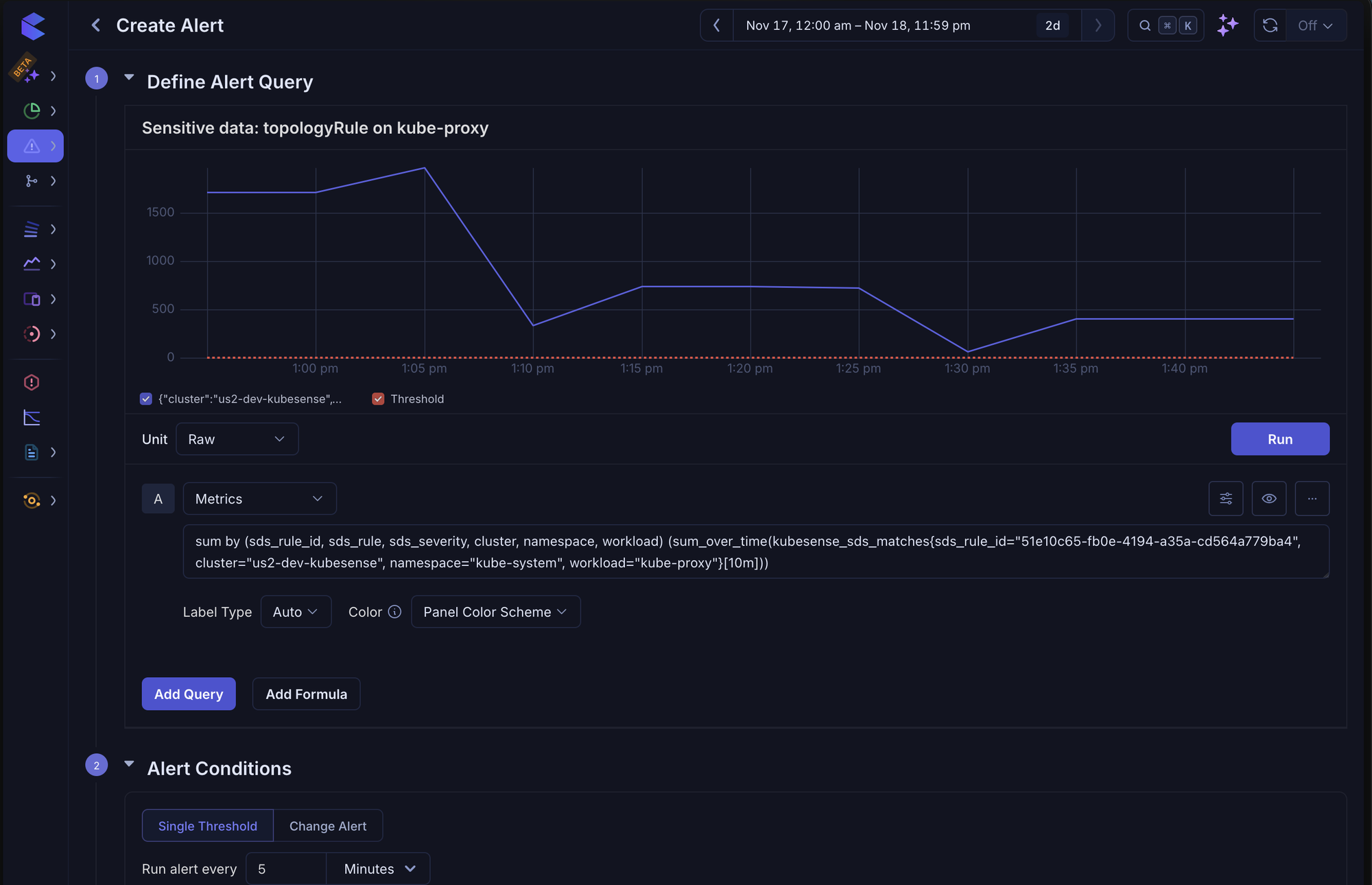
Pick your notification channels and click Create. You can change anything before saving, for example the threshold, or the query to cover every service of the rule.
Create alert is disabled on an Ignored finding: ignored findings write no matches, so the alert would never fire. Reopen the finding first.
From a Scanning Group
- In the Groups tab, open a group's row menu (⋮).
- Click Create alert.
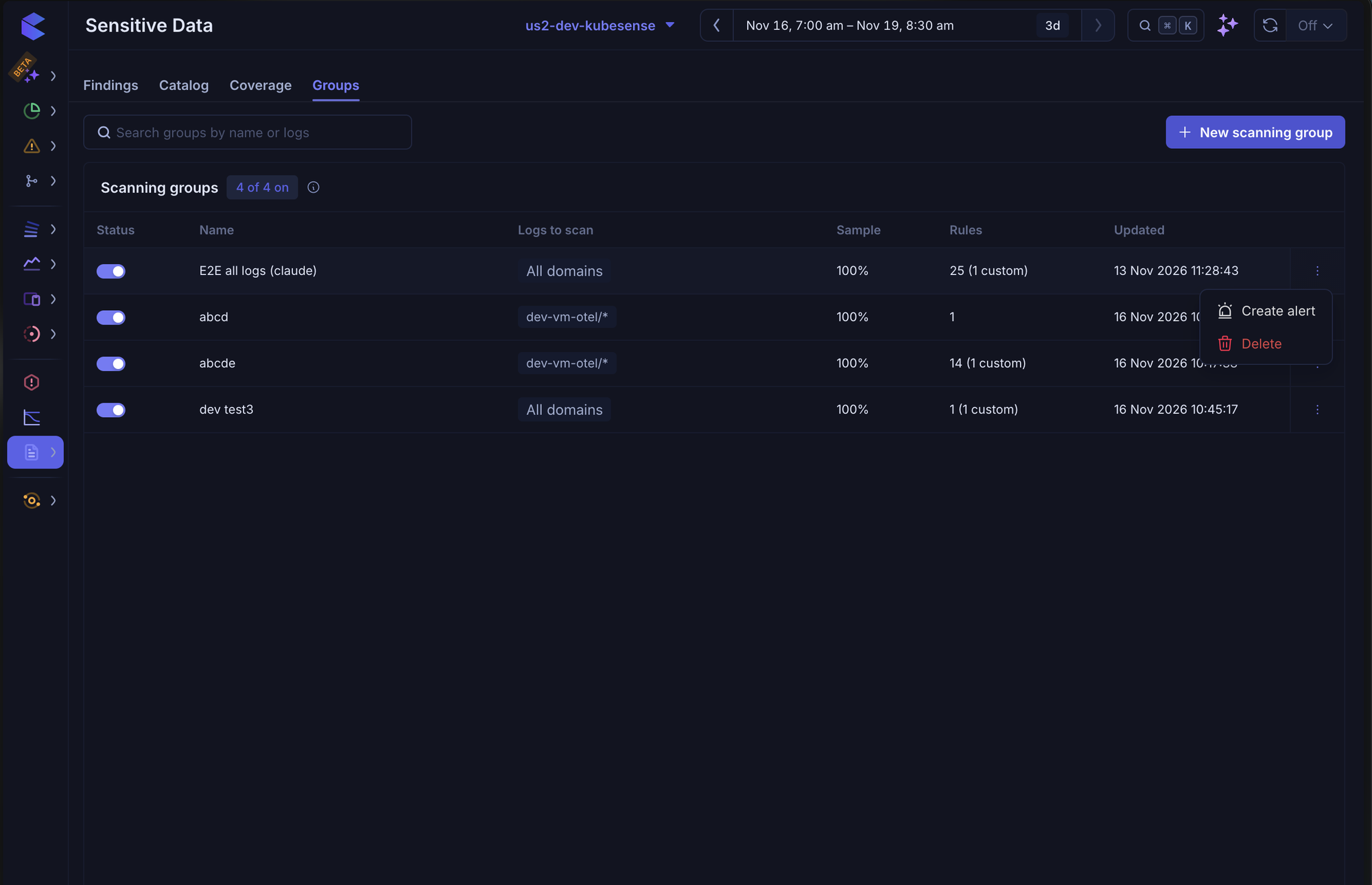
The alert editor opens with a new finding alert for the group:
| Field | Value |
|---|---|
| Name | Sensitive data: new finding in <group> |
| Query | Matches of the group's rules over the last 10 minutes, unless the same rule matched the same service in the 24 hours before |
| Condition | Single Threshold, above 0 |
| Run alert every | 5 minutes |
| Severity | Warning. Change it to match the group's rules |
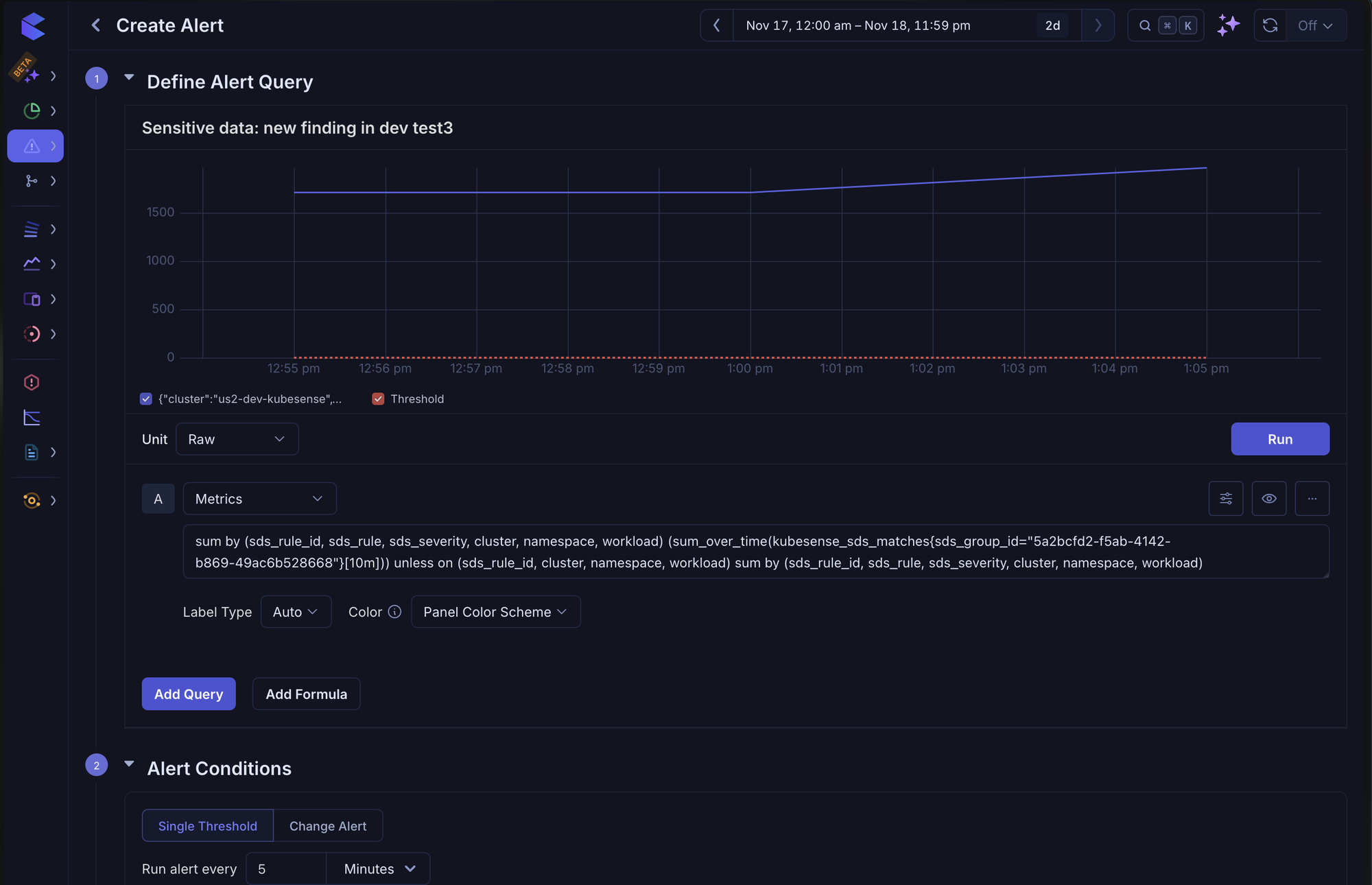
It fires once per rule and service when a finding starts, and resolves about 10 minutes later: it announces the new finding, and the Findings tab tracks it from there. A finding that stops matching for more than 24 hours and comes back fires again, just as it shows as Resolved and then Open again on the Findings tab.
The Metric
The scanner writes kubesense_sds_matches after each scan, one sample per finding with matches:
| Label | Value |
|---|---|
sds_rule_id | The rule's id. Stable across renames |
sds_rule | The rule's name |
sds_severity | critical, high, medium or low |
sds_domain | pii, secrets, payment, network or custom |
sds_group_id | The scanning group's id |
cluster, namespace, workload | Where the data was found. Logs from VMs and hosts have no namespace or workload |
The value is the number of matches in that scan, estimated from the sample when the group samples below 100%, counted the same way as on the Findings tab. Scans the scanner catches up on after downtime, and ignored findings, are not written (see Things to Know).
You can write your own alert on it in Alerts > Alert Rules with the Metrics data source. For example, any critical match in a payments namespace:
sum by (sds_rule_id, sds_rule, sds_severity, cluster, namespace, workload) (
  sum_over_time(kubesense_sds_matches{sds_severity="critical", namespace=~"payments.*"}[10m])
)
Keep the range at 10 minutes or more: the scanner writes once per scan, every 5 minutes by default.
Things to Know
- Timing — logs are scanned a few minutes after they are stored, and the matches are written about 7 to 12 minutes after the log line. With the rule running every 5 minutes, the alert fires up to about 17 minutes after the log line.
- Ignored findings write no matches and never alert. Reopen a finding to alert on it again.
- Protected findings alert only if their data still reaches storage unmasked, which usually means some of the service's logs bypass the pipeline's Protect rule.
- After scanner downtime, the windows it catches up on are listed on the Findings tab but not written to the metric, so old matches do not fire alerts as if they were new.
- Deleting a group or rule does not delete its alerts. They stop firing, since nothing writes matches for them any more.
Permissions
Creating an alert needs Alerts write access; see Permissions. Create alert is shown only when Alerts is enabled for your account, and is disabled without write access.