
Ask AgentSRE about this page
Page chat is a small AgentSRE chat window that opens on top of the page you are using. It reads what that page is showing, so you can ask "why is this failing?" without copying filters, time ranges, or IDs into a chat. It runs the same tools as Conversations and answers from your own telemetry.
Page chat requires AgentSRE access. If your account has it, the sparkle button in the top bar of a supported page reads Ask AgentSRE about this page. On a page without page chat, the same button opens the full AgentSRE chat.
What you can do
Page chat does four things.
- Ask about what you see. The chat already knows the page's time range, filters, and open item, so you don't have to repeat them. Ask "summarise this", "which calls are failing?", or "why did this fire?" and the answer covers the data on screen.
- Ask about one dashboard panel. On a dashboard, attach a panel to the chat and ask about that panel. The agent runs the panel's query for the current time range and variables.
- Change a dashboard. On a dashboard, ask the chat to edit that dashboard, for example to rename or modify an attached panel.
- Create or edit log pipelines. On Log Pipelines, ask the chat to create a pipeline or change an existing one.
Everything else is read-only. Page chat changes only things that belong to the page you are on, and it never deletes anything. See What page chat can change for the rules and What you can do on each page for the full list.
Open page chat
- Open a supported page, such as Logs, Traces, Service Map, a dashboard, or Log Pipelines.
- Click the sparkle button in the top bar.
- Type a question, or click one of the suggested follow-ups.
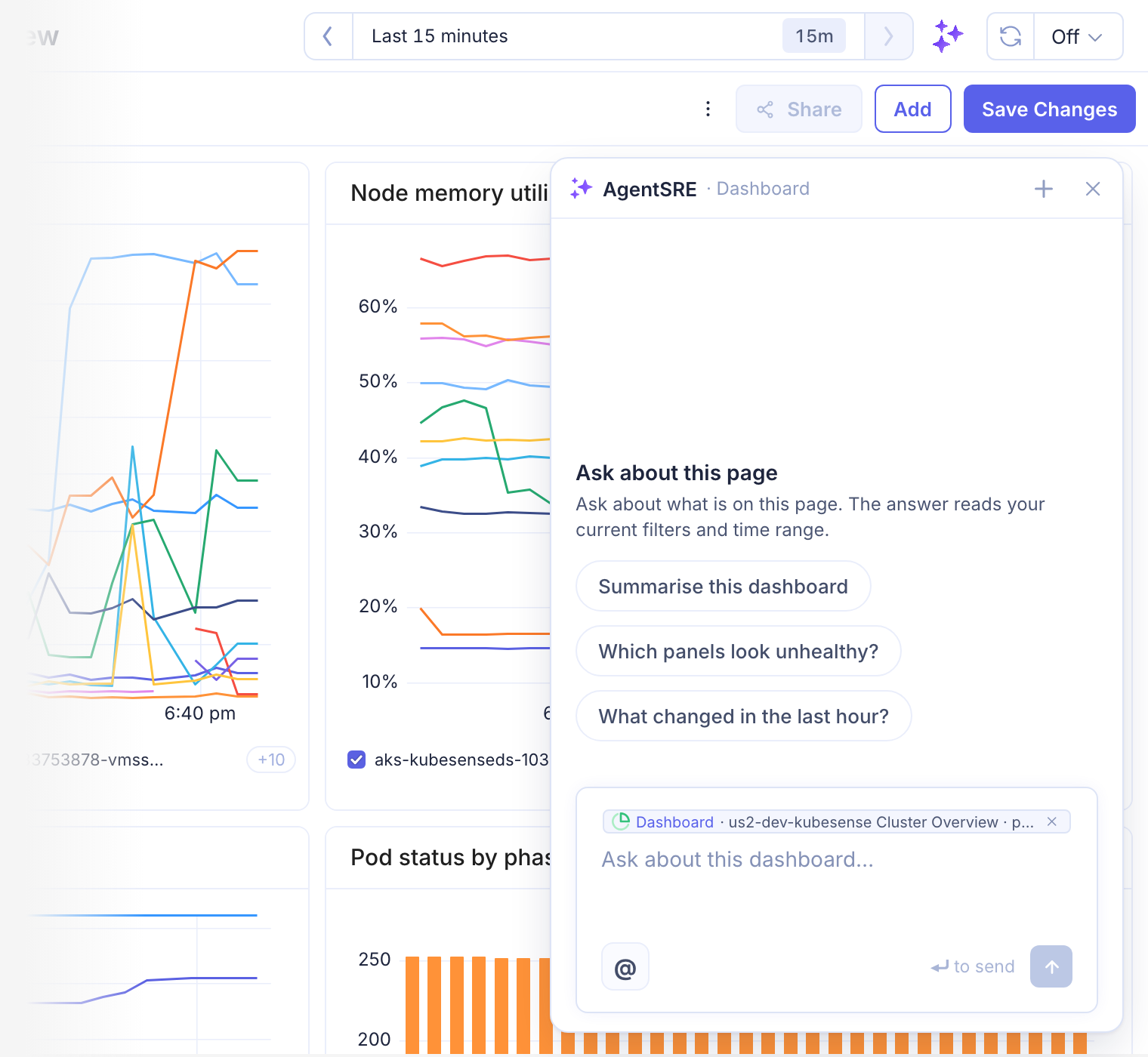
The window header names the page, for example AgentSRE · Dashboard. The input box shows a pill with the page you are asking about. The page part of the pill is always there; it tells the chat which page you are on and what it may change there.
The header has these controls:
| Control | What it does |
|---|---|
| New chat (plus icon) | Starts a fresh thread. |
| Open in AgentSRE | Opens the same thread in the full AgentSRE chat. It appears after you send the first message. |
| Close (x) | Hides the window. A running answer keeps going. |
Drag the window by its header to move it, and drag its edges or corners to resize it. If you move to another page while the window is open, it stays open and picks up the new page. On a page with no page chat, the window keeps your thread but cannot send new messages until you open a supported page. The suggested questions follow the page you are on.
Ask about a dashboard panel
To ask about one panel instead of the whole dashboard:
- Open a dashboard.
- Hover over the panel and click Ask AgentSRE in the panel's hover actions.
- Ask your question in the chat window that opens.
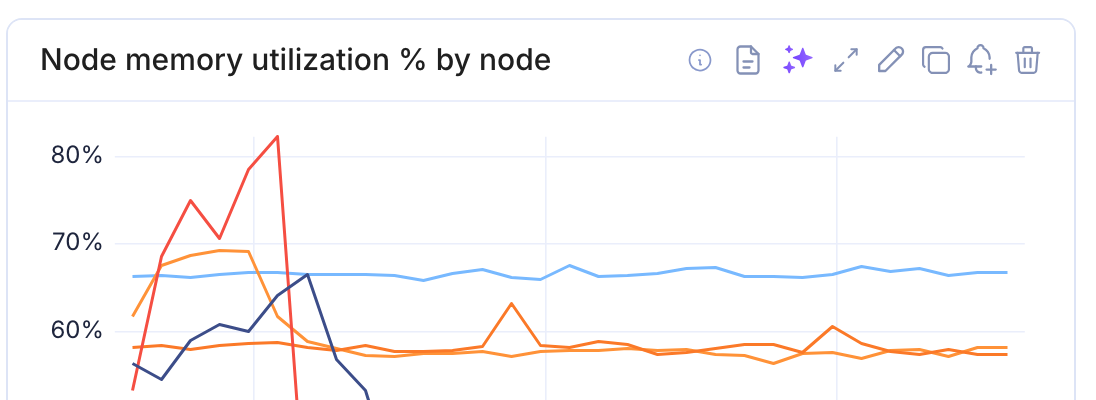
The panel appears as a second part of the page pill. The chat uses the panel as it appears on screen right now, including edits you have not saved.
To detach the panel and go back to asking about the whole dashboard, click the small x on the pill. The dashboard part of the pill stays.
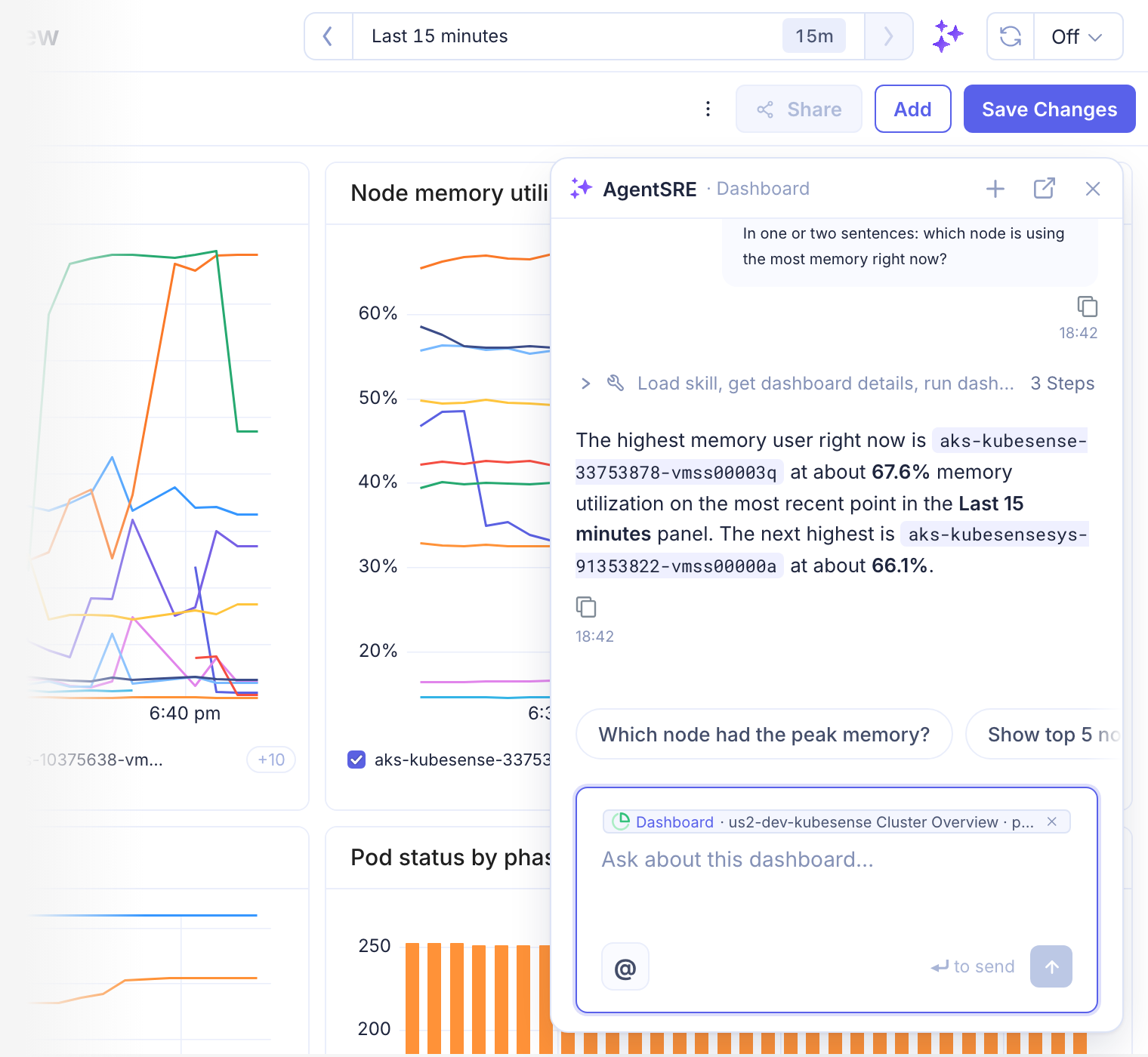
In this example the agent ran the panel's query for the last 15 minutes and described which nodes were busiest. Expand the step above the answer to see the tool calls and their results.
What page chat can change
Page chat can change only what belongs to the current page.
| Page | What the chat can change |
|---|---|
| Dashboard (an open dashboard) | Edit that dashboard. |
| Log Pipelines | Create or edit log pipelines. |
| Every other page | Nothing. The chat answers and suggests. |
These rules apply to every change:
- You approve first. Before the agent changes anything, an approval card appears in the chat with Approve and Reject. Nothing changes until you click Approve.
- The page refreshes itself. After you approve, an open dashboard updates in place and the Log Pipelines list reloads. You do not need to refresh.
- Your access applies. The chat acts as you. On a dashboard you can't edit, such as a built-in integration dashboard, it is not given the edit tool at all; it answers questions and tells you that you need edit access. KubeSense also refuses any change you don't have permission for.
- Nothing is deleted. Page chat never deletes a dashboard, panel, or pipeline.
- Other pages own their changes. If you ask for a change that belongs to another page, the chat tells you what it can do here and points you to the page that owns the change, or to the full AgentSRE chat. It does this even if you insist.
On a dashboard you can't edit, the chat says so and points you to who can grant access:
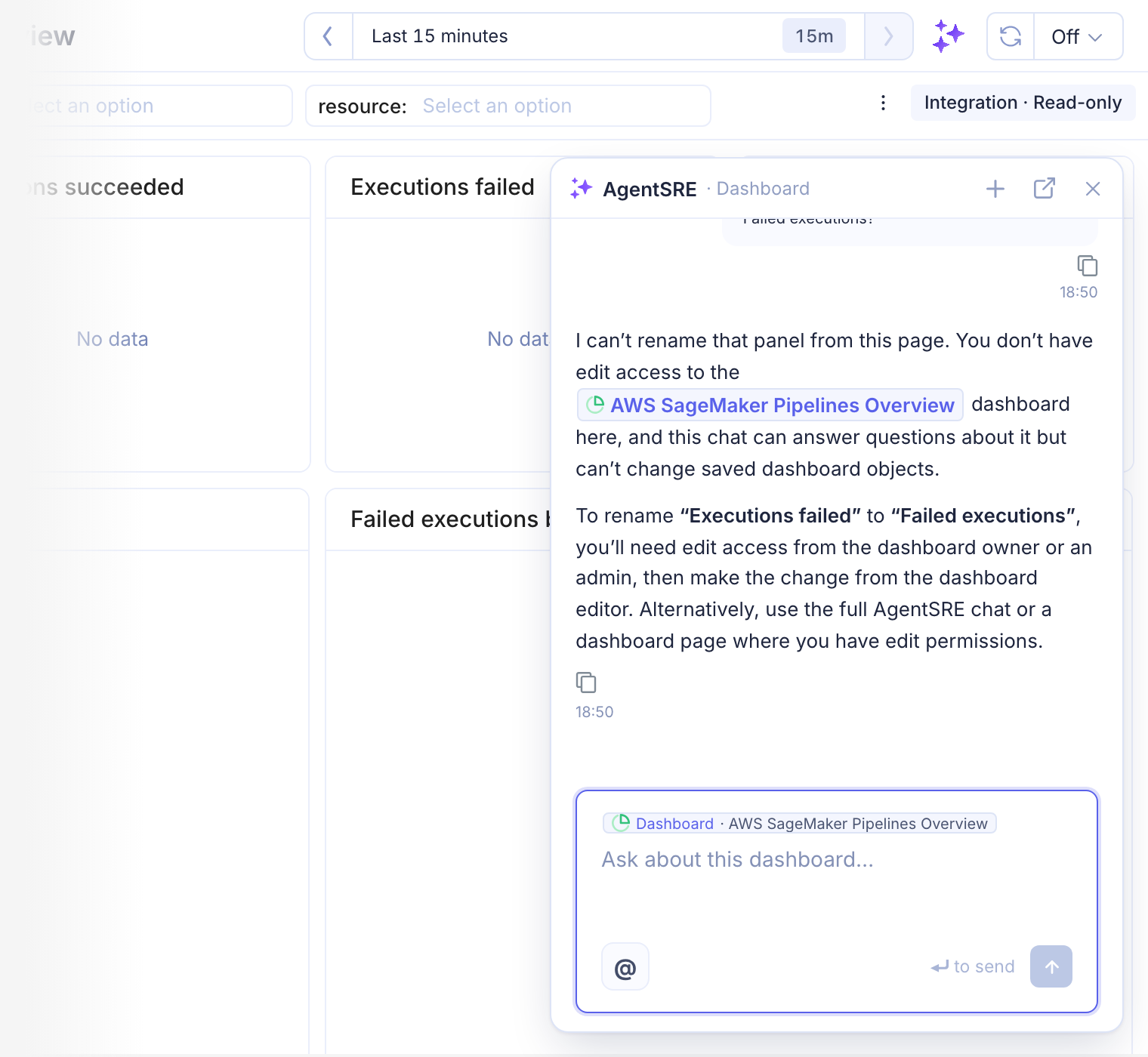
Edit a dashboard
- Open the dashboard. To change one panel, attach it first.
- Ask for the change, for example "rename this panel to Memory usage by node (%)".
- Read the approval card, then click Approve.
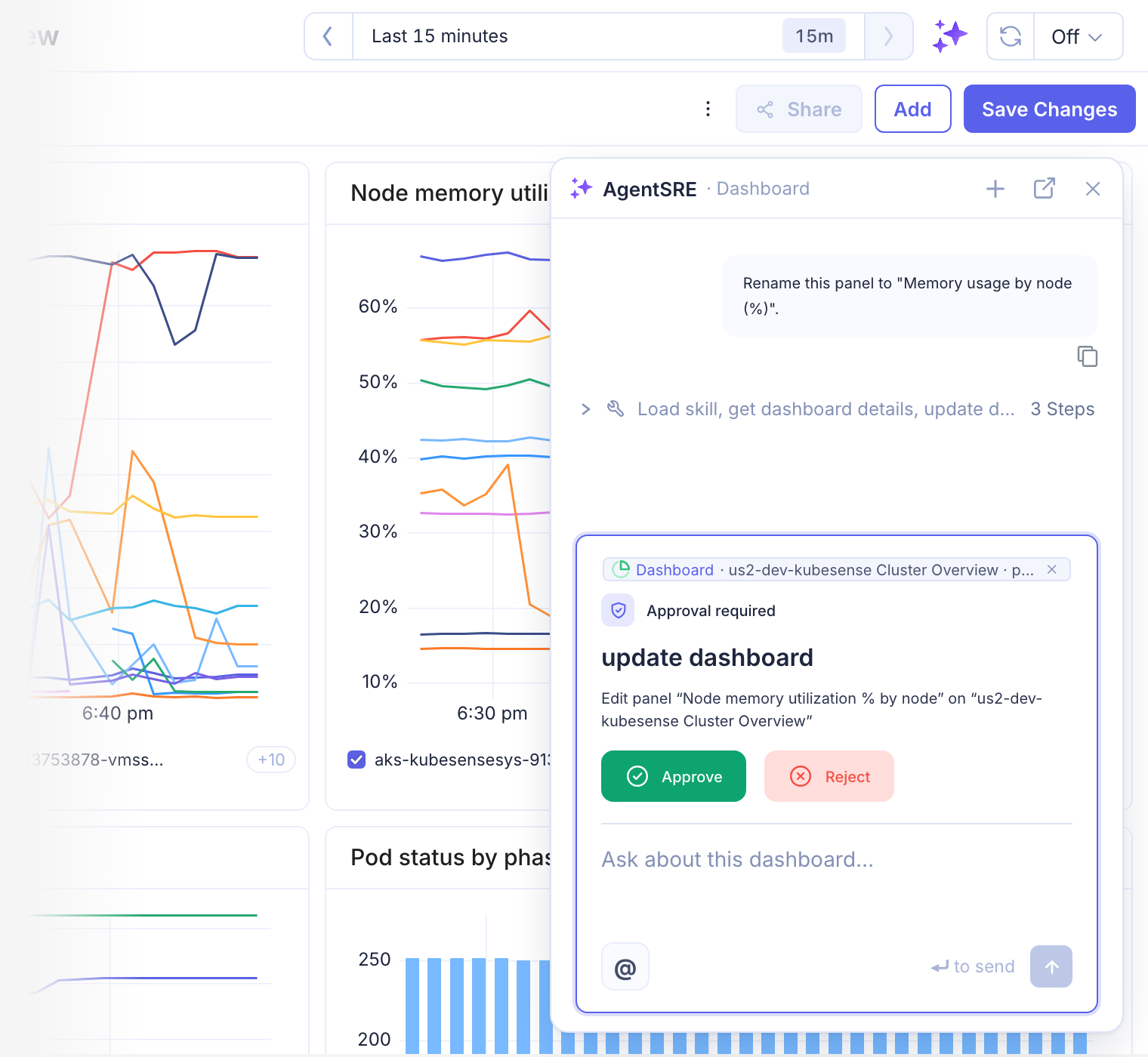
The agent reads the saved dashboard, changes only what you asked for, and keeps every other panel as it was. If you attached a panel, an edit request means that panel.
If the dashboard has unsaved changes, the chat asks you to save or discard them first. An edit applies to the saved dashboard, and saving your own edits afterward would overwrite the agent's change.
Create or edit a log pipeline
- Open Log Pipelines.
- Ask the chat to create a pipeline, or to change one, for example "rename this pipeline".
- Read the approval card, then click Approve.
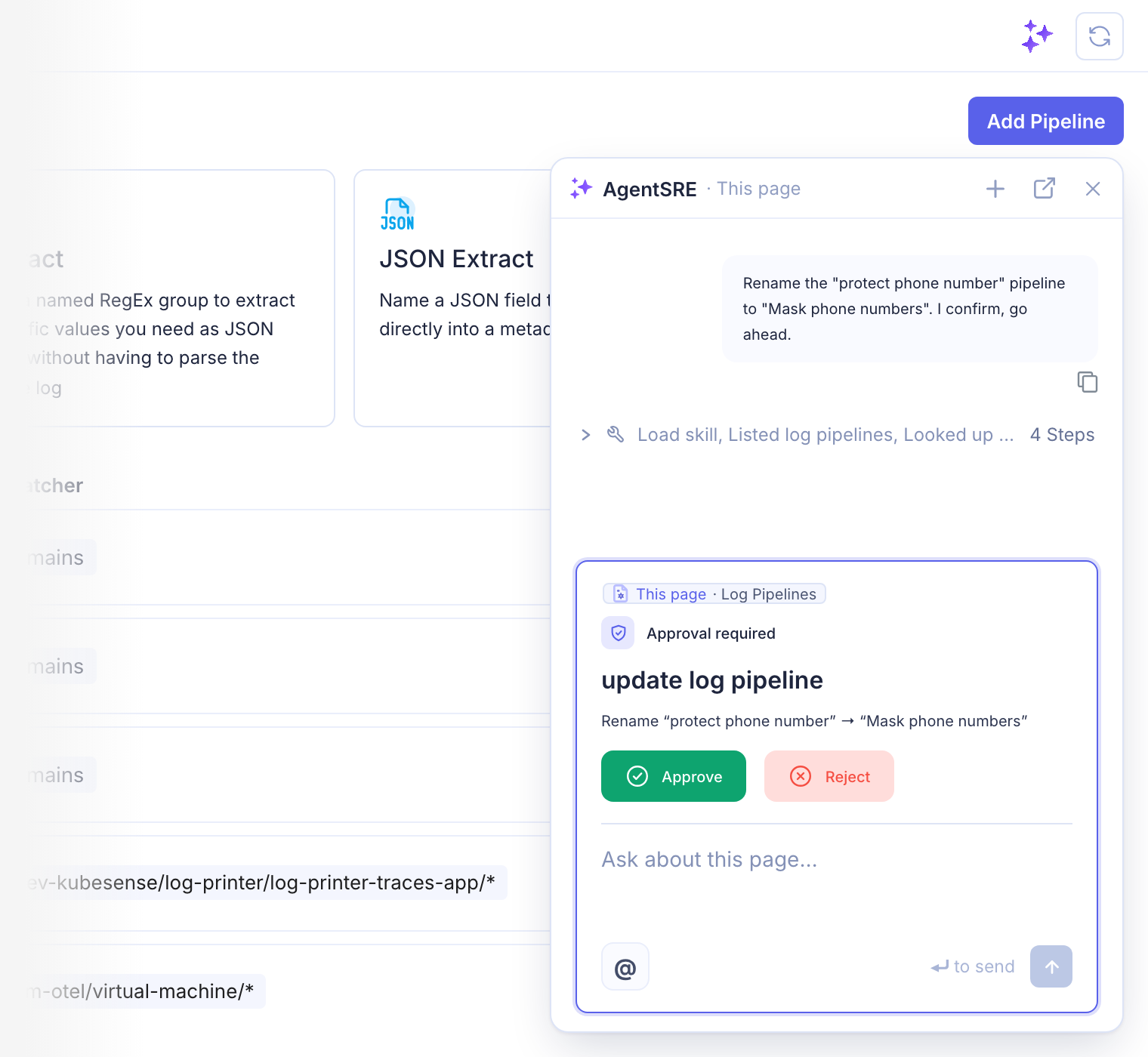
If a pipeline is open in the editor, you can say "this pipeline" and the chat edits it. After you approve, the pipelines list reloads. An editor you have open keeps your unsaved form values.
Ask for a change from the wrong page
On a dashboard, asking the chat to create a log pipeline does not create one. The chat says what it can do on this page and where the change belongs.
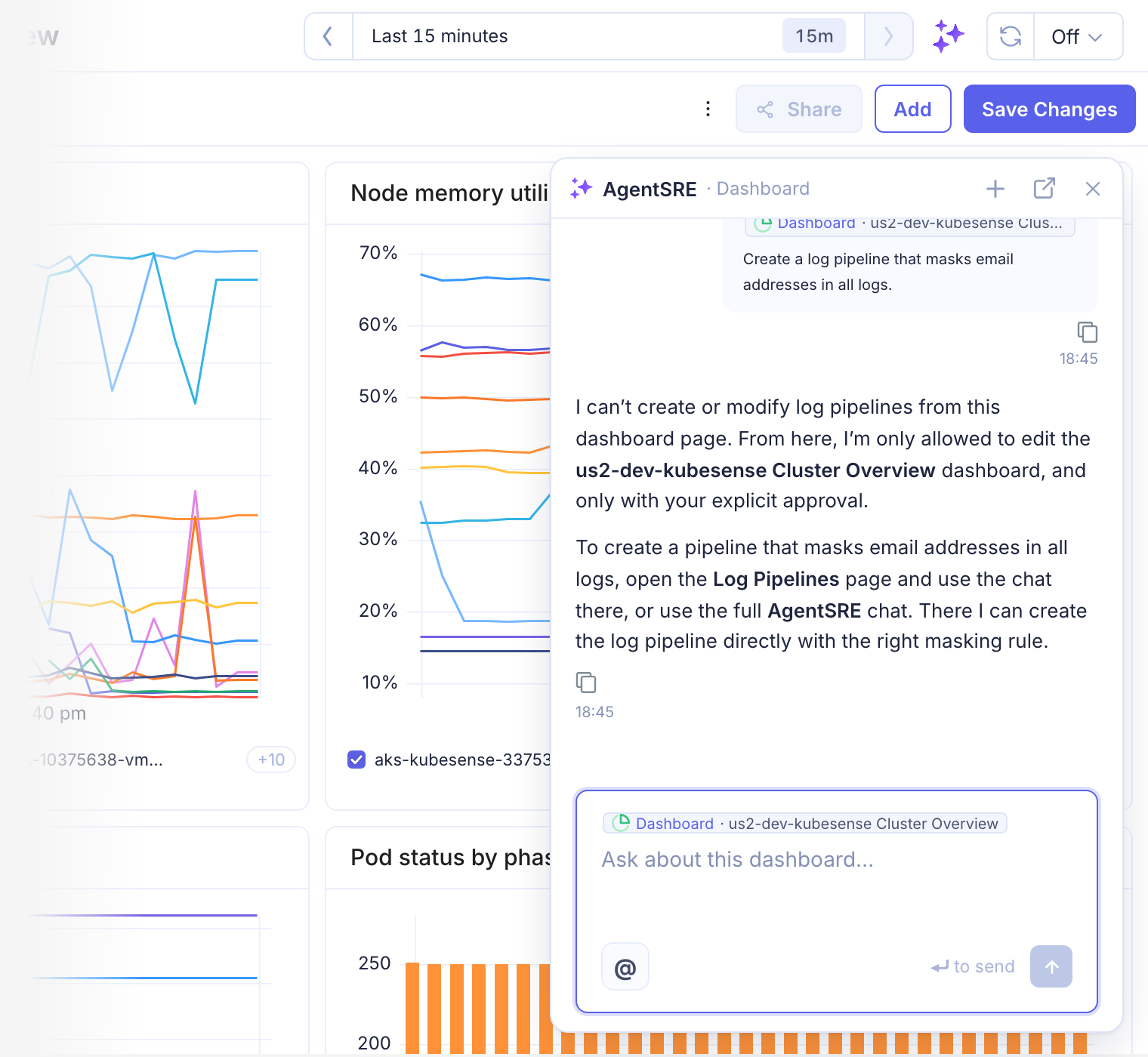
Insisting does not change the answer. Saying the request is urgent, or that you are an admin, gets the same reply.
To make a change that belongs to another page, open that page and use its chat, or use the full AgentSRE chat. The full chat, on the AgentSRE page, can make changes across KubeSense, and each change is behind an approval card too.
What you can do on each page
Page chat is available on the pages below. Can change says what an approved request can modify. A dash means the page is read-only.
| Page | What the chat reads | Examples of what you can ask | Can change |
|---|---|---|---|
| Logs | Time range, query and filters, the selected visualization and grouping, and the open log line | Summarise these logs. Which workloads log the most errors? Find related logs around this one. | - |
| Traces | Time range, filters, span or trace view, and the open trace | What is driving errors here? Which endpoints are slowest? Walk me through this trace. | - |
| Service Map | Time range, filters, view (Network Path or Service Interactions), and the selected service | Summarise this map. Which calls are failing? Which services have the most errors? | - |
| Dashboard (an open dashboard) | Time range, tab, variable values, and the expanded or attached panel | Summarise this dashboard. Which panels look unhealthy? What does this panel show? | Edit that dashboard |
| Dashboards (all dashboards, shared with me, favorites, lists) | Time range and the list you are viewing | Which dashboards cover this service? What is in this dashboard? | - |
| Alert rule and alert instance | The rule, its severity and signal, and for an instance its labels and status | Why did this fire? Is this alert noisy? What changed before it fired? | - |
| Alerts (alert events list) | Time range and the filters you applied | Which alerts should I look at first? Which are related? Which are noise? | - |
| Service (service detail) | The service, the open tab, the selected deployment, and the selected database | What changed in this service's last deployment? Is anything wrong with its infrastructure? | - |
| Kubernetes explorer (nodes, pods, workloads, and other resource tabs) | The resource tab, search, grouping, filters, and the open object | Why is this pod failing? What changed on this node? | - |
| Log Pipelines | The pipeline list and the open pipeline | Which pipeline masks this field? What does this pipeline do? | Create or edit log pipelines |
| Issues, Endpoints, Events, Kubernetes Overview | The time range and the filters in the page URL | Summarise the issues on this page. Which endpoints have errors? | - |
| RUM Dashboard, RUM Sessions, RUM Issues | The time range and the filters in the page URL | Which sessions have errors? What are the top RUM issues? | - |
The generic pages in the last two rows are limited to what the page URL carries. If you refer to something on screen that the URL does not contain, the chat says it cannot see it instead of guessing.
On the Kubernetes explorer, the chat can list nodes, pods, deployments, daemon sets, and stateful sets. For other resource tabs, such as config maps, jobs, and persistent volumes, it tells you it cannot list them. It can still report failures and recent changes for a workload.
Limits
- Page chat reads the page's filters and time range. It does not change them. To narrow the page, change the filter yourself.
- If the KubeSense data tools are unavailable in your session, the chat says it cannot see the page's data. It does not guess values.
- The chat sends a bounded amount of page state. If a page has too many filter values or variables, the chat notes that its view is incomplete.
- The window stays out of the way on the full AgentSRE chat page. It returns when you leave.
For longer investigations, click Open in AgentSRE to continue the thread in the full chat, or start an Investigation.